Wireless Network Setup
39
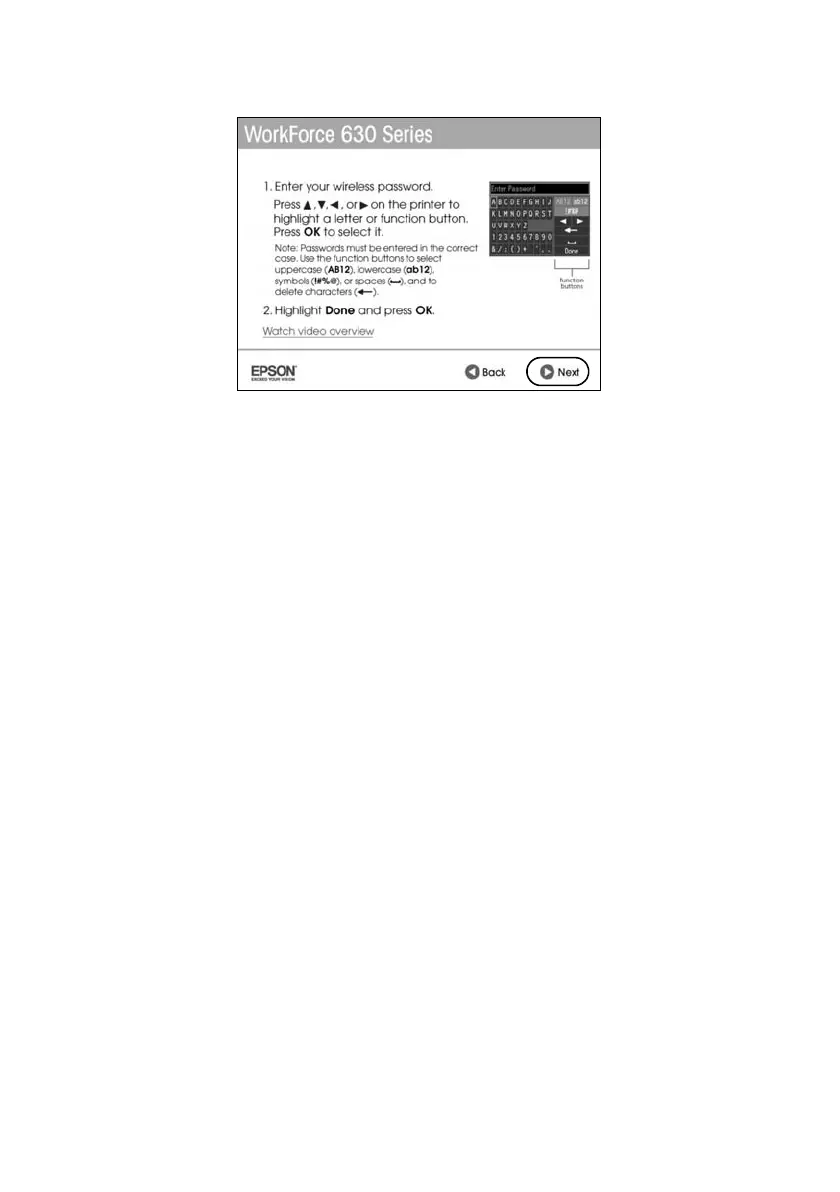
3. When you see this screen, do one of the following:
■ If your wireless network has security enabled, use the product’s buttons
to enter your network password. Follow the instructions on the screen.
If your password has uppercase or lowercase letters, be sure to enter them
correctly. Then click
Next
and go to step 4.
■ If your wireless network doesn’t have security enabled, click
Next
and
continue with step 4.
Note:
If you’re having trouble entering your network password, click Watch video
overview to watch a short video tutorial on how to enter your network password.
4. Follow the on-screen instructions to finish selecting network settings.
If you see a network setup failed message, the network password may have
been entered incorrectly. If your password has uppercase or lowercase letters,
or numbers, be sure to enter them correctly.
Note:
If the product still doesn’t connect to your wireless network, see “Network setup
failed” on page 49.
5. Mac OS X 10.6: Skip to step 10 on page 40.
6. Wait while the software is installed.








 To Next Page