12
User guide
Bluetooth® pairing
4. Select Escape™ P9 xxxx from the device list.
The xxxx represents the last 4 digits of the device name and is a unique combination that is
also part of the serial number. You can find the complete serial number on the label next to the
battery compartment, located on the bottom of the unit or on the shipping box.
Do not select Escape™ P9 xxxx App on your device if listed. You will not be able to stream
music if you do.
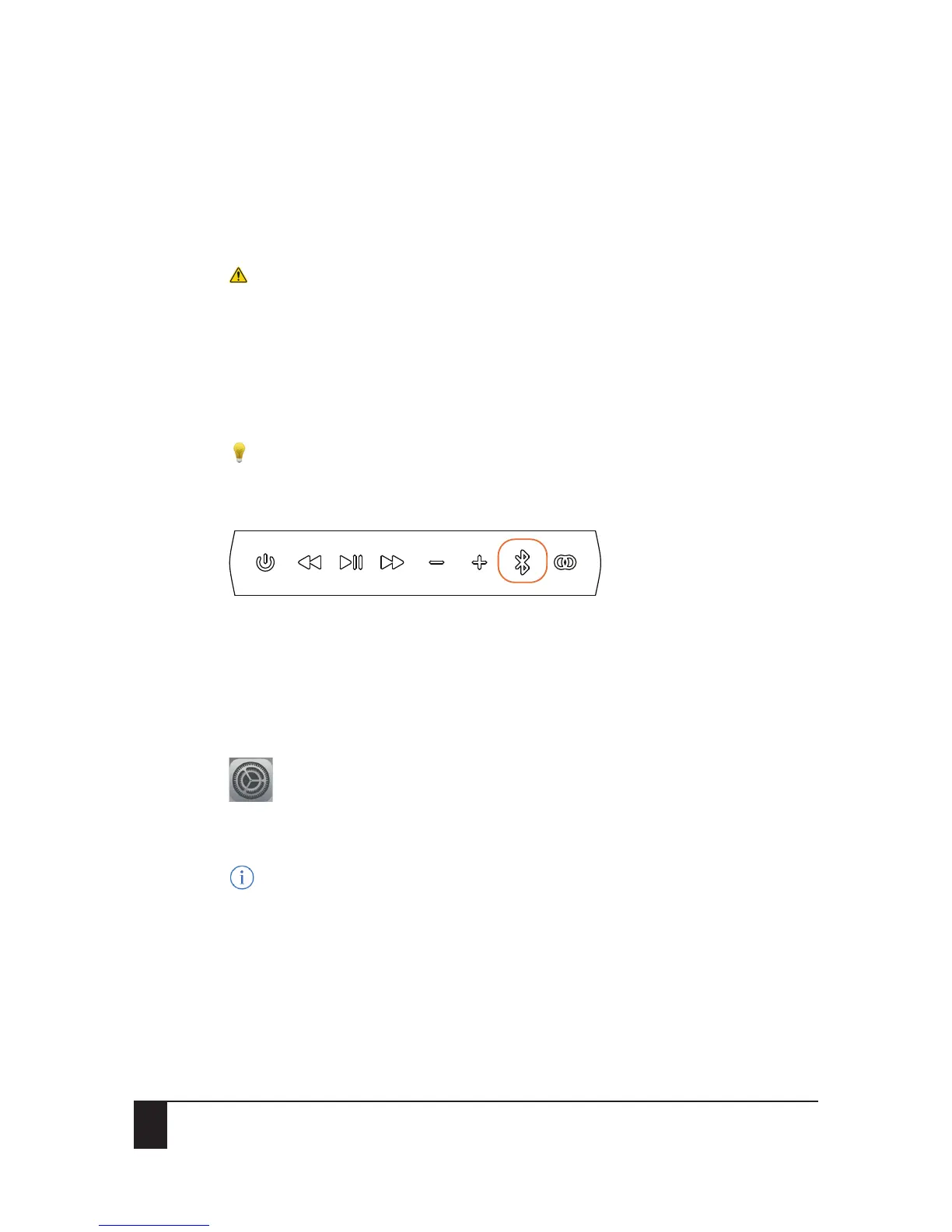
Once the connection has been established, the Bluetooth® symbol on the Escape™ P9 keypad
will be solid blue.
5. Adjust the volume and navigate through tracks using your device or the buttons on the
keypad.
Important: If the Escape™ P9 is not listed the first time please turn Bluetooth® off and on
again.
Tip: Learn more about the Escape™ P9 app.
6.2 Clearing the Bluetooth® memory
Press and hold down the Bluetooth® button on the Escape™ P9 keypad for 10 seconds until you hear
a short confirmation tone.
All Bluetooth® devices stored in the memory will be erased.
6.3 Disconnecting an Apple® (iOS®) device
1. On your device, go to Settings > Bluetooth®.
2. In the My Device list, select the Escape™ P9 and tap the information symbol next to
Connected.
3. Select either Disconnect or Forget This Device.
The Bluetooth® button on the keypad will start flashing blue and white. The device is no longer paired
with the Escape™ P9.
6.4 Disconnecting an Android™ device
1. On your device, go to Settings > Connections.


 To Next Page