MAIN MENU
CAMERA SELECT 1234
RECORD SELECT 1234
RECORD MODE 田
RECORD FRAMERATE 30
VIDEO QUALITY HI
¾RECORD SCHEDULE
SUB MENU
HARD DRIVE SETUP
SENSOR SETUP
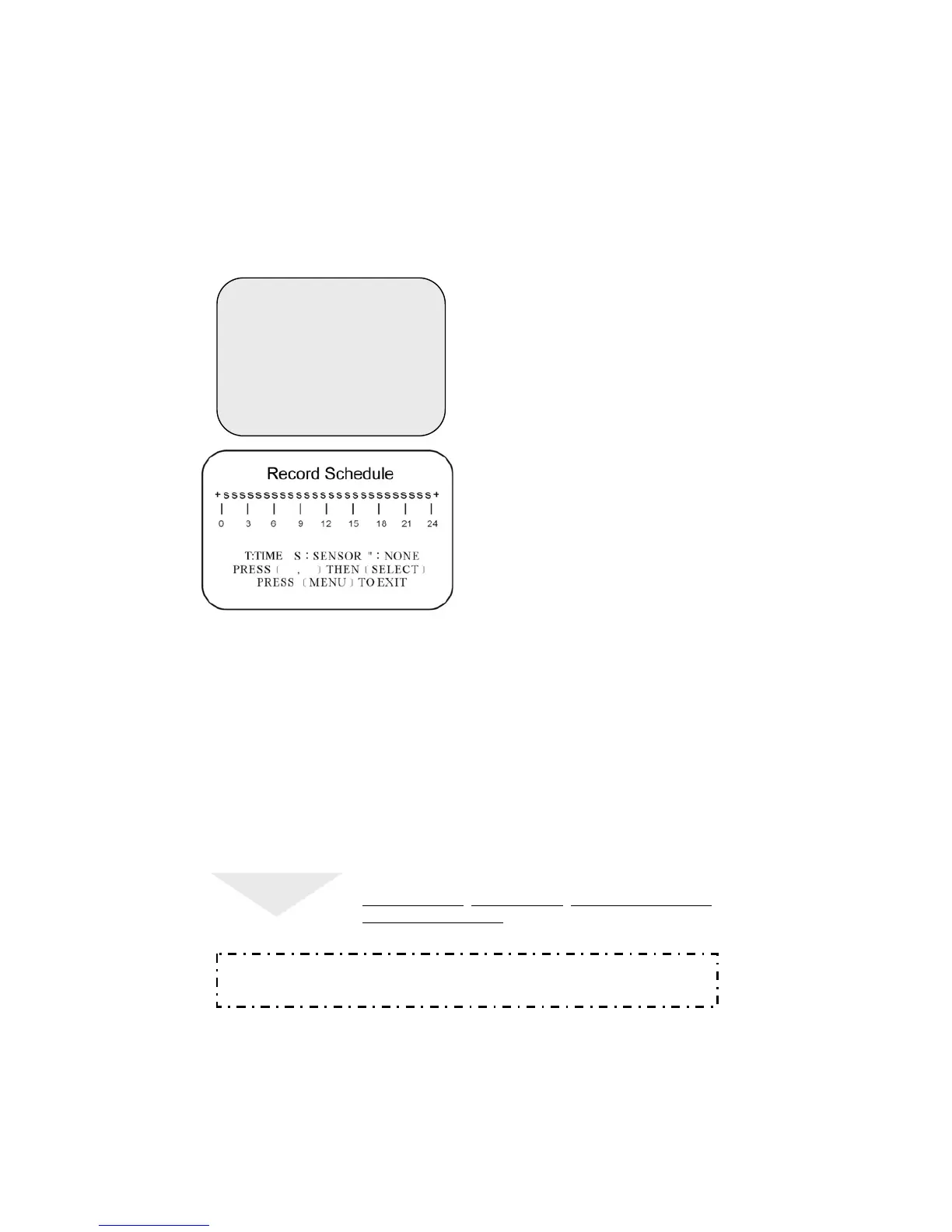
Select this option to change a
recording schedule during a day
(24-hour period)
Numbers below indicate the time duration
in 24 hour format.
(T) 24-hour recording.
(S) Motion recording.
The DVR only starts recording when an
event (motion or GPIO) is triggered.
SETTING EXAMPLE:
0:00 ~ 7:00 SENSOR RECORDING
7:00 ~11:00 RECORDING DISABLED
11:00 ~18:00 RECORDING
18:00 ~24:00 SENSOR RECORDING
+ S S S S S S ----T T T T T T T S S S S S S +
: : : : :
0 6 11 18 24
NOTE
SENSOR RECORDING INSTALLATION (MOTION)
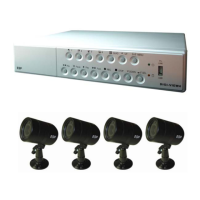
The DVR has 4 alarm inputs that can be configured as
normally closed
, normally open, motion detection +NC and
motion detection +NO
on the “SENSOR SETUP” menu.
Operation Guide: SCHEDULE RECORD
NOTICE : AUTO RECORD
In PC LINK mode the Auto Record Function is disabled. Recording will start again
automatically 55 seconds after the USB cable is disconnected.
Use ▼ and ▲ buttons o position the cursor at each hourly interval.
Press button to choose one of the three settings.
Press to return to the main menu.


 To Next Page