08 EN EN 09
1
Download the eufy Clean app from the App Store (iOS devices)
or Google Play (Android devices), or by scanning the QR code.
2
Open the app and create a user account.
3
Tap the “+” icon to add RoboVac to your eufy Clean account.
4
Follow the instructions in the app to set up the Wi-Fi connection.
After connecting successfully, you can control RoboVac via
the app.
With the app, you can select cleaning at your desired suction
level, schedule cleaning, view the cleaning map, set up “No-
Go” zones, check the network connection status, and access
additional features.
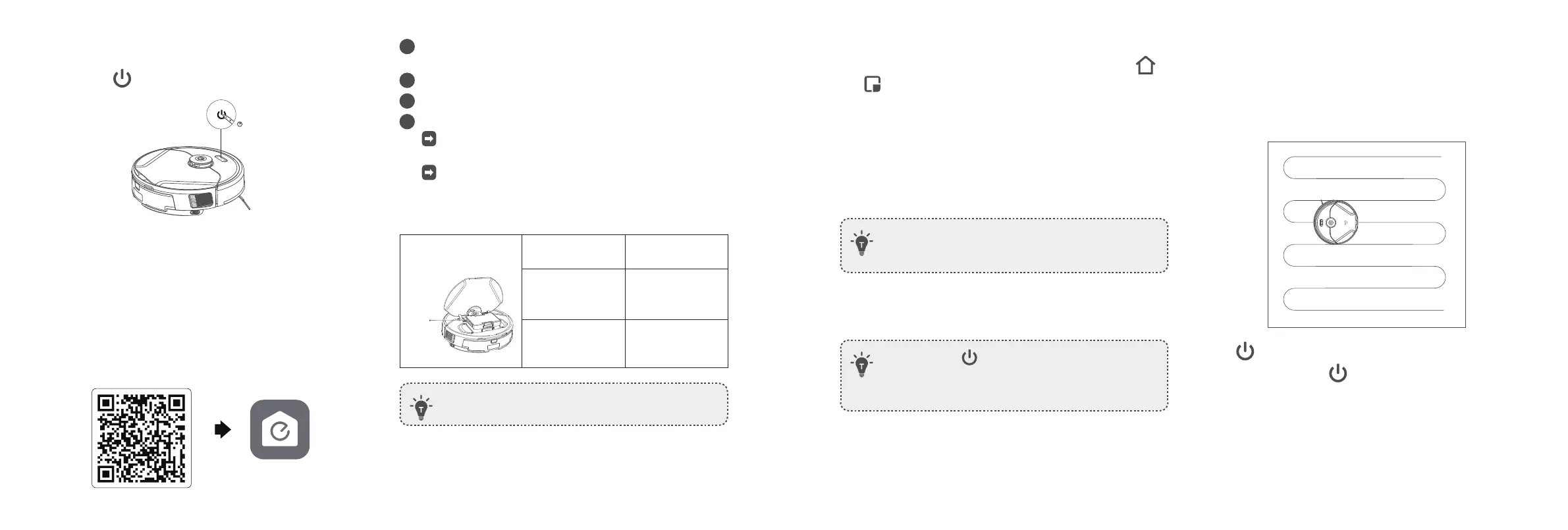
Wi-Fi indicator Slowly flashing blue
Waiting for
connection
Wi-Fi
Rapidly flashing
blue
Connecting with
your wireless router
Solid blue
Connected with
your wireless router
• If RoboVac gets stuck in any space, tap Find My Robot
in the app to find the device.
Reset the Wi-Fi Connection
To reset the Wi-Fi connection, press and hold the two buttons
and simultaneously for 5 seconds until you hear a voice prompt.
You will hear a voice prompt when the Wi-Fi connection has been
reset, and the Wi-Fi status light will slowly flash blue. Now you can
follow the Wi-Fi instructions in the app to set up the Wi-Fi connection.
Schedule Cleaning
With the eufy Clean app, you can schedule RoboVac to start cleaning
at a particular time.
• You can set the time and customize cleaning schedules
from Sunday to Saturday on the eufy Clean app. This
function is only available on the app.
Select a Cleaning Mode
• You can press at any time to pause the current
cleaning cycle.
• You can also start / pause cleaning or select a cleaning
mode via the eufy Clean app.
Auto-Cleaning Mode
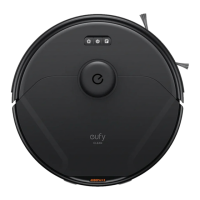
After startup, RoboVac moves from the Self-Empty Station / Charging
Base and automatically determines its cleaning route, cleaning the
edges first and following a Z-shaped cleaning path. When cleaning is
finished, RoboVac automatically returns to the Self-Empty Station /
Charging Base.
Press to start cleaning in Auto cleaning mode by default.
To pause cleaning, press
again.
Spot Cleaning Mode
RoboVac intensively cleans a specific area with a size of 4.9 ft × 4.9 ft /
1.5 m × 1.5 m, useful if there is a concentrated area of dust or debris.
When the cleaning of a certain zone is finished, it automatically
returns to the Self-Empty Station / Charging Base.
Power On / Off
Press and hold for 3 seconds to power RoboVac on or off.
3s
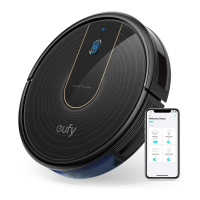
Use Your RoboVac with the eufy Clean
App
To enjoy all the available features, it is recommended to control your
RoboVac via the eufy Clean app.
Before you start, make sure:
• Your smartphone or tablet is running iOS 11 (or above) or Android
8.0 (or above).
• The 2.4GHz band wireless signal is enabled on your wireless router.
eufy Clean


 To Next Page