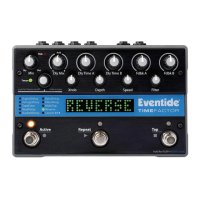
TimeFactor User Guide System Menu Tree
44
The parameters controlled in this mode are system-wide and will apply to all Effects and
Presets. For example, if DigitalDelay was running when you entered System Mode, the Delay
Mix Knob is used to set the relative levels of the two delays. You could assign an Aux Switch
to DlyMix (KB1) with [MIN VAL] set to 100% Delay A and [MAX VAL] set to 100% Delay B.
You can then set Delay A’s delay time and feedback for one type of delay effect and Delay B’s
delay time and feedback for a totally different type effect. Pressing the switch will toggle
between the Delay A effect and the Delay B effect. If another Effect or Preset is chosen, the
Aux Switch will affect the delay mix for the currently loaded effect.
Now consider another example, if VintageDelay was loaded when you entered System Mode,
you could assign a switch to the Xnob parameter to control the amount of “saturation” In
this case, an Aux Switch can be set up to toggle between a little bit of saturation and a lot of
saturation (e.g., 3 to 7). In this case, if another Effect is loaded, the Aux Switch will still
control the Xnob parameter. If, for example, DigitalDelay is running, the Aux Switch will
change the crossover length.
Note: When a Preset is loaded, the switches assume the MIN VAL for the assigned
parameters. Pressing the switch for the first time after a Preset load, will toggle the parameter
to MAX VAL.
Note: While it is possible to assign more than one external controller to any parameter, doing
so is likely to cause confusion and is not recommended.
To Setup the External Control Source
Press the Right Footswitch to select one of three Aux Switches. There are two ways to select
the Aux Switch - Manual Select or Learn Mode.
For Manual Select simply turn the Encoder to choose the Aux Switch. The choices are:
TIP - Aux switch jack tip connection
RNG - Aux switch jack ring connection
T+R - Aux switch jack tip + ring connection
To use the Learn Mode to select the external control source, Press the Right Footswitch again.
“LEARN” is displayed prompting you to press an Aux Switch for automatic assignment. Press
the Right Footswitch again to exit LEARN mode and revert to manual source selection.
Press the Left and Right Footswitches to toggle between Source and Destination to make as
many assignments as you wish.
The default patches for Aux Switch control are as follows:
[BYP<>TIP]
[RPT<>RNG]
[TAP<>T+R]
[REC<>TIP]
[PLY<>RNG]
[STP<>T+R]
The other Aux Switch Control destinations ([BK+], [BK-], [P/B], and [KB0]…[KB9]) are
unassigned as indicated by [---].
Note: It is possible to assign the same Aux Switch to multiple destinations. In other words,
you could assign [TIP] to control Bypass AND Tap AND Repeat AND etc. The benefit of having
the same switch control multiple functions can be very useful however, you should keep in
mind that, if you have previously assigned a Switch to a control destination, you may want to


 To Next Page