7700 MultiFrame Manual
7700FC VistaLINK® Frame Controller
7700FC-20 Revision 1.4.7
7.3.5. Viewing Startup Information
• Once HyperTerminal is connected, insert the 7700FC VistaLINK
®
Frame Controller into its slot.
• 7700FC booting information will then be sent to the HyperTerminal window. After the card powers
up the “upload” message is displayed.
For example:
EVERTZ 7700FC BOOT MONITOR.
MON8240 1.1 BUILD 4.
COPYRIGHT 2000 EVERTZ MICROSYSTEMS LTD. ALL RIGHTS RESERVED.
UPGRADE JUMPER PRESENT
UPLOAD MAIN PROGRAM
"
If you do not see the boot up messages check to make sure you have the correct
COM Port specified in HyperTerminal, and the status bar at the bottom of the
HyperTerminal screen shows that it is connected.
7.3.6. Upgrading The 7700FC Boot Loader
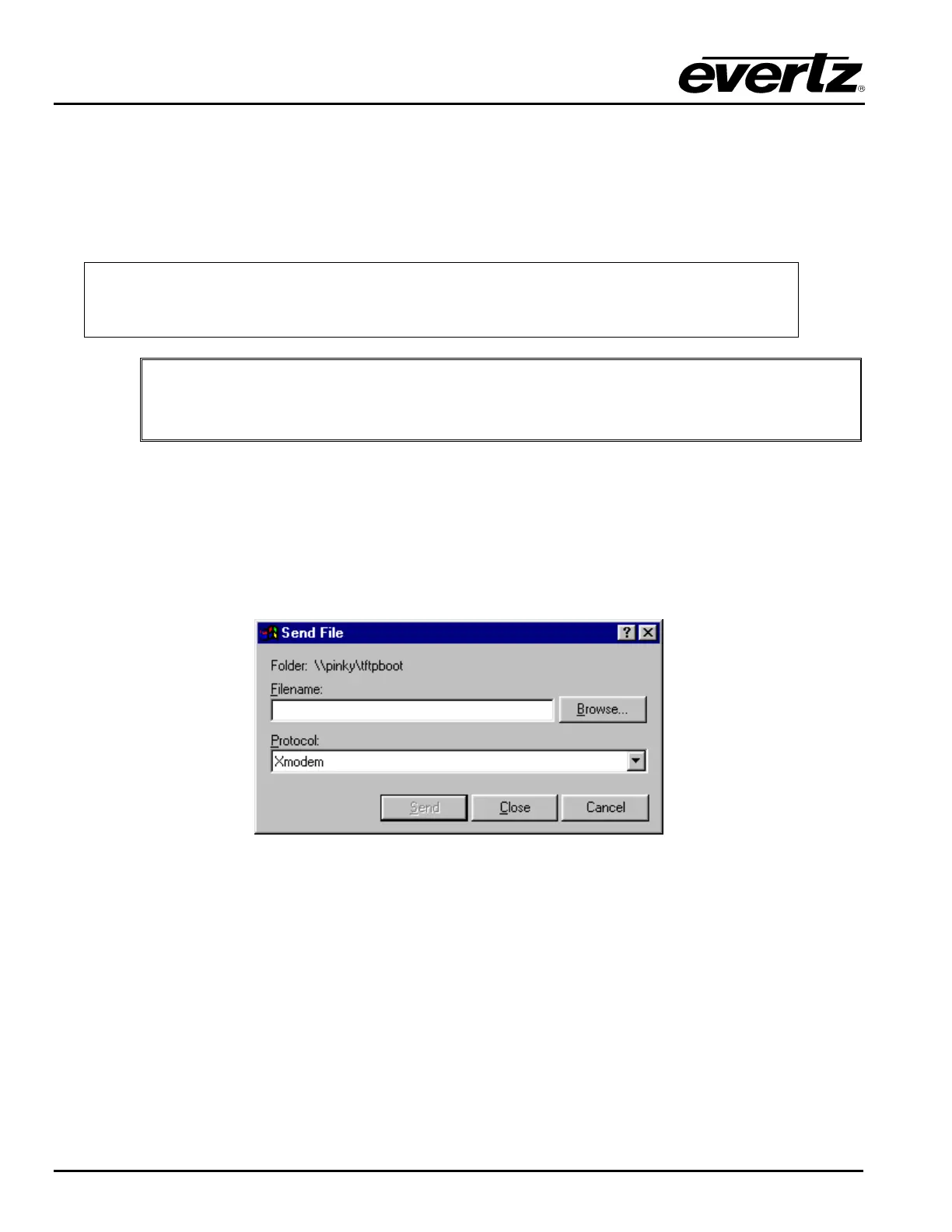
1. At the “Upload Main Program” prompt, send the boot loader program (fcboot_2v0_012.bin) that was
downloaded in section 7.3.1 to the 7700FC using Xmodem protocol. This is done by selecting “Send
file…” from the “Transfer” drop-down menu in the HyperTerminal window. Upon selecting this option,
the following screen is displayed:
The “Folder” header describes the folder location of the previously downloaded Upgrade Program. To
change the location/name of the file, use the “Browse…” button to locate and select the correct file. Make
sure the Protocol is set to “Xmodem” and press the “Send” button to send the file.
Upon completion the card will continue to reboot. After the card reboots you can scroll to the top of the
HyperTerminal buffer and see the following information:


 To Next Page