4 Software Overview
4.1 Radmin Viewer
The Radmin Viewer is installed on the field PC and allows to connect to the on-board PC of the vehicle.
Over wireless LAN, the software transfers a screen’s image from the Sonobot’s on-board PC and allows to control and
monitor it. The software’s file transfer mode allows to easily download measurement data from the on-board PC even
during the mission.
The steps below will provide you Sonobot-specific instructions on using the software. Please refer to the manufacturer’s
guide for detailed information!
4.1.1 Connecting to the vehicle
To connect to the Sonobot’s on-board PC with the Radmin Viewer:
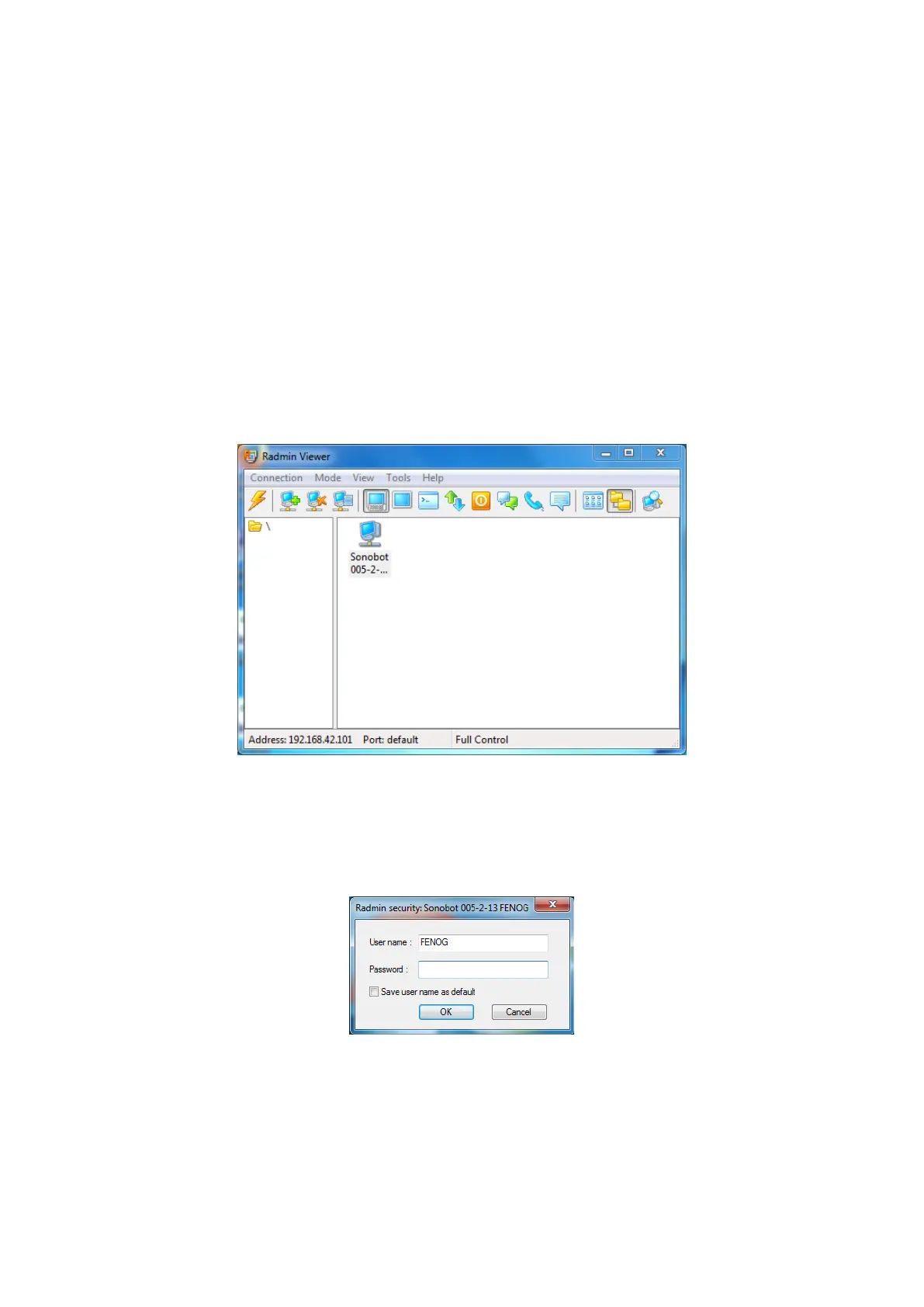
• Launch the Radmin Viewer on the field PC - use the desktop shortcut or the Start Menu shortcut.
• In the main window, choose Sonobot from the list of the available connections.
Figure 19: Radmin Viewer: select the Sonobot
• The security window will pop up.
– Enter the User Name and Password you received from EvoLogics into the corresponding fields.
– Press OK to access the on-board PC.
Figure 20: Radmin Viewer: connect to Sonobot
Radmin Viewer will establish a connection to the Sonobot’s on-board PC over wireless LAN.
19



 To Next Page