Go to fetco.com for the latest versions of all information Page 8 User Guide & Operator instructions P194Re0 November 2020
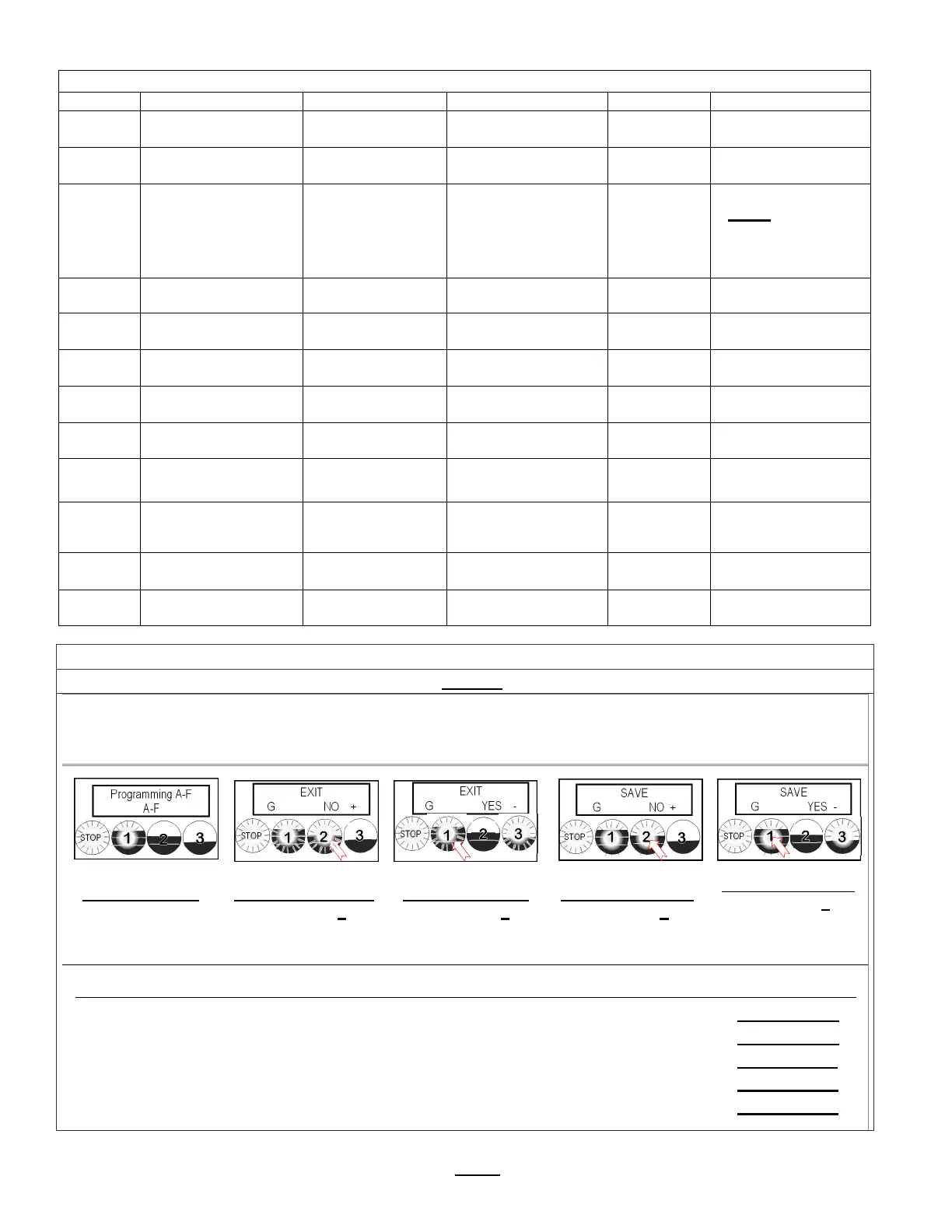
G SAVE & EXIT Saving changes and exiting PROGRAMMING
The brewer will save changes only from the “G” menu. DO NOT reboot brewer or toggle ON/OFF-exit as below.
TO EXIT PROGRAMMING & HOW TO SAVE CONTROL SETTING CHANGES
HOW TO SAVE CHANGES AND EXIT-The brewer is in PROGRAMMING mode
.
A convenient way to access the steps is to remember to scroll to EXITYES and to SAVE YES
From any screen-
Press STOP button
until the EXIT (“G”)
screen appears
From the “G” screen
Press button 2 to
toggle to the EXIT-
YES screen
From EXIT screen
Press button 1 to
toggle to the SAVE
screen
From SAVE screen
Press button 2 to
toggle to the SAVE-
YES screen
To SAVE and EXIT
Press button 1 to
SAVE your changes
and EXIT to
OPERATING MODE
NOTE: User Settings will be erased and overwritten to factory default settings by the following five programming changes
1) When setting or changing units of display for the tank temperature (F Fahrenheit or C Celsius). (SETTING B3)
2) When setting or changing units of display for the volume (L liters, G gallons). (SETTING B4)
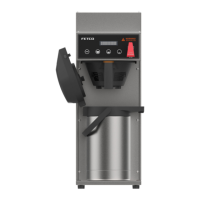
3) When setting brewer model The software sets equipment to brewer defaults (SETTING F3)
4) When loading from USB (Reprograms settings) (SETTING E7)
5) When restoring defaults (Reloads to defaults ) (SETTING E8)
F SERVICE MENU Software & Code View and Settin
s
POSITION Pro
ram Items Factor
set Default Pro
rammin
Ran
e Increments Notes
F1 Display Firmware
1.0.201001
Displays current
version [10/2020]
F2 Display Bootloader
1.0.200930
Displays current
version [9/2020]
F3 Select Model
CBS-1221
&
CBS-1222
Will need reboot
Scroll to brewer
model Save & Exit
CBS—1221
(Single side)
CBS—1222
(Dual side)
NOTE: Overwrites
all user settings
(See below)
F4 Customer Name Off NO or YES
For name on screen
F5 Customer Name
(only if above is
“ON
Scroll with batch keys A-Z;a-z;0-9 16 characters total
F6 Backup to USB Follow prompts
Saves
settin
s
Insert blank USB
F7 Restore From USB
Applies settings
from USB
Insert USB
Will need reboot
F8 Restore Defaults NO NO/YES Reset to factory
F9 Demo Mode DEMO ON/OFF
Demonstrates the controls
for training. Disables all
components in demo mode
F10 Error Log
Lists up to six
codes, in order
1: ; 2: ;3:;4: ;5: ;6:
1=Newest/6=Oldest
LAST six errors only
Newest=first
Oldest=last
See Error Code
Chart for references
F11 Erase Error Log NO +
Toggle +/-
YES or NO
FACTORY USE ONLY.
DO NOT RESET
F12 Service Phone # Service
STOP
Programming A-F
A-F
STOP
EXIT
G NO +
STOP
EXIT
G YES -
STOP
SAVE
G NO +
STOP
SAVE
G YES -


 To Next Page