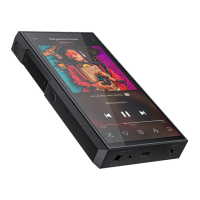
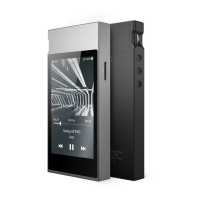
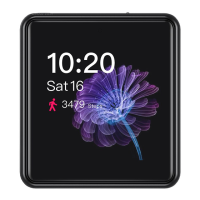
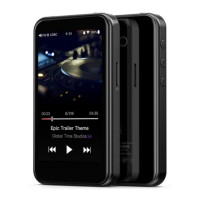
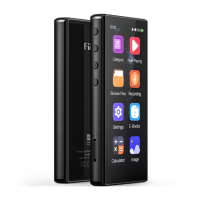
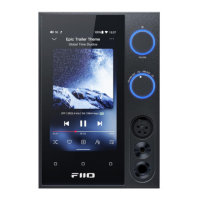
When it is working as USB DAC mode, it can be connected with a computer as a DAC/Amp. You can
switch to other modes in the Settings menu.
Notice: when the USB DAC mode is switched for the first time, the exclusive FiiO USB/DAC driver
needs to be installed. You can go to FiiO Driver or fiio.com to download the corresponding driver,
following the instruction to install it.
Bluetooth Receiving Mode
When it is working as Bluetooth Receiving Mode, it can be connected with Bluetooth transmitters
like mobile phones. You can switch to other modes in the Settings menu.
Notice: the operation guide in Bluetooth Receiving Mode is as follows.
Long press the play button for 3s (it would be enter the pairing menu
automatically when the Bluetooth Receiving Mode is first used.)
Short press the Play button
Short press the Previous track button
Short press the Play/Pause button
Short press the Next track button
Long press the Previous track and the Next track button together for 3s
Chapter 3 Commonly-used Functions
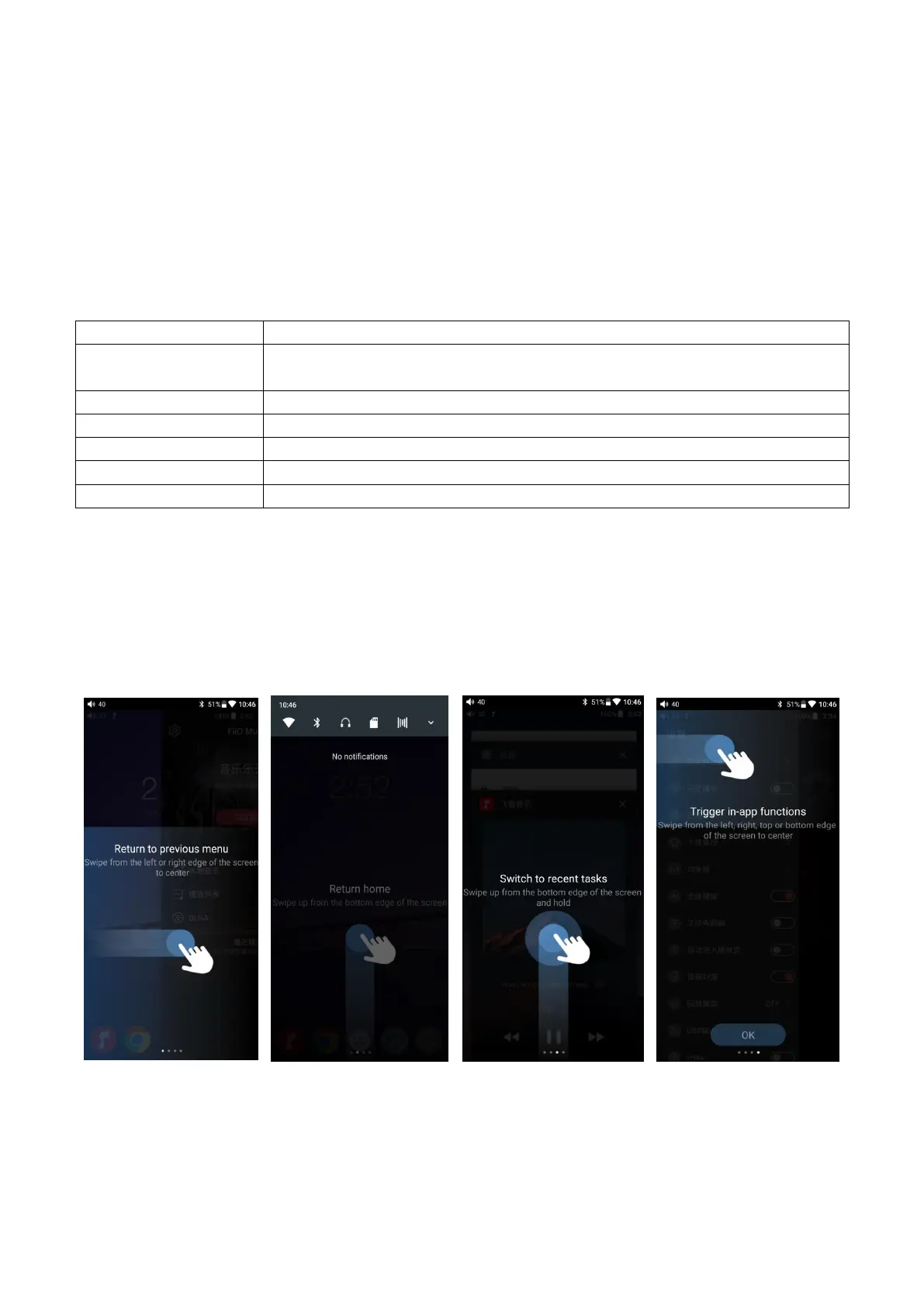
Gesture control
There are two operation modes:“Gesture operation” and “Bottom navigation bar”. When
the M15 is first powered on, there will be a choice for you. In the General-> Navigation control
menu, you can choose the operation way according to your habits.
Notice: here are the instructions for Gesture operation.
Connect M15 to the computer
When the M15 is first connected to a computer working as the storage mode, a corresponding


 To Next Page