13
MIRATRON RADIO REMOTE ASSOCIATION PROCEDURE
1. With the Key Switch in the OFF position, remove the two screws on the right side of the
Main Control Panel and open the Control Panel Box.
2. Turn the Key Switch to the ON position and ensure the Remote Switch is in the ON position.
3. On the Radio Remote Transmitter, ensure that the Emergency Stop Button is not engaged
and that the Power switch is in the ON position.
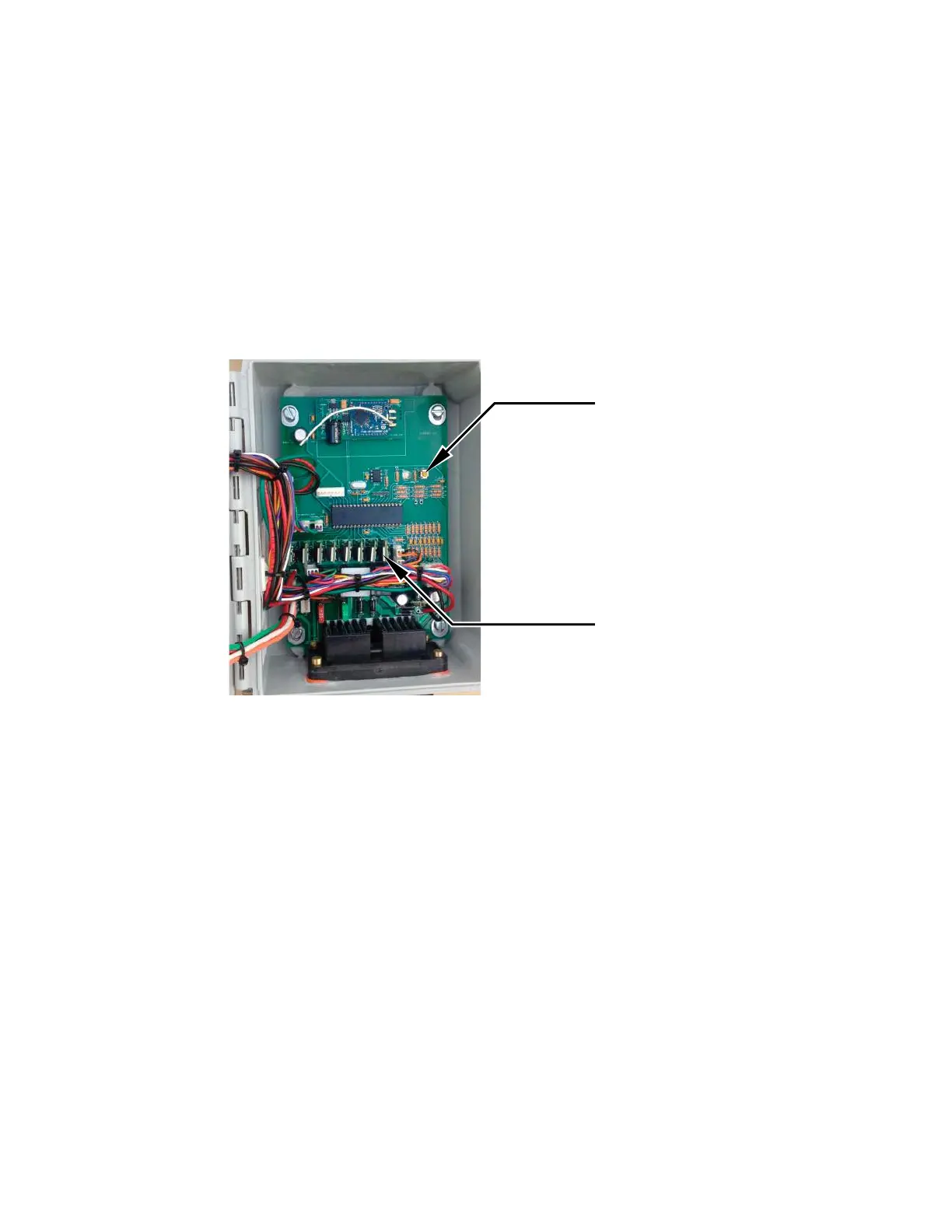
4. Press and hold the Associate Button for 3 seconds as shown in Figure 5. The blue light on
the Radio Remote Transmitter will illuminate when association is successful.
5. Verify the functionality by moving the Throttle Switch on the Radio Remote Transmitter in
both the (+) and (-) directions. The corresponding lights on the LED/Relay Bank will light
up accordingly. Close Control Panel Box and replace screws previously removed in Step 1.
MULCHING WITH THE BARK BLOWER:
1. Check all areas listed under Pre-Start Equipment Check (pages 7).
2. Start the engine following all the steps listed under Starting Procedure (page 8).
3. Set the floor speed control to 1/2 turn to one turn from minimum.
4. Press the START button on the Start/Stop Pendant to activate the material start/stop fea-
ture on the remote.
5. Put the floor switch to the ON position.
6. Press MATERIAL STOP on the remote.
7. Increase the throttle to full.
8. With a firm grip on the end of the hose, press the MATERIAL START button on the Radio
Remote Transmitter.
9. Adjust floor speed for smooth flow. Watch for auto-reversing of the air lock, as well as
shock waves through the hose.
10. At the end of the load, press the MATERIAL STOP BUTTON, shut down engine, and shut
off the Radio Remote Transmitter.
Associate Button
LED/Relay Bank
Figure 5 - Open Control Panel Box


 To Next Page