12
Tracking Exercise with the Fitbit Surge
Intro. Modal; clicking Home button when in run just “shakes” the display, even if paused.
Your Fitbit Surge lets you track stats for a wide variety of exercise types, including Stairclimbing, Hiking,
Yoga, Cycling, and many others. You can also track an exercise type named “Workout” if the particular
exercise you want to track is not available. Workout always on the watch, and you can add 6 others
<<Confirm adding 6 or 7 with Christine Brumback –brs>>
The stats that are tracked vary depending on the type of exercise. For example, the Cycling tracks several
stats including some related to distance, max speed and average speed, while Spinning tracks only your
average BPM and total calories expended.
In addition, GPS is enabled for certain exercise types, such as Hiking and Cycling.
You can have one to seven exercise types available on your Surge at any time. Your exercise stats are
displayed on the Activities tab in your Fitbit.com log. <<Confirm wording/terminology with other docs –
brs>>
Tracking an exercise
Intro.
1. If you are on the clock screen, press the Home button to display the action screen.
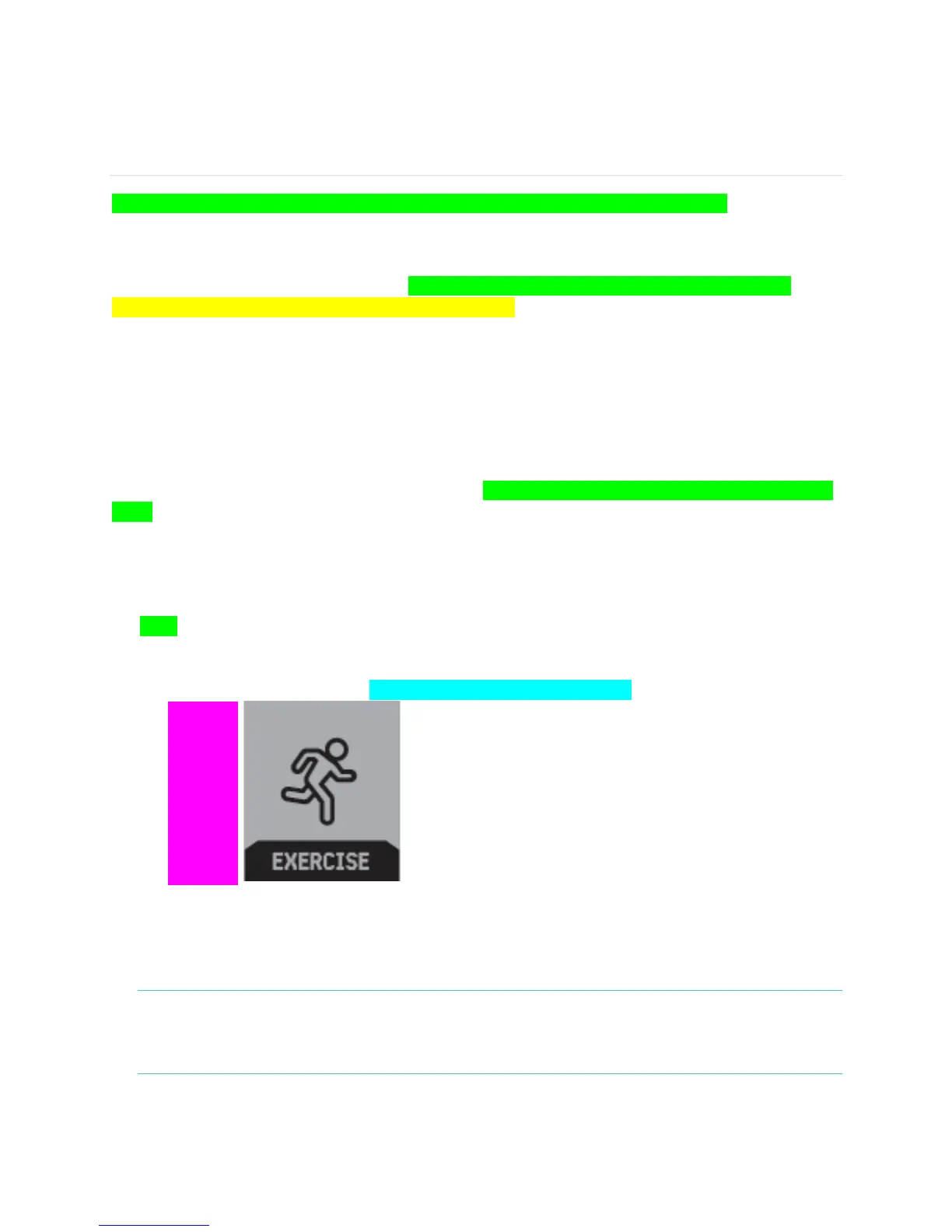
2. Scroll to the Exercise action. <<terminology of “action” tbd –brs>>
[[picture]]
3. Press the Select button to choose Exercise, then swipe left or right to display the exercise you
want to track. (If you want to track an exercise that isn’t on your Surge, see Choosing exercise
types to track on page 14.)
4. Press the Select button to choose the exercise type.
NOTE: If the exercise uses GPS, the Surge immediately starts searching for a GPS signal. You can
wait until it finds the signal, or press Quick Start to move directly to the tracking screen. For
more information on GPS, see About GPS on the Fitbit Surge on page 7.
5. Press the Select button to start/pause/resume.


 To Next Page