14
Swipe to see clock, distance, elevation, max speed, average speed at bottom instead
Yoga
Press Select button to start
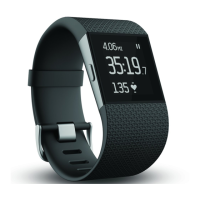
Default screen shows stopwatch, clock at bottom, current heart rate at top
<<Swiping is broken – come back to this –brs>>
Weight Lifting
Press Select button to start
Default screen shows stopwatch, clock at bottom, current heart rate at top
Swipe to see calories, average BPM at bottom instead
Custom
Default screen shows stopwatch, steps at bottom, current heart rate at top
Swipe to see average BPM, clock (current time), max speed (n/a without GPS), average speed (n/a
without GPS), distance (n/a without GPS), calories.at bottom instead
Choosing exercise types to track
Your Surge has several exercise types available by default. You can use the Fitbit.com dashboard to
change or re-order the exercise types available.
1. Log in to your Fitbit.com dashboard.
2. Click the gear icon in the top-right corner of the page.
3. Click Settings.
4. Click Devices.
5. Select your Surge device.
6. Scroll down to Exercises and select and order the exercises you want available on your device.
Your exercise list will be saved to your Surge the next time you sync your tracker. If you want to sync the
list immediately, open Fitbit Connect and select Sync Now.
You can update the exercise types on your Surge as often as you like. Even if you remove an exercise
type, existing stats for that exercise are retained and displayed on the Activities tab.


 To Next Page