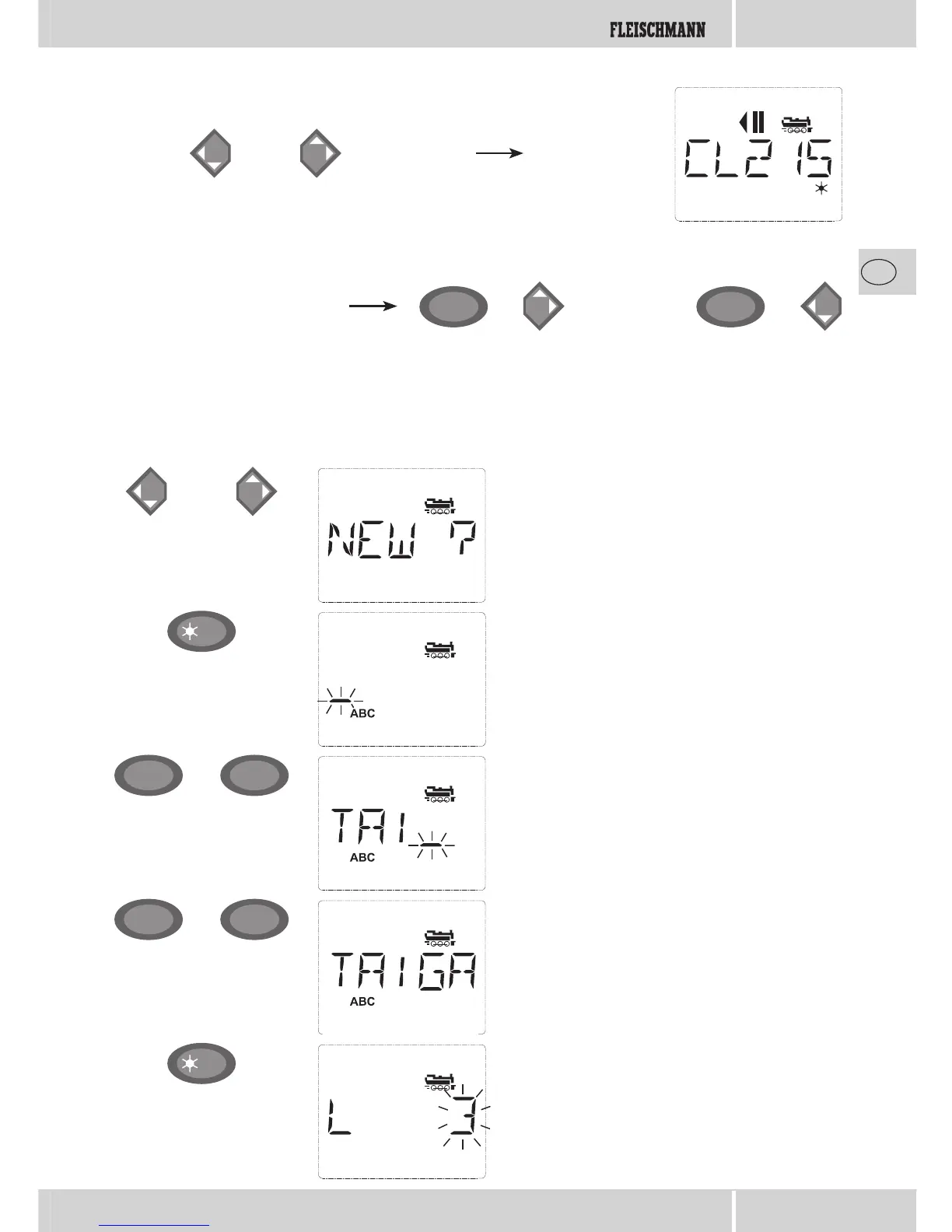
You can fi nd the free memory slot marked
“NEW ?” by scrolling through the library using
the arrow keys.
Confi rm by pressing “OK”.
You then enter the locomotive name. 5 char-
acters are available. In our example we have
abbreviated “Taigatrommel” to “TAIGA”.
The fi rst character is displayed with a fl ashing
cursor.
You use the “function keys” 1 – 0 to make the
input in the same way as writing a text message
on a mobile phone: Press the respective key
repeatedly until the desired character appears.
The cursor fl ashes and freezes briefl y after the
correct character has been entered before jump-
ing to the next character place.
To enter a space, press the “0” key once, to get
the “0”, press the key twice. Special characters
(/, –, \,¬ , [ , ], ‹, ›) can be entered by repeat-
edly pressing the “1” key. Correct input errors
by using the left “arrow key” to move back one
or more spaces.
Confi rm by pressing “OK”
The
multi
MAUS then switches to the loco-
motive address. The “suggested value” is dis-
played, in this case “3”.
Entering a new locomotive (in the example, the DR 120 series “Taigatrommel” diesel locomotive):
Input Display message Comment
calling up other locomotives already entered in the library (“scrolling”)
Locomotives in the library are sorted in the order in which they were entered. You can of course
change this order:
or
ñ
++
ñ
Select locomotive
These key combinations (press keys together) move the locomotive up or down in the library.
You can check the new order for the library with the arrow keys.


 To Next Page