SECTION 2 • THE MENUS
THE MENU FUNCTIONS
The
multi
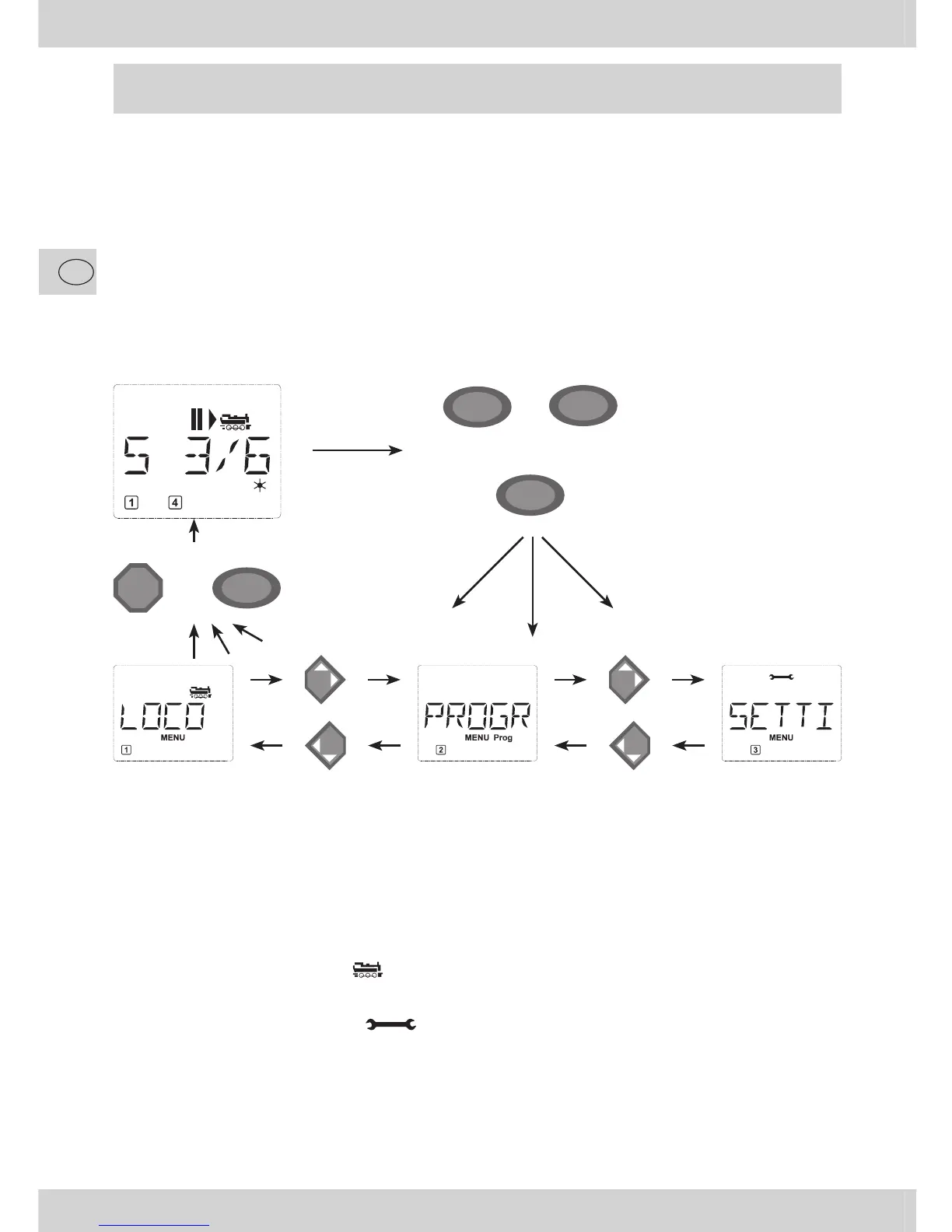
MAUS has three main menus with which you can both perform comprehensive programming
and change the basic settings of the
multi
MAUS. This menu levels can be accessed using two simple key
combinations:
– Press the “MENU” key on its own for approximately 5 seconds (the duration can be set in the “SET-
TINGS” menu), practically single-handed operation of the
multi
MAUS,
– Press the shift and “MENU” key together.
A locomotive cannot be controlled whilst the
multi
MAUS is in menu mode. Internal communication with
another
multi
MAUS or other DCC devices is however assured.
A scrolling text program which is integrated in the
multi
MAUS displays all the menu names with more
than 5 letters as scrolling text. In the display fi gures in this manual the abbreviated menu name is shown.
The complete name is shown directly underneath the fi gure.
You use one of the “arrow keys” to continue in the menu level. You use the “light / OK” key to call up the
respective submenu. The menus are all numbered. The numbers are shown at the bottom of the display.
Each of the three large main menus has its own pictograms for clear identifi cation. They appear in addition
to the word “MENU”. You will also fi nd them in the respective submenus:
– Menu 1 “ENGINE”: Symbol “
”,
– Menu 2 “PROGRAMMING”: Lettering “Prog”,
– Menu 3 “SETTINGS”: Symbol “
”.
There are two ways to exit the menu level:
– Press the “STOP” key. You may need to do this several times depending on the submenu which you
are currently in. Each time you press “STOP” you go back one level.
– Press the “MENU” key (alone or together with the shift key) to exit all levels immediately and return
to locomotive and turnout mode.
All of the menus of the
multi
MAUS can be found in the large overview on the next two pages.
+
MENU
ñ
or
MENU
Hold for appr. 5 seconds
SETTINGSPROGRAM
STOP
MENU
or
Current display Pressing of:
Pressing of:


 To Next Page