14
Operating Your Television
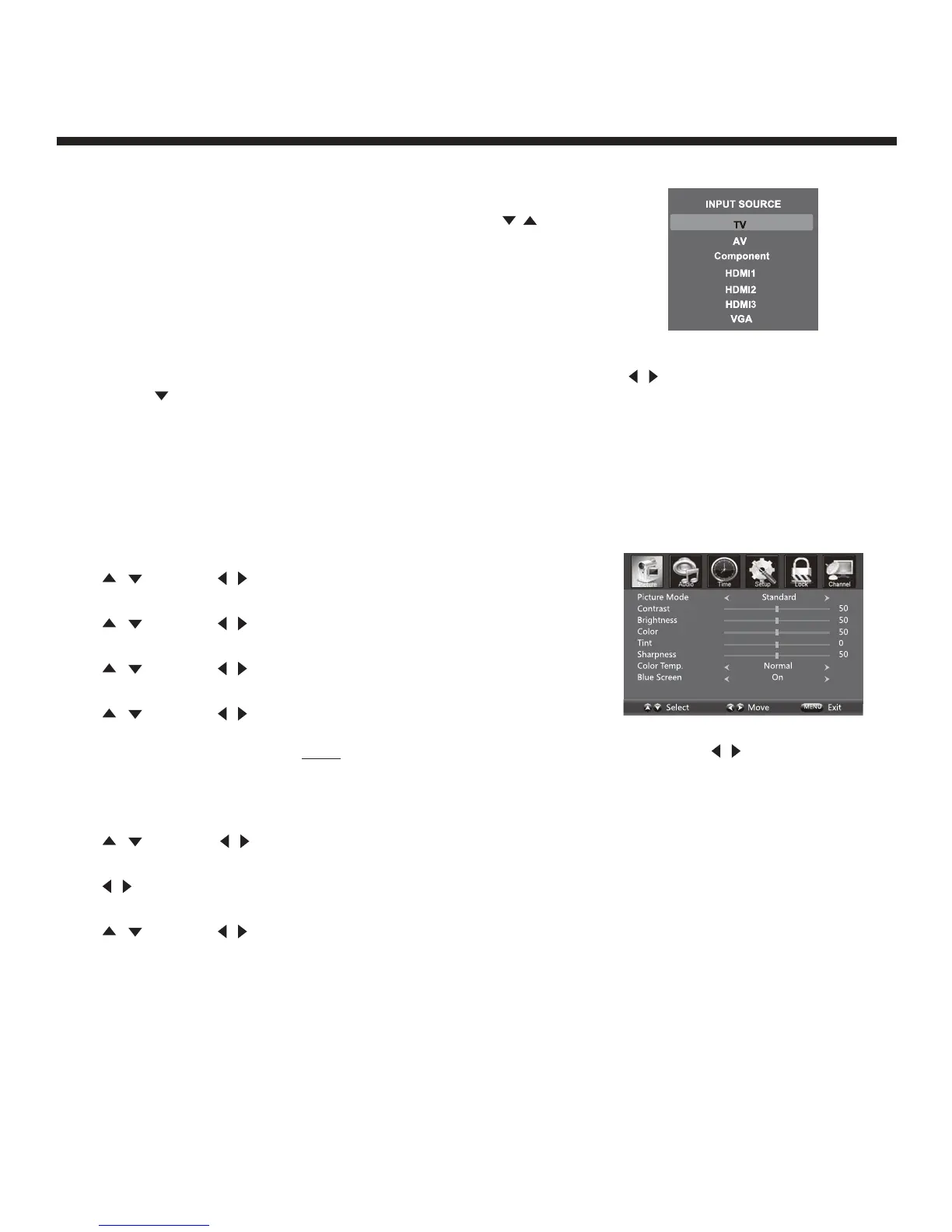
Selecting Input Source
You can display the input screen menu by pressing SOURCE on the
remote control or SOURCE on the side panel. Press the / button to
select your choice, then press “OK” to confirm.
Picture Menu Options
Press MENU on the side panel or MENU on the remote control, then use
/ to move within the Picture
menu. Press or OK to enter (see picture).
Picture Mode
Select the type of picture which best corresponds to your viewing preference by selecting Picture Mode
in the PICTURE menu, or enter the picture mode directly by pressing the P.MODE button on the remote
control.
Contrast
Press
/
then use
/ to adjust the contrast of the picture.
Brightness
Press
/
then use
/ to adjust the brightness of the picture.
Colour
Press
/
then use
/ to adjust the colour of the picture.
Tint
Press
/
then use
/ to adjust the tint of the picture.
Note: To adjust the tint, the TV must be in Tuner mode and receiving a signal. Press
/ to adjust the
intensity of the colour. An increased value of TINT will provide a more colourful picture, a decreased value
will provide a more neutral picture. Adjusting the tint function will not affect any other input.
Sharpness
Press
/
then use
/ to adjust the sharpness of the picture.
Colour Temperature
Press
/ to select mode: Cool, Warm, Normal.
Blue Screen
Press
/
then use
/ to select On or Off.


 To Next Page