AI Tracking Guide
1. Turn on tracking
1.1 Single scenario
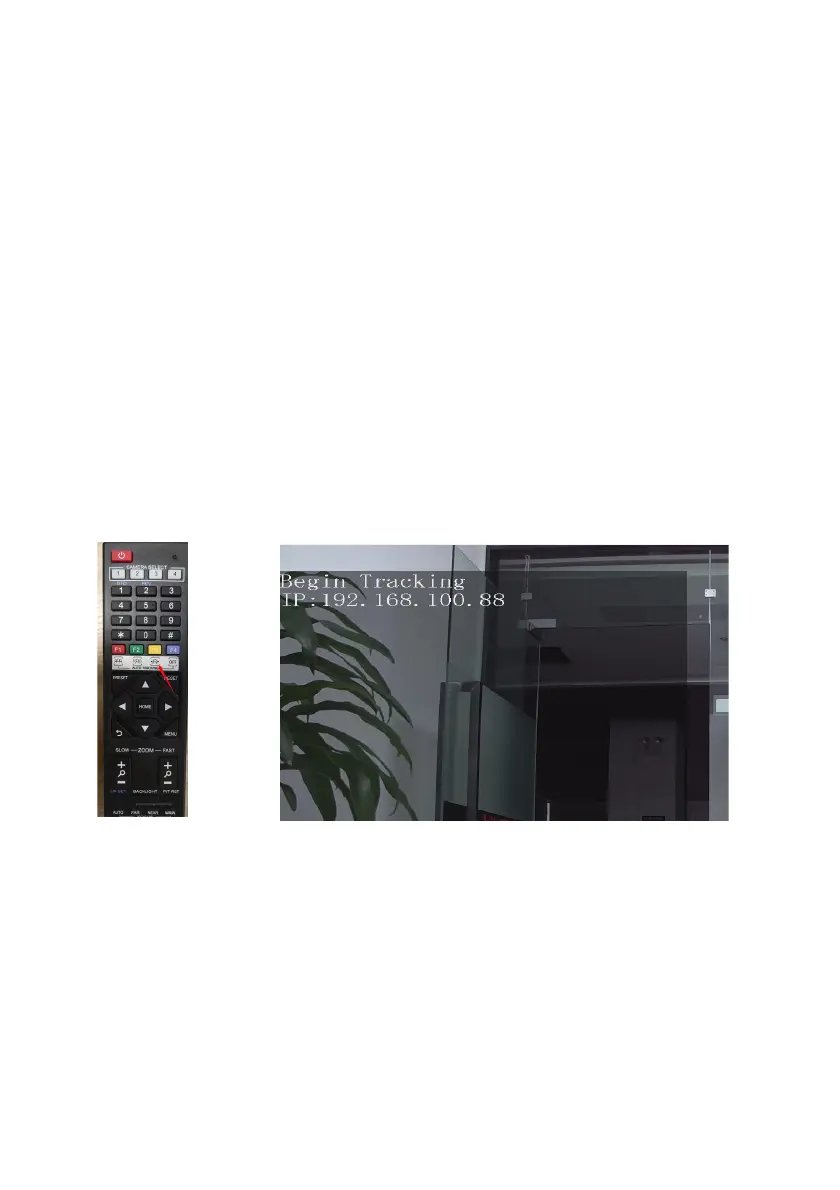
Press the F3 on the remote control to start a trace .
When there is only one person in the scenario, press the F3 key (Figure I) on the remote control to start a
trace, the camera will lock the target for tracking directly.
The screen is shown as the following figure, the tracking program starts successfully.(Figure II)
When the camera finds that the target is lost, it will stand still at the position where the target is lost for a
few seconds and then return to the home position. It will automatically enter the tracking state until the
target appears again
1.2 Multiplayer scenario
Press the F3 on the remote control to start a trace .
If there are multiple people in the scenario, press the F3 key (Figure I)on the remote control to start a
trace, a green wireframe will appear on the screen(Figure III)to indicate the tracking target. Select the
object to be tracked and press the home key to start tracking. Then the green wireframe disappears, and
the screen is shown as the following figure, the tracking program starts successfully.(Figure IV) .
If change a target is needed during Multi people tracking process, Press the left and right buttons on the
remote control is help.
Figure I
Figure II


 To Next Page