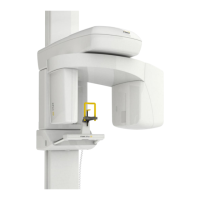
x The two vertical bars (1) on acquisition module can be:
o Red: system not connected to PC
o Yellow: system proper connected to PC, but not
ready to acquire
o Green: system ready to acquire
o Blue: system acquiring (X-Ray ON)
x Click on “P” button (2) to select the program and on
“Size” button (3) to select proper patient size.
x If needed, it is possible to change the kV (4) and mA (5)
values by clicking on the “+” and “-” buttons
x Patient information (name and date of birth) is shown in
the upper part of the window (6)
x By clicking on the button in the right bottom part of the
acquisition window (7) the file containing the step by
step positioning guide will be shown


 To Next Page