32 Troubleshooting and Repair | 33
ac.
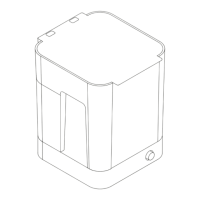
Use the scraper tool included with the Formlabs Finish Kit to move across
the resin tank’s elastic layer, pulling resin toward the spout.
ad. Once all resin passes through the filter, dispose of the dirty filter and pour
the resin back into the tank.
7.4 Troubleshooting and Repair by Non-Skilled Persons
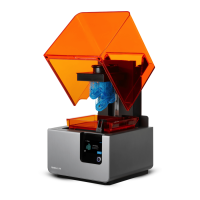
In the case of an error or abnormal activity with the Form 2, reference the following
errors, causes, and proposed solutions. Complete the initial troubleshooting
steps and carefully document all results. Contact Formlabs or an authorized
reseller for additional assistance.
7.4.1 Abnormal Functions During Print Set-Up
Error Cause Solution
The bite valve does not
dispense resin.
The silicone material has
sealed itself.
Resin may cure over the
bite valve opening.
To troubleshoot a closed bite valve:
1. Close the vent cap and remove the
resin cartridge from the printer.
2. Turn the cartridge upside down to
inspect the bite valve.
3. Squeeze the valve a few times to open
up the seal and enable resin flow.
4. If squeezing the valve does not enable
resin flow, carefully use the tip of the
tweezers from the Finish Kit or Form
Wash to push through the opening to
enable resin flow.
5. If the bite valve seal remains closed
after troubleshooting, contactFormlabs
Supportfor additional help. Submit
photos of the bite valve seal with
your request.
The bite valve does not
dispense resin.
The LevelSense board
is contaminated.
See 6.4.1 Maintain the LevelSense Board
The orange “Print”
icon is not available
in PreForm.
The printer may not be
properly connected to the
same local network.
Consider the following:
• Check to see that you do not have
other open instances of PreForm.
• Save any files before restarting PreForm.
• Re-connect your printer to establish a
proper connection
7.4.2 Print Failures and Errors
Print failures can manifest in dierent ways and originate from dierent causes.
Check the model’s configuration in PreForm, the cleanliness of the optical
surfaces, and the printer’s operating condition according to 6. Maintenance
and 7. Troubleshooting, including the proposed solutions below.
If print failures persist after following these steps, contact Formlabs or a certified
distributor for additional guidance. In order to introduce a known good variable
to isolate any printing issues, run a Formlabs test print, for which the file is
available online. Provide clear, focused photographs of the test print to help
diagnose the issue.
Error Cause Solution
Delamination
Peeling or separation
between printed layers
Pieces of cured parts
floating in the resin tank
Model orientation, layout,
and/or support issues
A print that has been
paused for a long time
An older resin tank
A loose build platform
Contaminated optical
surfaces
Consider the following:
• Check the model in PreForm.
• Check for pauses in printing.
• Check the resin tank for debris
or damage.
• Check cleanliness of optical surfaces.
• Check the build platform’s stability.
Non-Adherence
Prints either partially
attached to or
completely non-existent
on the build platform
Printing without supports
The first layer of the part
on the build platform is
too small to withstand
peel forces.
Debris/clouding/damage
in resin tank
Contaminated optical
surfaces
Build platform height
requires adjustment
Consider the following:
• Print with a base and supports.
• Check the print’s surface area.
• Check the resin tank for debris
or damage.
• Check cleanliness of optical surfaces.
• Check the build platform height.
• Decrease (“-”) the Z Oset value to
lower the build platform closer to the
resin tank bottom.
Overcompression
The base printed onto
the build platform is
thinner than expected
and/or very dicult
to remove.
The initial layers fail to cure
properly, due to insucient
space between the build
platform and the elastic
layer in the resin tank.
Consider the following:
• Increase the base height in PreForm’s
advanced settings.
• Check the build platform’s height.
• Increase (“+”) the Z Oset value to
raise the build platform further away
from the resin tank bottom. Raising the
build platform provides more space for
the base to build.
Ragging
Cured or partially cured
resin forms thin, shelf-
like structures that hang
horizontally from a print
or
Rashing
A rough - uneven or
bumpy - surface texture
forms on one or both
sides of an otherwise
successful print.
Diused laser light
spreads the cure area
beyond the appropriate
limits for each layer out-
line, due to:
Expired resin;
Debris/clouding/damage
in the resin tank;
Contaminated optical
surfaces; or,
Restricted resin flow due
to improper model ori-
entation or overly dense
supports
Consider the following:
• Check the resin’s shelf life.
• Check the resin tank for debris
or damage.
• Check cleanliness of optical surfaces.
• Check for restricted resin flow.


 To Next Page