WWW.FOSCAM.COM FI8608W User Manual
Figure 1.5
(4) Select the folder where setup will install then click Next.
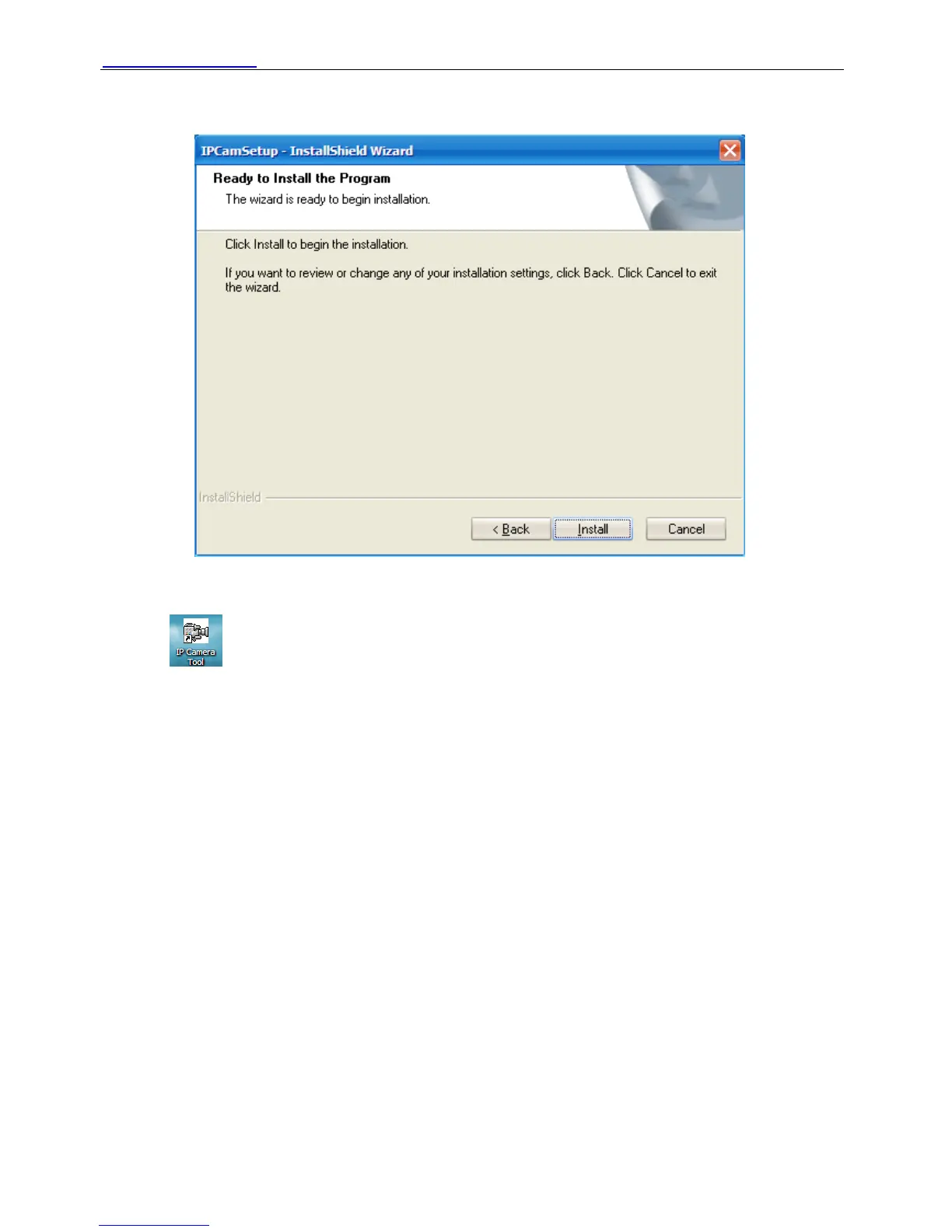
Figure 1.6
(5) Click Install.
An icon appears on the desktop automatically.
NOTE: If you use Windows7 and could not find the icon on desktop after installing the IP camera
tool, please check if the path of the camera software is correct.
For example, if it was pointing to C:\Windows\System32\IPCamera.exe.
Then fix this by pointing the shortcut to the correct path C:\Windows\SysWOW64\IPCamera.exe.
The shortcut should work without any problems.
CAUTION: Before installing and using the product, please read the following precautions
carefully and make sure they are fully understood.
Use only the power adapter attached with the product. Using unauthorized power adapters may
cause damage to your IP Camera.
1.4.2 Hardware preparation
Follow the steps below to set up your camera hardware connections. Make sure to follow each
step carefully to ensure that the camera operates properly.
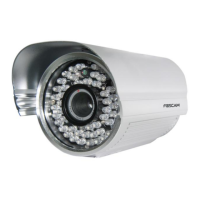
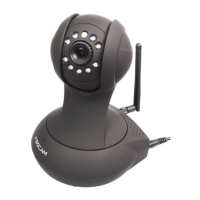
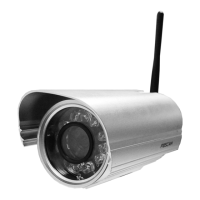
(1) Adjust the antenna at the back of the camera.
(2) Plug the network cable into the camera and then into your Cable/DSL router.
Shenzhen Foscam Intelligent Technology Co., Limited
Tel: 86 755 2674 5668 Fax: 86 755 2674 5168
5



 To Next Page