If you have never done port forwarding before, you can open and view the following link to understand the
basic concept. Port forwarding allows for outside connections to access a specific device on your network from
anywhere in the world. Every router automatically blocks any incoming connections for safety purposes. Using
port forwarding, you are telling your router to allow a connection through a certain port (you can think of it as a
gateway) into your router. You set this port to a specific device, in our case an IP Camera, so it can be
accessed from anywhere in the world.
Click this link to learn more about port forwarding: http://portforward.com/help/portforwarding.htm
How do we configure Port Forwarding?
For this section, we will be using an example:
Let’s say the camera’s LAN IP address is http://192.168.8.100:2000
Step 1: Login to the router, and go to your router’s port forwarding or port triggering menu. Sometimes this is
also under the name of Virtual Server or NAT.
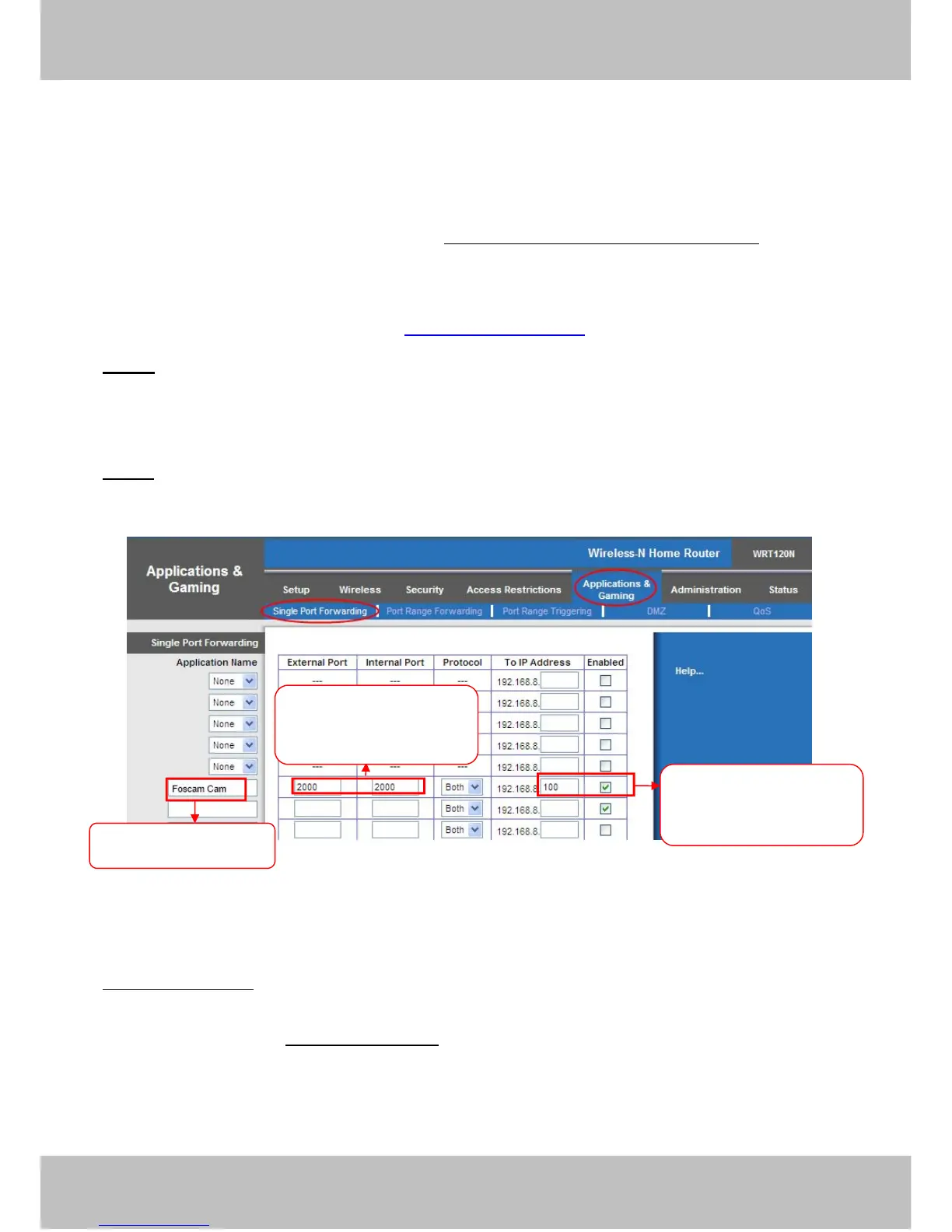
Using the Linksys brand router as an example, we would log into the router, and go to the Applications
& Gaming menu. We would then click on the “Single Port Forwarding” sub-menu.
Step 2: Create a new column using the LAN IP address & HTTP Port of the camera within the router as shown
below, then push OK or Submit to save your settings:
Figure 2.7
First method :
Use the embedded DDNS to access the camera via the Internet
Each Foscam camera has an embedded unique DDNS domain name, the format of this domain name is
xxxxxx.myfoscam.org. On the bottom of the camera, you can see the domain name sticker with this
information on it.
For example, we can use test09.myfoscam.org. In the camera, click Settings at the top, click “Network” on
the left, then click “DDNS” to get to the DDNS settings page. Here you can see the unique domain name of
your camera.


 To Next Page