39
w
w
w
w
w
w
w
w
www
www
www
www
www
www
www
www
.foscam.co
.foscam.co
.foscam.co
.foscam.co
.foscam.co
.foscam.co
.foscam.co
.foscam.co
m
m
m
m
m
m
m
m
Shenzhen
Shenzhen
Shenzhen
Shenzhen
Shenzhen
Shenzhen
Shenzhen
Shenzhen
Foscam
Foscam
Foscam
Foscam
Foscam
Foscam
Foscam
Foscam
Intelligent
Intelligent
Intelligent
Intelligent
Intelligent
Intelligent
Intelligent
Intelligent
Technology
Technology
Technology
Technology
Technology
Technology
Technology
Technology
Co.,
Co.,
Co.,
Co.,
Co.,
Co.,
Co.,
Co.,
Limited
Limited
Limited
Limited
Limited
Limited
Limited
Limited
Tel:
Tel:
Tel:
Tel:
Tel:
Tel:
Tel:
Tel:
86
86
86
86
86
86
86
86
755
755
755
755
755
755
755
755
2674
2674
2674
2674
2674
2674
2674
2674
5668
5668
5668
5668
5668
5668
5668
5668
Fax:
Fax:
Fax:
Fax:
Fax:
Fax:
Fax:
Fax:
86
86
86
86
86
86
86
86
755
755
755
755
755
755
755
755
2674
2674
2674
2674
2674
2674
2674
2674
5168
5168
5168
5168
5168
5168
5168
5168
39
39
39
39
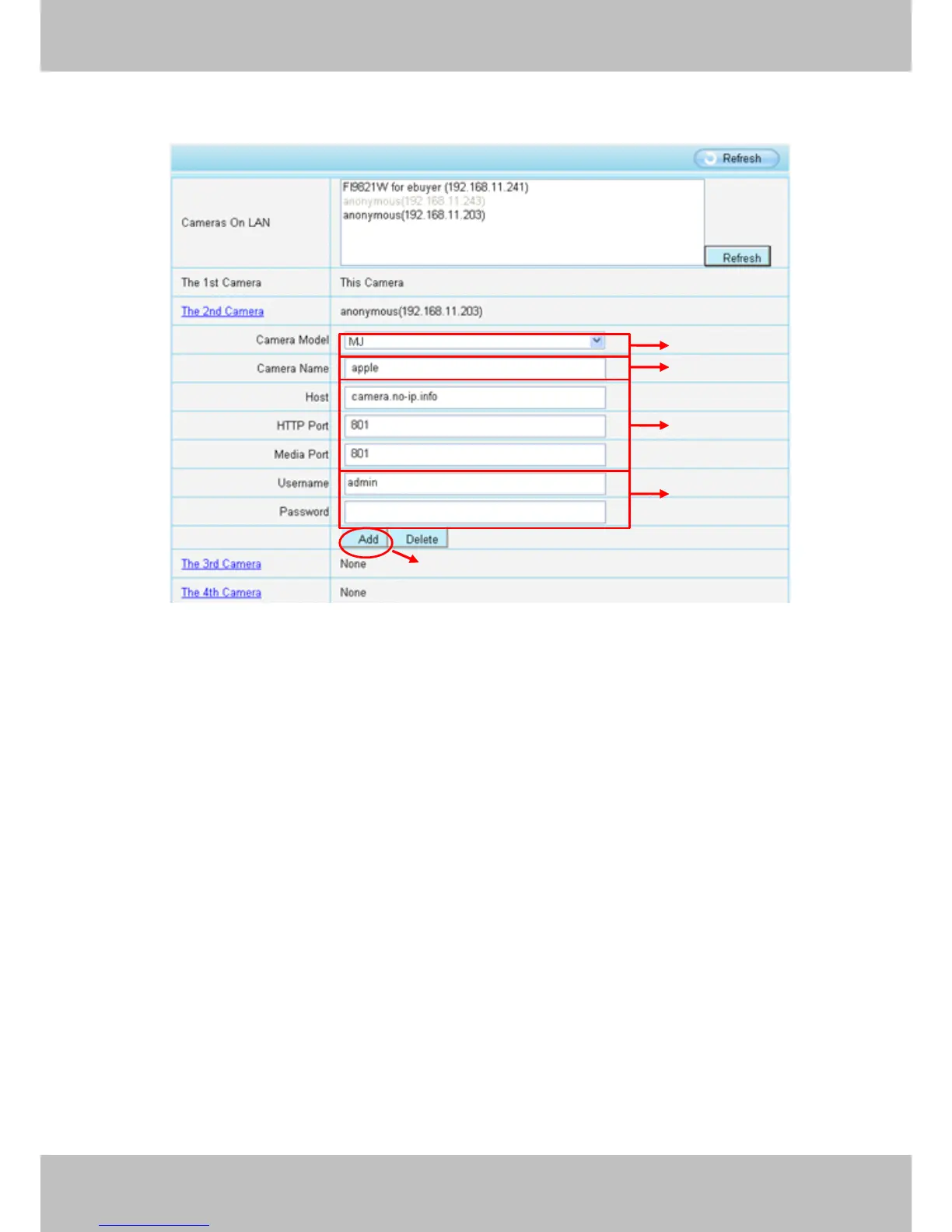
Click Multi-Device
Multi-Device
Multi-Device
Multi-Device Settings
Settings
Settings
Settings . Choose The
The
The
The 2nd
2nd
2nd
2nd Device
Device
Device
Device . Fill in the 2nd camera ’ s name, DDNS
domain name, port number. Enter user name and password and then choose Add. (Figure 3.19)
Figure 4 .19
1----- The camera model: MJ or H264 .
2----- The 2nd camera ’ s name
3----- Fill in the 2nd camera ’ s DDNS host not LAN IP
N
N
N
N OTE
OTE
OTE
OTE :
:
:
: The FI89s series have the same HTTP Port no. and Media Port no.
4 ---- Enter the 2nd camera ’ s user name and password
5---- Click Add button and to take effect
NOTE:
NOTE:
NOTE:
NOTE: Here the Host must be entered as the second camera ’ s DDNS domain name, not its LAN
IP.
2
2
2
2
3
3
3
3
4
4
4
4
5
5
5
5
1
1
1
1


 To Next Page