67
w
w
w
w
w
w
w
w
www
www
www
www
www
www
www
www
.foscam.co
.foscam.co
.foscam.co
.foscam.co
.foscam.co
.foscam.co
.foscam.co
.foscam.co
m
m
m
m
m
m
m
m
Shenzhen
Shenzhen
Shenzhen
Shenzhen
Shenzhen
Shenzhen
Shenzhen
Shenzhen
Foscam
Foscam
Foscam
Foscam
Foscam
Foscam
Foscam
Foscam
Intelligent
Intelligent
Intelligent
Intelligent
Intelligent
Intelligent
Intelligent
Intelligent
Technology
Technology
Technology
Technology
Technology
Technology
Technology
Technology
Co.,
Co.,
Co.,
Co.,
Co.,
Co.,
Co.,
Co.,
Limited
Limited
Limited
Limited
Limited
Limited
Limited
Limited
Tel:
Tel:
Tel:
Tel:
Tel:
Tel:
Tel:
Tel:
86
86
86
86
86
86
86
86
755
755
755
755
755
755
755
755
2674
2674
2674
2674
2674
2674
2674
2674
5668
5668
5668
5668
5668
5668
5668
5668
Fax:
Fax:
Fax:
Fax:
Fax:
Fax:
Fax:
Fax:
86
86
86
86
86
86
86
86
755
755
755
755
755
755
755
755
2674
2674
2674
2674
2674
2674
2674
2674
5168
5168
5168
5168
5168
5168
5168
5168
67
67
67
67
Upgrade
Upgrade
Upgrade
Upgrade Firmware
Firmware
Firmware
Firmware by
by
by
by IP
IP
IP
IP Camera
Camera
Camera
Camera Tool
Tool
Tool
Tool
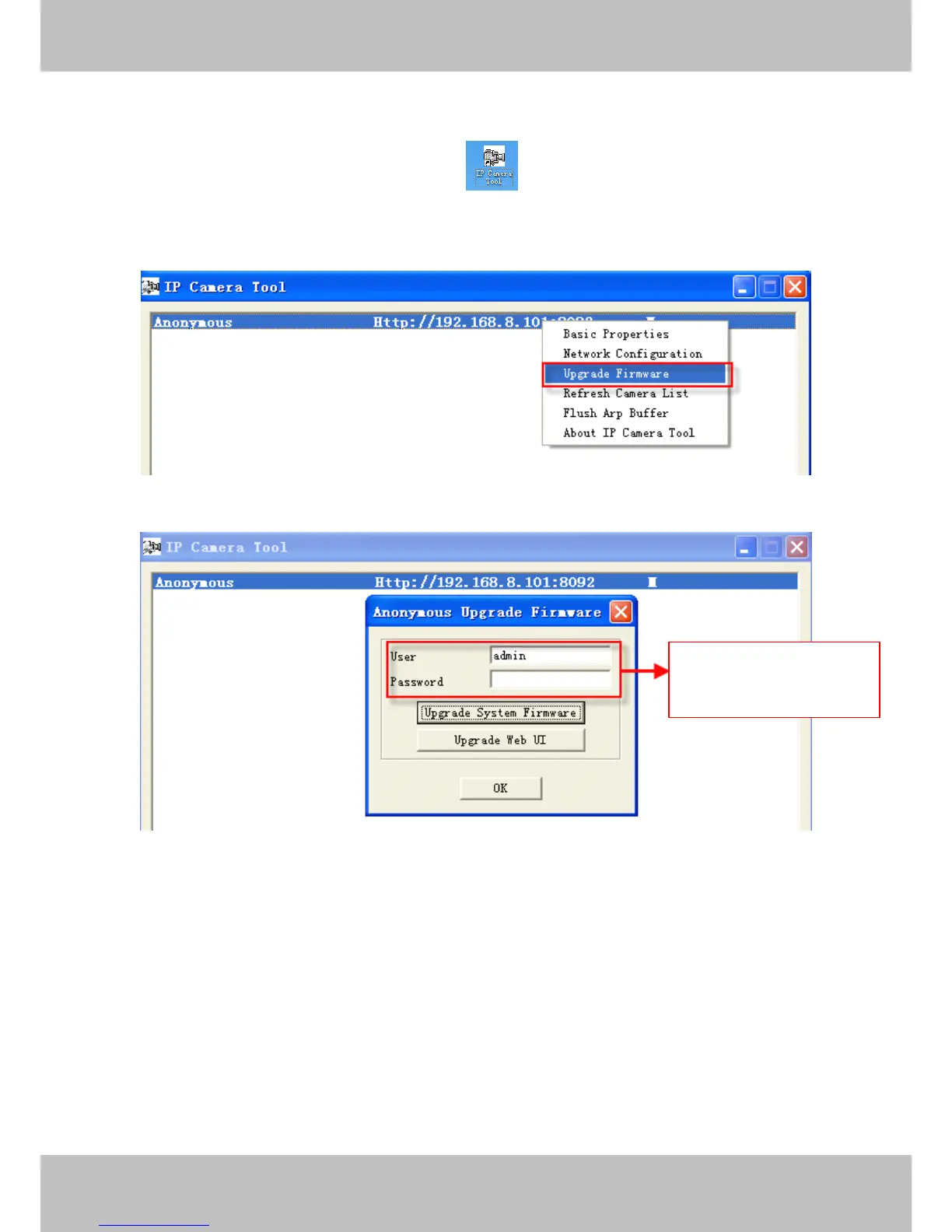
Double click the IP Camera Tool shot icon , select the Camera IP that you want to
upgrade the firmware. Then select Upgrade Firmware and enter the username and password,
choose the firmware file, and upgrade.
Figure 4.53
Figure 4.54
CAUTION:
CAUTION:
CAUTION:
CAUTION: If your camera works well with the current firmware, we recommend not upgrading .
Please don ’ t upgrade the firmware unnecessarily . Your camera may be damaged if
misconfigured during an upgrade.
NOTE:
NOTE:
NOTE:
NOTE:
1) Don ’ t upgrade the firmware through the web UI in WAN, or else the upgrade may be falied.
2) Please ensure you have download the correct firmware package for your camera before
Enter
Enter
Enter
Enter the
the
the
the User
User
User
User name
name
name
name and
and
and
and
password
password
password
password


 To Next Page