89
w
w
w
w
w
w
w
w
www
www
www
www
www
www
www
www
.foscam.co
.foscam.co
.foscam.co
.foscam.co
.foscam.co
.foscam.co
.foscam.co
.foscam.co
m
m
m
m
m
m
m
m
Shenzhen
Shenzhen
Shenzhen
Shenzhen
Shenzhen
Shenzhen
Shenzhen
Shenzhen
Foscam
Foscam
Foscam
Foscam
Foscam
Foscam
Foscam
Foscam
Intelligent
Intelligent
Intelligent
Intelligent
Intelligent
Intelligent
Intelligent
Intelligent
Technology
Technology
Technology
Technology
Technology
Technology
Technology
Technology
Co.,
Co.,
Co.,
Co.,
Co.,
Co.,
Co.,
Co.,
Limited
Limited
Limited
Limited
Limited
Limited
Limited
Limited
Tel:
Tel:
Tel:
Tel:
Tel:
Tel:
Tel:
Tel:
86
86
86
86
86
86
86
86
755
755
755
755
755
755
755
755
2674
2674
2674
2674
2674
2674
2674
2674
5668
5668
5668
5668
5668
5668
5668
5668
Fax:
Fax:
Fax:
Fax:
Fax:
Fax:
Fax:
Fax:
86
86
86
86
86
86
86
86
755
755
755
755
755
755
755
755
2674
2674
2674
2674
2674
2674
2674
2674
5168
5168
5168
5168
5168
5168
5168
5168
89
89
89
89
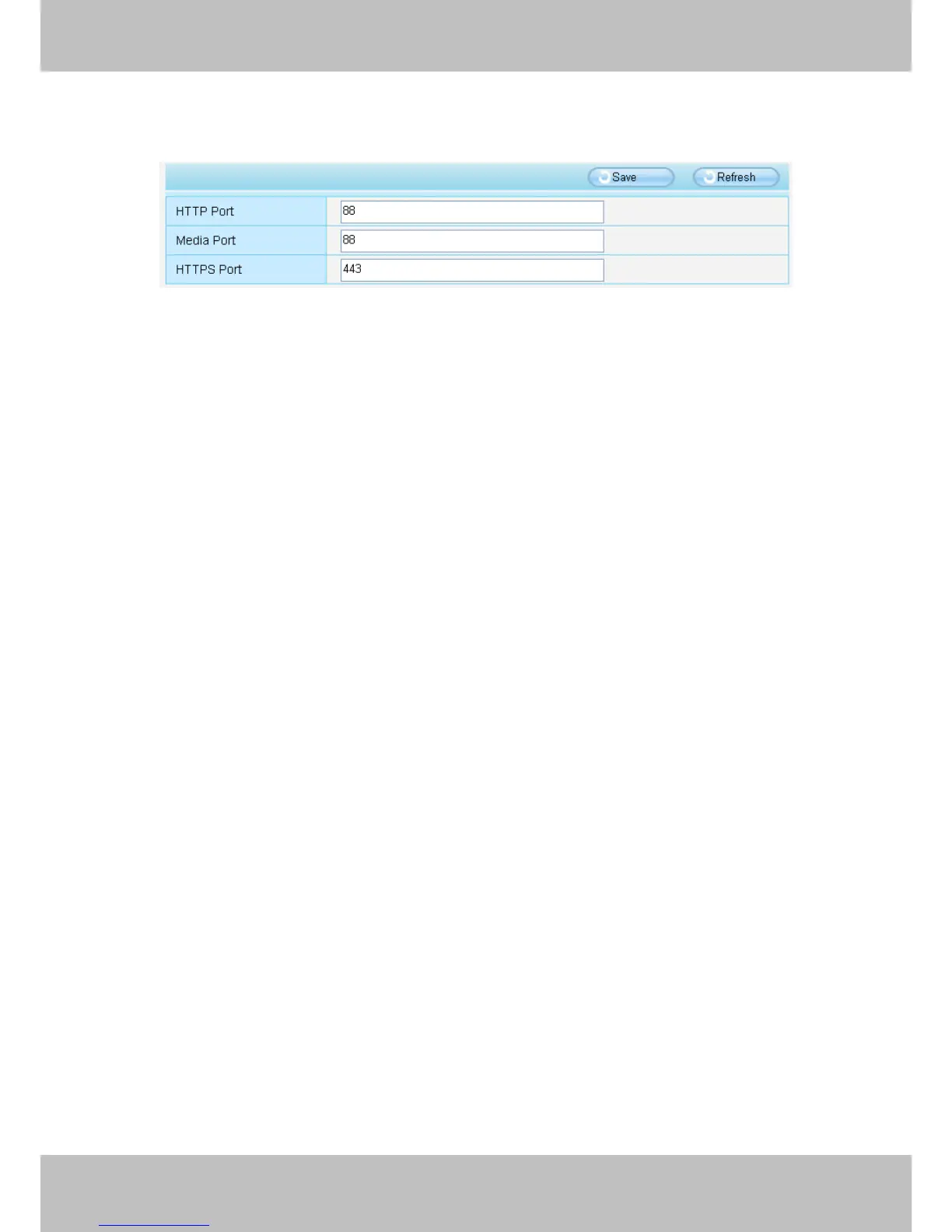
Figure 6 . 6
If you allow the A ctiveX running, but still could not see living video . Please change another port
number to try. Don ’ t use port 80 00.
Figure6.7
NOTE:
NOTE:
NOTE:
NOTE: Make sure that your firewall or anti-virus software does not block the camera or A ctiveX.
If you could not see video, please shut down firewall or anti-virus software to try again.
6.1.7
6.1.7
6.1.7
6.1.7 Can
Can
Can
Can ’
’
’
’ t
t
t
t access
access
access
access IP
IP
IP
IP camera
camera
camera
camera in
in
in
in internet
internet
internet
internet
There are some reasons:
1 ActiveX controller is not installed correctly
2 The port which camera used is blocked by Firewall or Anti-virus software. Please change
another port number and try again. (Figure6.7)
3 Port forwarding is not successful (Figure4.30)
C heck these settings and make sure they are correct.
6.1.8
6.1.8
6.1.8
6.1.8 UPnP
UPnP
UPnP
UPnP always
always
always
always failed
failed
failed
failed
UPnP only contains port forwarding in our recent software. Sometimes, it may be failed to do port
forwarding automatically because of firewall or anti-virus software. It also has much relation with
router ’ s security settings. So we recommend you do port forwarding manually. You can view
your camera in internet successfully after you do port forwarding manually in your router.
5.1.9
5.1.9
5.1.9
5.1.9 Camera
Camera
Camera
Camera can
can
can
can not
not
not
not connect
connect
connect
connect wireless
wireless
wireless
wireless
If your camera could not connect wireless after you set wireless settings and plug out the cable.
Please check whether your settings are correct or not.
Normally, camera can ’ t connect wireless mainly because of wrong settings.
Make sure broadcast your SSID; use the same encryption for router and camera.


 To Next Page