19 | P a g e
This example shows that the volume is set to 10 for three loops playing sound
number 16. The volume then switches to level 15 and plays sound 16 one last
time.
After creating your sequence file in Notepad (or basic text editor), be sure to
name the file in the format of S00.seq through S09.seq so that the FURY 2 will
recognize it as a valid sequence file. Notepad will try to name the file .txt by
default; this must be changed to .seq. You can add a description to the file title
as in the following examples:
S00 Stand 1.seq S02 Bobcat Special.seq
S01 Stand 2.seq S03 Coyote.seq
Loading a Sound Sequence to Your FURY 2 Manually
In order to get the sound sequence file from your computer into your FURY 2,
you will need a standard USB cable (type A/B) with the unit. Remove the
battery compartment door on the FURY 2 and remove the battery pack. Locate
the USB port in the bottom of the battery compartment. Using the USB cable,
connect the FURY 2 to your computer. Take note to what drive letter is being
assigned to your FURY 2. Copy the sequence files from your hard drive directly
into the drive letter of the FURY 2.
Playing a Sequence
Sequences can be engaged at any time during operation.
1) Press the SEQUENCE button on the TX-505
2) Press a number button on the keypad to play the corresponding
sequence from 0 – 9 or highlight the desired sequence with the rotary
selector knob and depress it one time.
Play Modes and Sequences
If you have selected a different playback mode (i.e. jukebox or single)
sequence mode will ignore this selection.
6.8 SOUND PRESETS
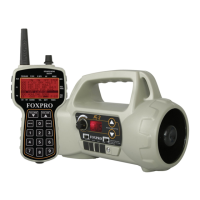
The TX-505 provides you with quick access to your favorite sounds and
volumes with the push of a button. The TX-505 can hold a total of ten individual
sound presets, each one having their own unique volume level. You will also
find two quick-access buttons (P1 and P2) that provide you one-button access
to the sounds stored on presets one and two.
Creating Presets
1) Press the PRESET button and hold for approximately 3-4 seconds to
enter set preset mode. You should see SEL SND/ VOL on the top line
of the TX-505 display.


 To Next Page