32 | P a g e
located at the beginning of it, you must check the Append Sound Number
box located below the left column. By selecting this box, the sound name
will not be shortened. If there is a three digit number and a space before the
name of the sound, there is no need to check this box. The first four
characters will be either truncated or ignored, by not selecting this box.
7. Select the position in the right column where you would like to add the
sound. If you want to overwrite the sound in that position, then click on
the overwrite box, located between the two columns. This will replace
the current sound in that position. Otherwise, use the Insert button to
insert at that position.
NOTE: The sound that was located in that position will be deleted. If you
choose to insert the sound in that position and move all other sounds down
one, click the insert button. This will add the sound in that position and not
overwrite the current sound. If you would like to remove sounds from the
right side column before adding new ones, simply highlight the sound, and
click on the “Remove From List” button, located between the two columns.
If you would like to relocate a sound in the right sound column, you can high
light the sound and then type the position number that you would like to move it
to in the “Move To” box (located below the right side column). This will move
the sound to your designated number. You can also highlight the sound that
you wish to move on the right column, and then click on the up or down arrows
below the right side column to move the sound one position at a time. If you
would like to reset your list at any time, click on the Clear/Reset List button
located on the right side of the screen. This will reset the list to its initial sounds.
8. Click on the “Copy to Caller” button located on the right side of the screen.
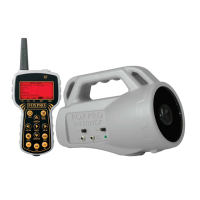
Your sounds will now be programmed to your FURY2.
NOTE: Your FURY2 will play .FXP, .24b .mp3 and .wav files. Other file
types are not supported. Although you may store .FXP and .24b sounds on
your computer for later use, they cannot be played on your computer, or on
any audio player other than a FOXPRO caller.
8.4 DOWNLOADING NEW PLAYLIST TO TX-505
Program your sounds into the FURY2 as outlined in the instruction manual.
Make certain that you do not use the same number for more than one sound!
NOTE that the transmitter can only display 21 characters per line. The first 3
characters must be the sound number, from “000” through “499”. Place a space
between the sound number and the sound name. 17 characters remain for the
sound name. Although the sound name can have more characters, the TX-505
will only display the first 17 characters. Any additional ones will not be
displayed.
1. Disconnect all accessories from the FURY2 (i.e. charger, speakers,


 To Next Page