34
5 PRESETS
THE LAYOUT GRID
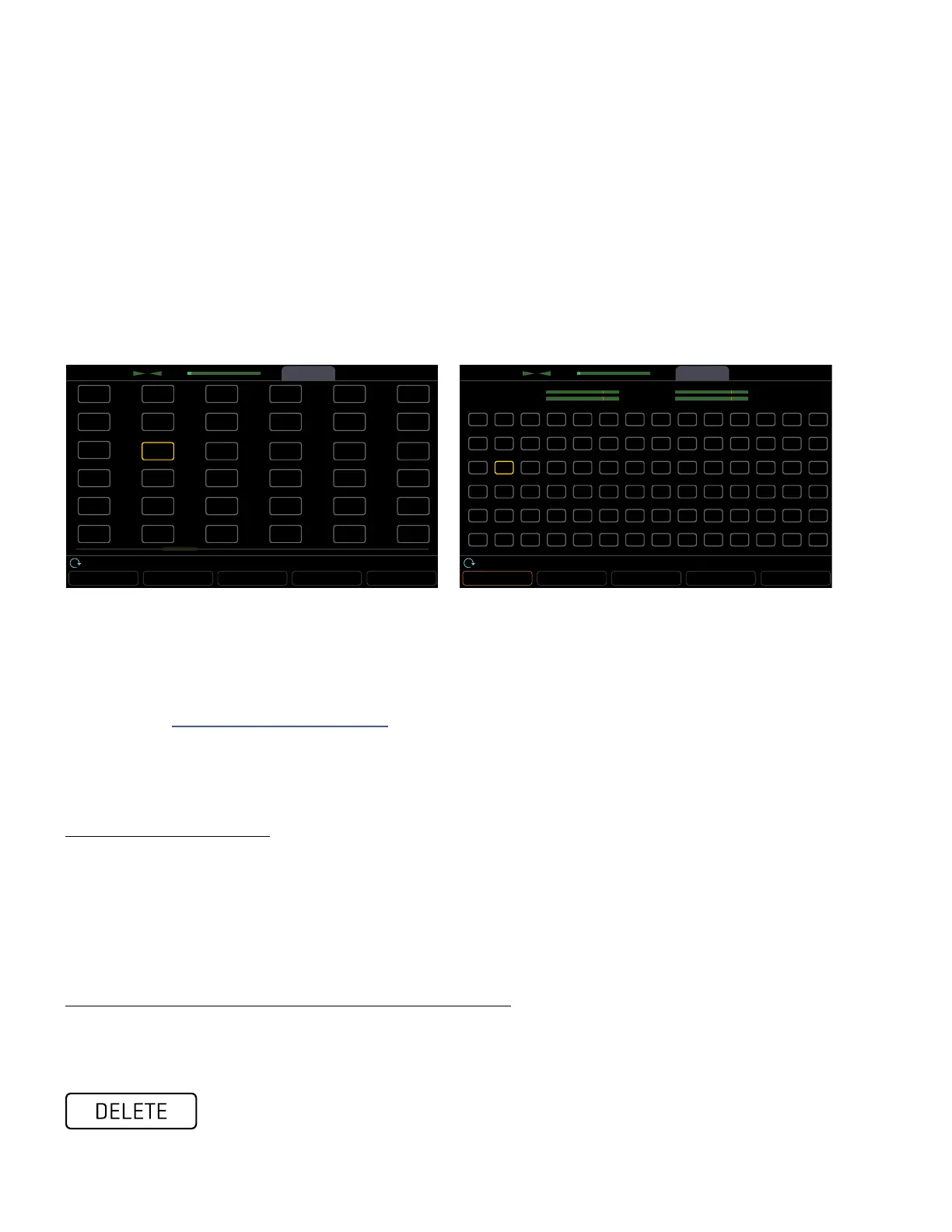
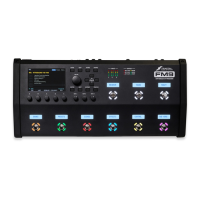
The grid is a 14×6 framework used for building presets. The grid is made up of spaces or slots into which blocks
are inserted to set up signal flow. Cables connect blocks. Grid spaces and cables are stereo, though not every
block processes audio in stereo.
Access the grid from the Home page by pressing the ENTER button or the LAYOUT Push-knob.
In the default view, the Axe-FxIII display shows only a 6×6 section of the 14×6 grid. Navigate to off-screen areas
using the D or E knobs, or the NAV buttons. A bottom scrollbar indicates where you are in the overall left-to-right
layout. To show the entire grid at once, zoom out with the ZOOM button (Push-knob A).
WORKING WITH BLOCKS
As explained in “Intro to the Layout Grid” on p. 8, the Axe-FxIII grid must be populated with Blocks.These
come from a large inventory of amps, cabs, stompboxes, studio effects, and more. To interact with the grid you
must move the cursor — a yellow rectangle controlled by the D or E knobs, or the NAV buttons. For simplicity, we’ll
refer simply to these controls as “NAV” going forward.
TO INSERT A BLOCK…
NAV to the desired grid location.
Turn the VALUE wheel to step through the list of blocks, including options for SHUNT (see below) and NONE.
Press ENTER to conrm or EXIT to cancel changes.
Every preset has its own complete inventory of blocks. Using a block in
one preset does not make it unavailble to other presets.
TO CHANGE OR REMOVE AN EXISTING BLOCK…
Select the block and turn VALUE to change it to the desired type. To REMOVE a block, select “NONE”.
Press ENTER to conrm or EXIT to cancel changes.
The grid normally shows six rows and six columns.
You can scroll left or right with navigation controls.
Zoom out to show the entire grid at once.
This also reveals VU meters for leveling scenes and presets.
ToolsMeters
Axe-Fx III
ZOOM BYPASS
DELETE
CABLECONTROLLERS
Scene: 1Channel Block LevelRow Column
Edit ToolsMeters
Layout
CPU
1L
1R
4.0%
ZOOM BYPASS
DELETE
CABLECONTROLLERS
Scene: 1Channel Block LevelRow Column
Edit
CPU4.0%
1L
1R
A shortcut makes it easy to remove an existing block or convert it to a shunt. Select the
block and press the DELETE button (Push-knob B). A deleted block is replaced by a shunt.
Delete any shunt to leave an empty space.


 To Next Page