19
- Multi SSID: Select ON if you like to set up a separate guest Wi-Fi network. Your T9
will broadcast two Wi-Fi Names.
- Guest Wi-Fi: If ON is selected for Multi SSID, Guest Wi-Fi menu will appear. You can
change Guest Wi-Fi settings.
- Multi SSID Isolation: If On is selected, it prevents your devices from communicating
across the Main and Guest Wi-Fi access points.
- Allow Guest Wi-Fi users to access the Web interface: If the box is checked, users on
the Guest Wi-Fi also can access the Web User Interface.
- Wi-Fi Name: Service Set Identifier (SSID). To change it, enter a string less than 32
characters as the name for your wireless local area network (WLAN).
- Wi-Fi Password: To change, enter the new Wi-Fi password. The password needs to
be at least 8 characters long. l Privacy Separator: If ON is selected, your devices on
the same Wi-Fi Name can't make Local Area Network communication.
- Wi-Fi Band: It supports both the 2.4- and 5GHz bands of wi-fi spectrum for top
throughput. You can choose Wi-Fi Band depends on your preference.
NOTE: if you connect WLAN printer to your T9, Privacy Separator should be OFF to send
file from your PC to the printer
- SSID Stealth: If ON is selected, the Wi-Fi name won't be found by other devices
around it. You need to manually enter the Wi-Fi name and connect.
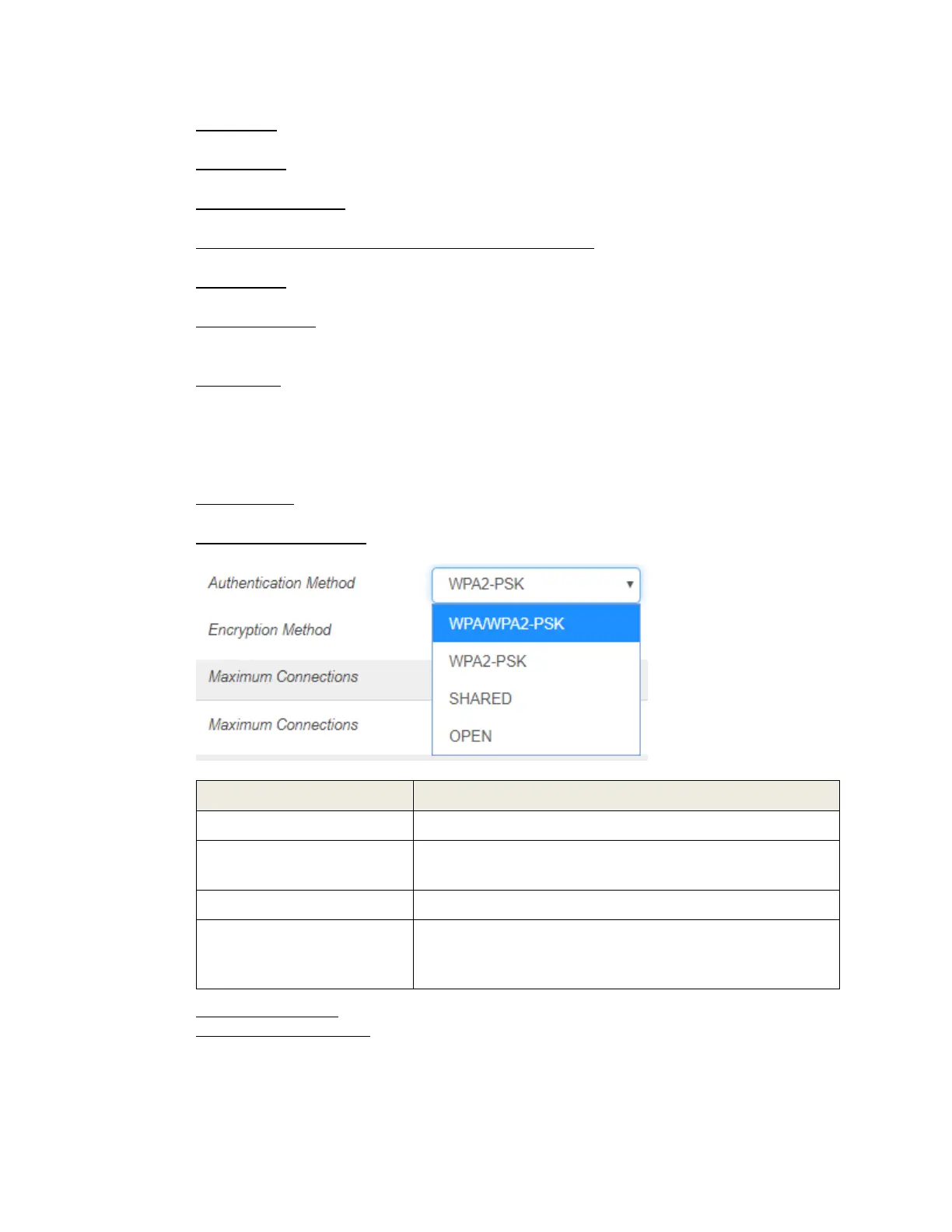
- Authentication Method: The authentication methods are described below.
- Encryption Method: Select an encryption method from the drop-down list.
- Maximum Connections: Choose the maximum number of the devices which connect
to your device simultaneously. You can also click the right or left arrow to distribute
the maximum number of the connected devices between the Main Wi-Fi and the
Guest Wi-Fi.


 To Next Page