9. Troubleshooting
《If the printer driver location is asked
》
・ When the following message is shown while installing the printer driver, stop the installation and
follow the below-mentioned instruction.
(1) Stop the installation of printer driver by the [Cancel] button.
(2) Check your Operating system 64-bit version or 32-bit version.
(3) Open the property from my computer.
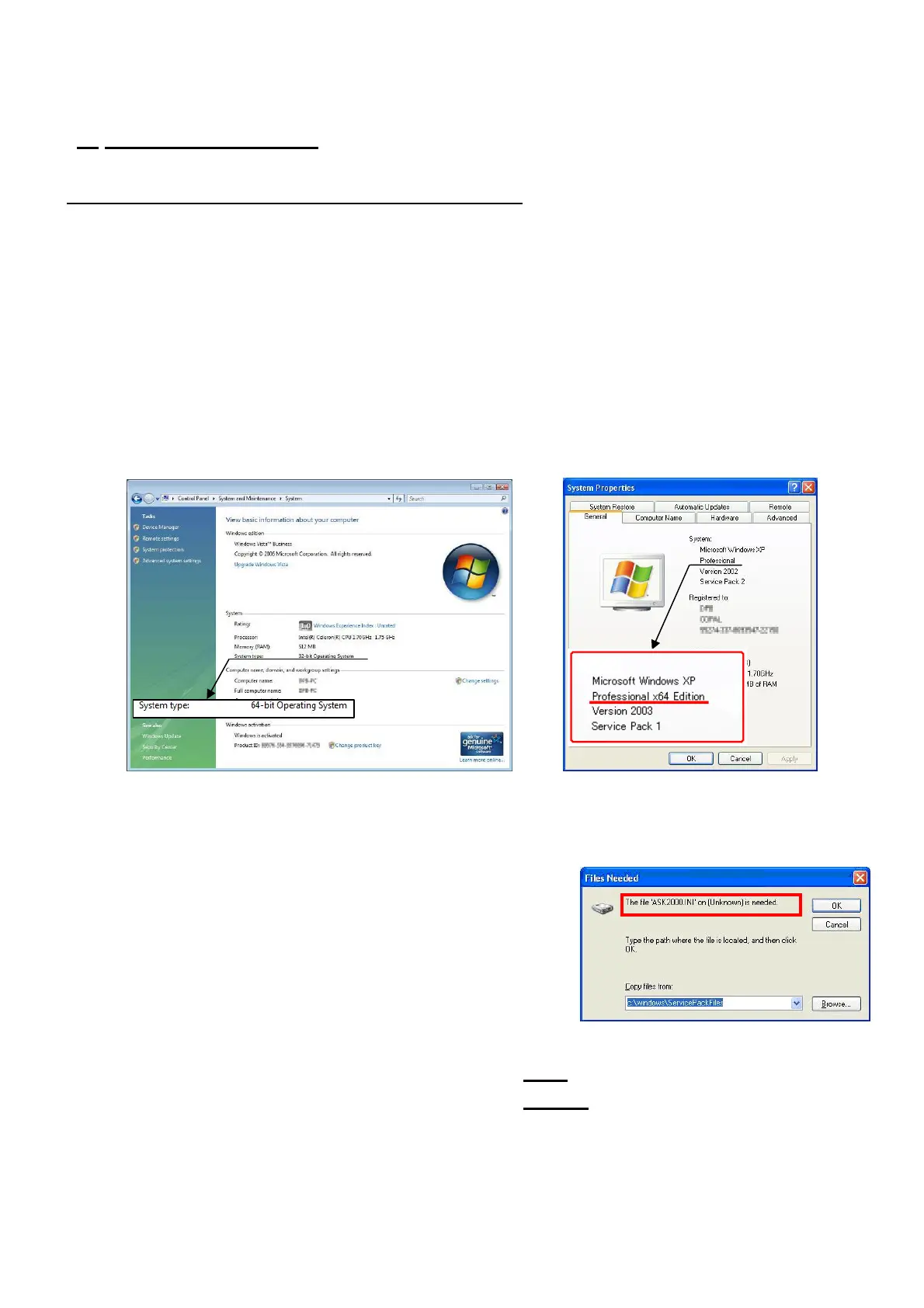
(4) In case of Windows Vista or Windows 7, check on your Operating system whether [32-bit
Operating system] or [64-bit Operating system]. (Fig.50)
(5) In case of Windows XP, check to see whether there is an indication of [x64 Edition] or not. If
there is no indication of [x64 Edition], it means 32-bit version.(Fig.51)
[
Fig.50] [Fig.51]
(6) After checking the OS version, turn on the printer and run the plug and play.
(7) The same warning message at the beginning is shown.
(8) Check on the following part of warning message,
choose the folder of printer driver. (Fig.52)
[Fig.52]
(9)
In case of 32-bit Operating system, specify the
[i386]
folder in the printer driver folder.
(10) In case of 64-bit Operating system, specify the [amd64]
folder in the printer driver folder.
*The following files are in folders.
ASK2000UI.dll/ASK2000UD.dll/ASK2000.dll/ASK2000PT.dll/ASK2000LM.dll/ASK2000ST.dll
20/28


 To Next Page