This document serves as an instruction manual for the FUJIFILM ASK-2000 Printer Driver, version 3.050, released in July 2010. It covers the installation, usage, and troubleshooting of the printer driver across various Windows operating systems, including XP, Vista, and 7.
Function Description
The FUJIFILM ASK-2000 is a photo printer designed for high-quality image output. Its functionality is primarily controlled through its dedicated printer driver, which enables communication between a personal computer and the printer. The driver allows users to manage various aspects of the printing process, from basic print commands to advanced color correction and media handling.
Key functions facilitated by the printer driver include:
- Print Job Management: Initiating print jobs from application software.
- Layout Control: Specifying print orientation (landscape or portrait), page order, and the number of pages per sheet, which is particularly useful for creating contact sheets or multi-image layouts.
- Color Management: Providing tools for color correction, allowing users to adjust brightness, contrast, saturation, sharpness, and color balance (cyan, magenta, yellow, red, green, blue). It also includes an unsharp mask feature with adjustable amount, radius, and threshold for enhancing image detail.
- Media Size Selection: Enabling the selection of various paper sizes, ensuring that the print output matches the physical media loaded in the printer. Available sizes include 5x3.5 inch, 6x4 inch, 5x7 inch, 6x8 inch, 6x9 inch, and 6x4 inch x 2.
- Monochrome and Color Printing: Offering the choice between full-color and black and white (monochrome) printing modes.
- Driver Version Display: Allowing users to check the installed version of the printer driver and its associated DLL files.
Usage Features
The manual provides detailed instructions for installing and using the printer driver, tailored for different Windows environments.
Installation:
- Windows Vista/7: The installation process typically begins automatically when the printer is connected via USB. Users are guided to select "Locate and install driver software (recommended)" and then "I don't have the disc. Show me other options." The driver software is then located by browsing to the specified folder. A warning about non-verified driver software may appear, requiring users to select "Install this driver software anyway."
- Windows XP: Similar to Vista/7, the "Found New Hardware Wizard" initiates upon connection. Users select "No, not this time" and then "Install from a list of specific location (advanced)." The driver folder is then specified, and "Continue Anyway" is selected if a hardware installation warning appears.
- Plural Printers: The driver supports connecting multiple printers, allowing for easier printing of different sizes. However, the manual notes that this does not necessarily double the capability due to image data transfer speed limitations. For Windows Vista/XP, the first printer driver is installed as usual, and subsequent printers connected to different USB ports will prompt for driver installation, following similar steps.
- Troubleshooting Installation: If the printer driver location is requested during installation, users are instructed to identify their operating system's 32-bit or 64-bit version and specify the corresponding "i386" or "amd64" folder within the printer driver directory. If the driver cannot be installed at all, especially when dedicated application software (like ASK print module "SF-PM") is already present, the manual advises uninstalling the application software and USB controller/driver, restarting the PC, installing the printer driver first, and then reinstalling the application software. For installing a second printer driver when the first is already installed with application software, users must identify the USB port of the first printer, connect the second printer to a new USB port, and manually add the printer through the "Add Printer" wizard, selecting the existing driver.
ICC Profile Management:
- The manual details how to install and apply ICC profiles for accurate color reproduction. This involves right-clicking the ICC profile file and selecting "Install Profile." Within the printer's properties, under the "Color Management" tab, users select "Use my settings for this device," choose "Manual" for profile selection, and then "Add" the installed ICC profile. It's important to note that "ICM Method" and "ICM Intent" settings in the driver's advanced graphic options do not function with this driver.
Printer Driver Settings:
- Layout: Users can adjust print orientation (landscape/portrait), page order (front to back), and pages per sheet. The application software handles fitting the image to the specified orientation and outputting multiple pages.
- Paper Size: The driver allows selection of various paper sizes, emphasizing that this setting must match the physical media (ink ribbon and paper) loaded in the printer.
- Color Correction: A comprehensive color correction interface enables fine-tuning of image output. Users can preview changes by selecting an image file, reset settings to default, save custom configurations, and load previously saved settings. Adjustments include brightness, contrast, saturation, sharpness, resize (enlarge/reduce), and individual color channels (cyan/red, magenta/green, yellow/blue). The unsharp mask feature offers control over the amount, radius, and threshold to enhance edge details.
- Color Mode: Users can choose between "Color" for full-color prints and "Monochrome" for black and white output.
Maintenance Features
The manual includes a dedicated section for troubleshooting, which implicitly covers aspects of printer maintenance by guiding users through resolving common errors.
Error Messages:
The manual categorizes error messages into "Error messages requiring power off/on cycle" and "Recoverable errors," providing specific recovery methods for each.
-
Errors requiring power off/on cycle (E01-E16): These typically indicate hardware malfunctions or internal command errors. For example:
- E01/E02 (Print Head does not work): Instructs checking the "Entrance Cover" and restarting the printer.
- E03 (Failed to feed ribbon): Advises checking for ribbon breakage or entanglement, re-setting the ribbon, and cleaning the ribbon sensor.
- E04 (Error in head controller): Recommends restarting the printer.
- E05 (Failed to feed paper): Directs users to refer to the instruction manual for "Paper Feeding Error" and re-set the paper.
- E06 (Paper jam during rewinding): Suggests checking the paper core, removing paper slugs or dust from the paper path.
- E07 (Abnormal paper cutting): Ensures no paper slugs or dust are on the cutter.
- E09-E16 (Internal failures, thermistor issues): Generally advise restarting the printer and, for thermistor issues, checking cable connections. For persistent errors, users are instructed to contact Fujifilm.
-
Recoverable errors (W51-W58): These are warning messages that can often be resolved without a power cycle. For example:
- W51 (Ink Ribbon run out): Instructs replacing the ink ribbon and suggests cleaning ribbon sensors if the message persists.
- W52 (Improper paper/ribbon size): Advises placing the correct media size and checking the printer driver's paper size setting.
- W53 (Front door open): Instructs closing the front door.
- W54 (Ink Ribbon not set): Advises setting an ink ribbon.
- W55 (Roll paper empty): Instructs replacing the roll paper.
- W56 (Paper cannot be fed correctly): Advises re-setting the paper roll, ensuring the leading edge is properly inserted.
Other Troubleshooting:
- Printed in black and white: If prints are monochrome despite expecting color, the solution is to set the printer's "Paper/Quality" setting to "Color."
- Error message not displayed: If no error message appears but a problem exists, it might indicate a bidirectional communication issue. The solution is to enable "bidirectional support" in the printer's port settings.
- "Please place a proper size of paper and ink ribbon" message persists: If this message (W52/W57) appears even after verifying settings, it suggests the application software might be overriding the driver's paper size setting. Users should check the paper setting within the printing application.
- White paper comes out: This can occur if memory or HDD space is insufficient, leading to image processing failure. The solution is to increase memory, free up HDD space, and close unused applications.
The manual also includes a critical warning regarding simultaneous printing from the printer driver and dedicated application software, recommending that the application software be shut down when the printer driver is in use to prevent conflicts.

 Need help?
 General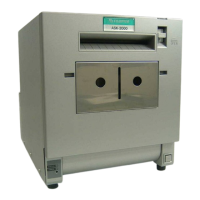

 To Next Page
