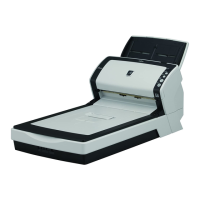
fi-6130 / fi-6230 Image Scanner Operator's Guide
TROUBLESHOOTING
CONTENTS MAP
TOP
APPENDIX 1 Before Using the [Scan] or [Send to] Button
By setting the link of the application software to the [Scan] or [Send to] button, you can launch the linked application
by simply pushing the button.
(To use ScandAll PRO, read Section "
3.15 Scanning by Pressing the Scan Button on the Scanner.")
Settings to Configure on the Computer
1. Confirm if the scanner is connected correctly to the PC, then power on the scanner.
For how to connect the scanner to your computer, refer to section "2.2 Connecting the Scanner to Your PC" in fi-
6130/fi-6230 Getting Started.
2. From the [Start] menu, select [Control Panel].
The [Control Panel] window appears.
3. Double-click on the [Printers and Other Hardware] icon.
The [Printers and Other Hardware] window appears.
4. Double-click on the [Scanners and Cameras] icon.
The [Scanners and Cameras] window appears.
5. Display the [fi-6130dj Properties] or [fi-6230dj Properties] dialog box.
In Windows XP or Windows Server 2003, right-click on the [fi-6130dj] or [fi-6230dj] icon, and then select
[Properties].
In Windows 2000 or Windows Vista, double-click on the [fi-6130dj] or [fi-6230dj] icon.
6. Select the [Events] tab.
7. Select an Event. For Windows XP, select the event for starting up any application from the [Select
an event] menu.
file:////10.232.227.50/Manual/fi-6130_6230_Lynx...OG/R02/02_081030/contents/EN/App/cApdx01_01.htm (1/4) [2008/10/30 15:15:22]



 To Next Page
 Loading...