PR-LN4 Software Guide
2.1 CHECK THAT THE INTERNET PROTOCOL
2.1.1 ON WINDOWS VISTA AND LATER
Check that the [Internet Protocol Version 4 (TCP/IPv4)] has been added to Windows Vista and later.
(1) Select [Start]
(*1)
- [Control Panel] - [Network and Internet] - [Network and Sharing Center] - [Manage
network connections]
(*2)
- [Local Area Connection]
(*3)
.
*1) For Windows Vista/7/Server 2008/2008 R2
Displays as a Windows logo in the bottom left of the screen.
For Windows 8/8.1/Server 2012/Server 2012 R2
1) Press the Windows logo key + X key, shortcut menu is displayed bottom left of the screen.
2) Click [Control Panel].
For Windows 10/Server 2016/Server 2019
1) Select Start, and then select Windows System.
2) Click [Control Panel].
*2) On Windows 7 and later, [Change adapter settings].
*3) On Windows 8 and later, [Ethernet].
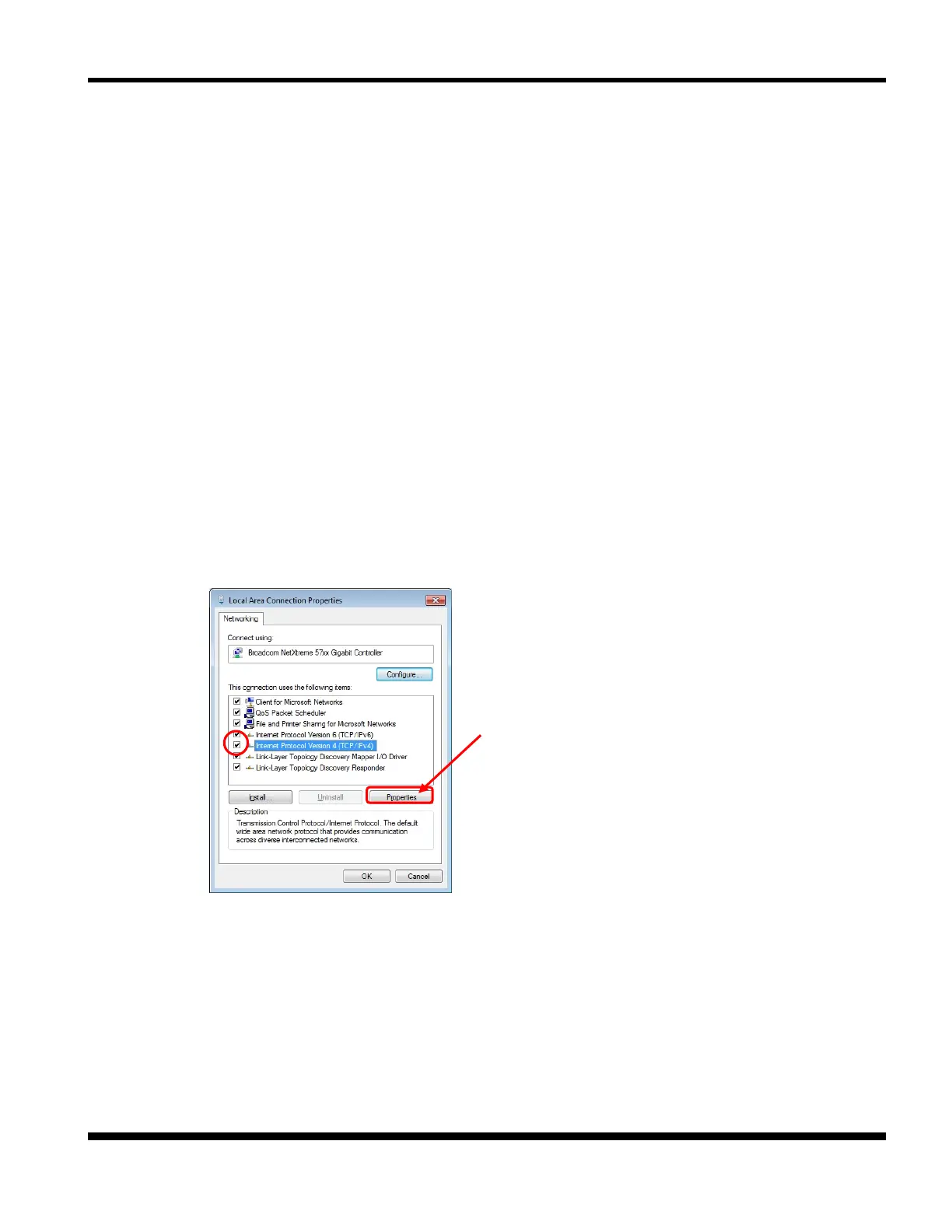
(2) Open the [Local Area Connection] properties.
If the [User Account Control] screen appears, select [Continue] or [Yes].
(3) Check that the [Internet Protocol Version 4 (TCP/IPv4)] has been added.
*1) If [Internet Protocol Version 4 (TCP/IPv4)] is not in the list, click [Install] and select [Select Network
Component Type] - [Protocol] - [Internet Protocol Version 4 (TCP/IPv4)] to add it.



 To Next Page