
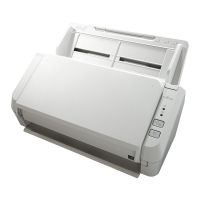

 To Next PageTo Next Page
 Need help?
Do you have a question about the Fujitsu SP-1120 and is the answer not in the manual?
Explains how to navigate and use the manual effectively.
Information about the scanner models, ADF, and USB interfaces.
Lists included manuals like Safety Precautions, Quick Installation Sheet, Operator's Guide.
Explains symbols, warnings, and abbreviations used in the manual.
Details high speed, batch scanning, multifeed detection, and central administration.
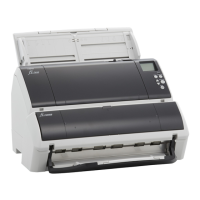
Identifies and describes scanner components like ADF, stacker, operator panel, and connectors.
Instructions on how to power the scanner on and off using the power button.
Steps for safely opening and closing the Automatic Document Feeder (ADF).
Guides on how to extend chute extensions for proper document feeding.
Instructions on how to set up the stacker and its extensions for neat document stacking.
Explains how the scanner enters power saving mode and how to resume operation.
Outlines the fundamental steps for performing a scan using scanner drivers and applications.
Lists and describes the software included with the scanner, like drivers and applications.
Details the necessary operating system, CPU, memory, and display requirements.
Steps for preparing and loading documents into the ADF.
Specifies paper sizes, types, weights, and conditions for scanning.
Describes the buttons and indicators on the scanner's operator panel.
Explains the meaning of different indicator light patterns and their status.
Briefly lists the main scanning methods covered in the chapter.
How to scan mixed batches of documents with varying widths.
Instructions for scanning documents longer than standard A4/Letter size.
How to configure the scanner's scan/stop button to launch applications.
Lists recommended cleaning materials and parts needing cleaning.
Instructions for cleaning the exterior surfaces of the scanner.
Detailed steps for cleaning the inside of the ADF, including with cleaning paper and cloth.
Identifies consumables and their suggested replacement intervals.
Step-by-step guide on how to replace the brake roller and pick roller.
Procedures for safely removing jammed documents from the scanner.
Explains how operator panel indicators signal temporary and device errors.
Troubleshoots issues where the scanner fails to power on.
Helps resolve problems where the scanning process fails to initiate.
Addresses problems related to poor or dirty image quality in scanned photos.
Provides solutions for frequent multifeed errors in the ADF.
Addresses frequent paper jams or pick errors in the ADF.
Guides on how to launch and access the Software Operation Panel application.
How to set a new password for the Software Operation Panel.
How to enable view-only mode for restricted user access.
Procedures for changing, clearing, or resetting the panel password.
Lists configurable settings like counters and power saving options.
How to check and reset sheet counters for consumables.
How to configure the scanner's power saving and auto power-off waiting times.
Provides detailed technical specifications for the scanner models.
Outlines installation requirements, power, and environmental conditions.
Shows the physical dimensions of the scanner with diagrams.
Step-by-step instructions for removing bundled software from the computer.
Directs users to Chapter 7 for solutions to scanner-related problems.
Provides web pages for inquiries about bundled software and the scanner.



 General