Connecting the Scanner via a Wired LAN (When Obtaining an IP Address
Automatically)
This section explains about the setup procedure for you to connect the scanner to a network device via a wired LAN
and automatically obtain an IP address for the scanner from the DHCP server.
For the procedure to unpack the scanner, refer to Getting Started.
ATTENTION
If an old version of the software is installed, uninstall it first.
For the procedure to uninstall the software, refer to Uninstalling the Software (page 145).
HINT
The factory default setting for obtaining an IP address for the scanner is set to obtain the IP address
automatically.
1 Turn on the computer and log onto Windows as a user with administrator privileges.
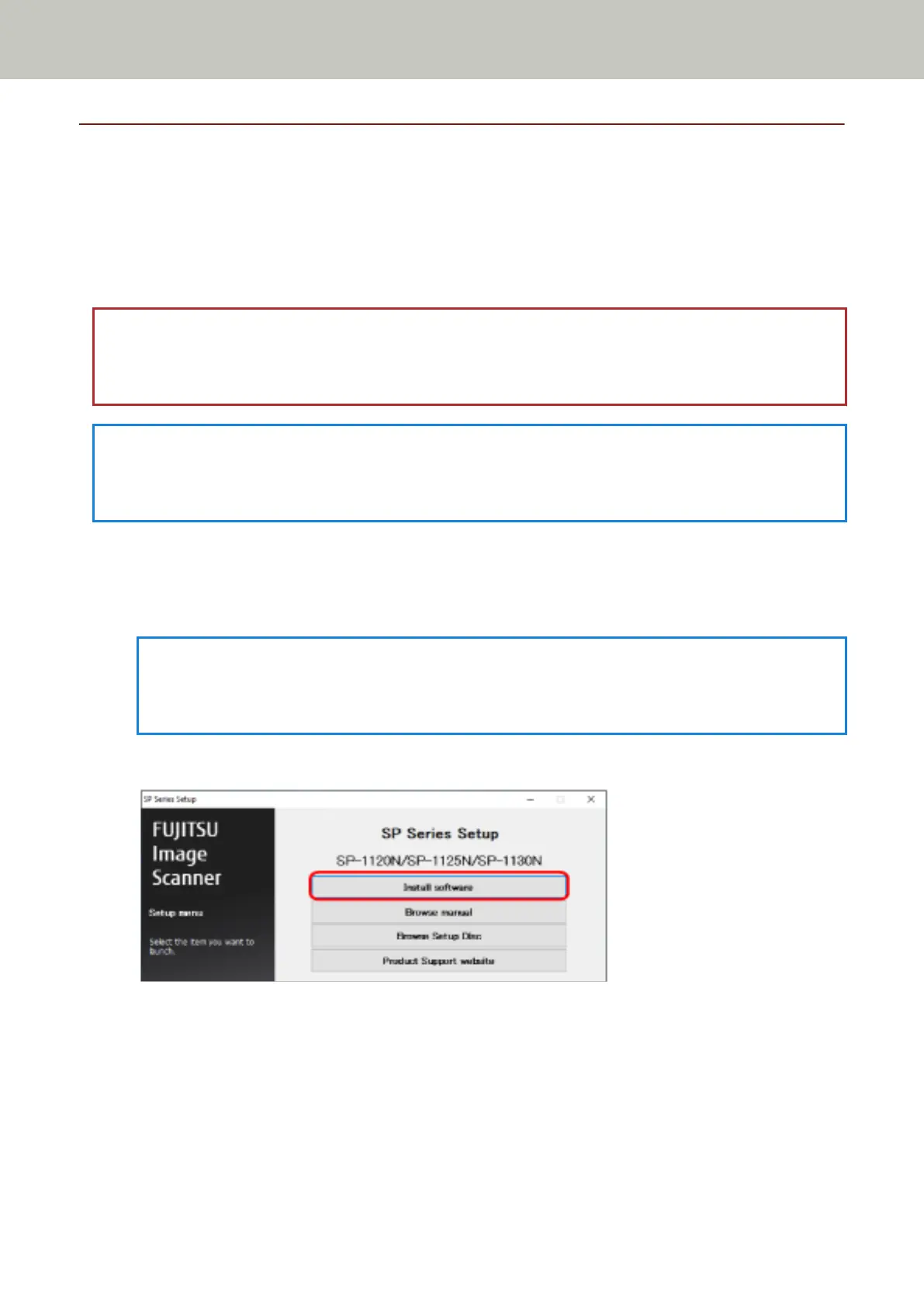
2 Insert the Setup DVD-ROM into the DVD drive.
The [SP Series Setup] window appears.
HINT
If the [SP Series Setup] window does not appear, double-click "Setup.exe" in the Setup DVD-ROM via [File
Explorer] or [Computer].
3 Click the [Install software] button.
The software information window appears.
4 Check the information and click the [Next] button.
5 Click the [Scanner software] button.
6 Install the software by following the instructions displayed in the window.
The [How to Connect the Scanner] window appears when the installation of the software is complete.
Scanner Setup
22



 To Next Page
 Loading...