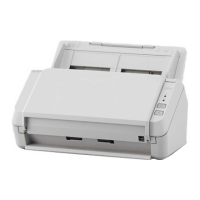
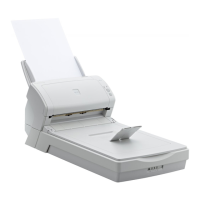
The serial number is printed on the label on the back of the scanner. For details, refer to Checking the
Product Label (page 116).
For details about Scanner Selection Tool, refer to the Network Setup Tool for SP Series Help.
10 Click the [Exit] button in the [SP Series Setup] window.
11 Start an image scanning application, and select the scanner to be used for scanning.
The scanner name depends on the scanner driver type and the scanner connection method.
Select the scanner name that is used for a wired LAN connection. For details, refer to the help for the scanner
driver.
12 Check whether the scanner is ready to start scanning.
For details, refer to How to Perform a Basic Scan (page 37).
HINT
If Scanner Selection Tool does not start up, follow the procedure below to start it up.
● Windows Server 2008 R2/Windows 7
Click [Start] menu → [All Programs] → [SP Series] → [Scanner Selection Tool for SP Series].
● Windows Server 2012
Right-click the Start screen, and select [All apps] on the app bar → [Scanner Selection Tool for SP Series] under
[SP Series].
● Windows Server 2012 R2/Windows 8.1
Click [↓] on the lower left side of the Start screen and select [Scanner Selection Tool for SP Series] under [SP
Series].
To display [↓], move the mouse cursor.
● Windows 10/Windows Server 2016/Windows Server 2019
Click [Start] menu → [SP Series] → [Scanner Selection Tool for SP Series].
Scanner Setup
22


 To Next Page
 Loading...