26
TROUBLESHOOTING
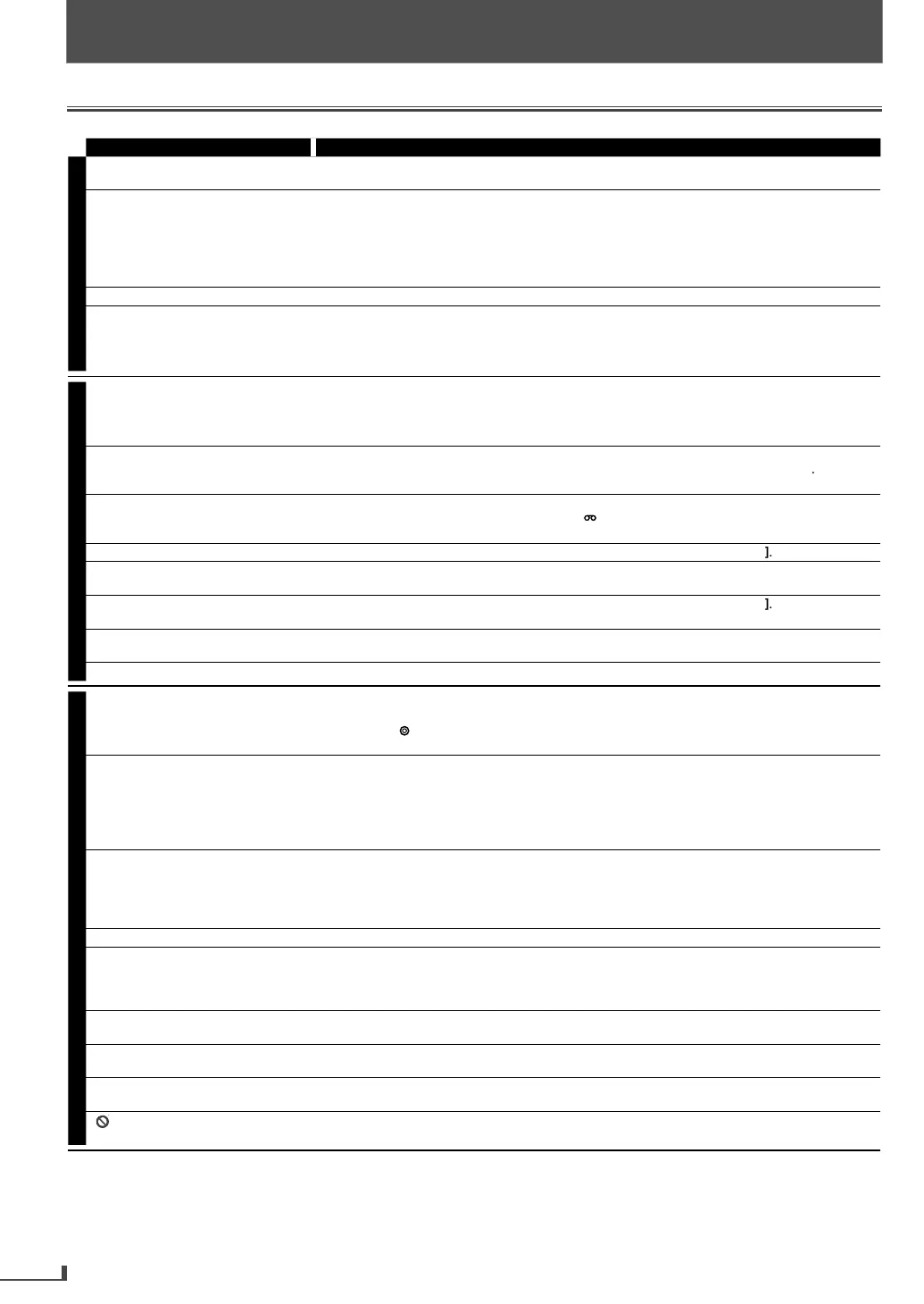
If this unit does not perform properly when operated as instructed in this manual. Refer to the following
Symptom Remedy
DVD • VCR
No power
a
e sure t
e power p
u
is connecte
to an AC out
et
a
e sure t
e power is turne
on.
is unit
oes not respon
to t
e
emote contro
.
heck i
the power plug is connected to an AC outlet
ou have to be within 23
eet (7m) o
this unit
heck i
a cassette tape or disc is in this unit.
a
e sure not
ing is
oc
ing t
e unit’s IR receiver win
ow
ns
ect and/or re
lace the batteries in the remote control.
heck i
the Remote Control is sending out an IR signal, re
er to page 27
oor picture or noise.
nter
erence signal ma
be received. Change the position and direction o
the unit
annot remove t
e cassette tape or
i
heck if this unit is in the DVD or VCR mode. If not, press
DVD]
[VCR
on t
e remote
n
r
wi
m
urn Power Off. Turn Power back On and immediatel
press the DVD or VCR Eject Button
epeatedl
to Eject the Disc or Cassette .
VCR
annot recor
a TV program
is unit
oes not
ave a tuner to receive TV
roa
casting
ou must connect t
is unit to TV wit
au
io/vi
eo output jac
s or an externa
tuner to
ecord TV programs. Re
er to “Recording & OTR (One -touch Timer Recording)” on page 20
n
“Sate
ite Lin
” on page 22
imer recor
ing is impossi
e.
a
e sure t
e timer program is set correct
y
a
e sure
TIMER REC] in
icator on this unit lights up. I
not, press
TIMER SET
a
e sure t
e VCR c
oc
is set correct
y
annot go into recor
mo
e.
ake sure the cassette tape has a record tab. I
needed, cover the hole with tape.
ctivate t
is unit in VCR mo
e. Press
VCR
on t
e remote contro
so t
at t
e
VCR
n
icator wi
i
uminate
P
ay
ac
picture is partia
y noisy
djust tracking control
or a better picture by pressing
TRACKING
annot view a picture
ut t
e au
io
is
K.
ead cleaning may be necessary. Re
er to “Auto Head Cleaning” (page 27)
No or poor, p
ay
ac
picture
djust tracking control
or a better picture by pressing
TRACKING
onnect the video cable
irmly.
i
r
l
r
in
n
wh
n
aking a copy o
a cassette tape
ou cannot copy a copyrig
te
cassette tape.
No picture an
soun
.
lease con
irm to connect to DVD
VCR AUDIO OUT and DVD
VCR VIDEO OUT
DVD
No p
cture.
onnect the video cable
irml
.
nsert a correct vi
eo
isc t
at can
e p
aye
ac
on t
is unit
ress
DVD
on the remote control. Check i
the [DVD] in
icato
wi
i
uminate. T
en try
ther DVD
eatures
Disc cannot
e p
aye
ac
.
n
r
i
ean t
e
isc
ace t
e
isc correct
y wit
t
e
a
e
si
e up
ance
t
e parenta
oc
or c
an
e t
e contro
eve
s
andle a disc with special care so that it does not have fingerprints, scratches, or dusts on
r
No soun
.
onnect the audio cables
irml
.
urn on the
ower of the audio com
onent
orrect t
e au
io output settin
s.
orrect t
e input settings on t
e au
io component.
urn up Sound on TV or remove Mute
unction
rom the TV.
No DTS au
io is output
is unit
oes not support DTS au
io.
Distorte
picture
onnect t
is unit
irect
to t
e TV.
here are some cases where pictures may be slightly distorted, and those are not a sign o
a
al
unction.
lthough pictures ma
stop for a moment, this is not a malfunction
Audio or subtitle language does not
atc
t
e settin
.
he selected language is not available
or audio or subtitles on the DVD
e camera an
e cannot
e
han
ed.
he DVD does not alwa
s contain sequences recorded from different camera angles.
Audio or subtitle lan
ua
e
annot
e c
an
e
he DVD does not alwa
s contain audio source or subtitles in the selected language.
e DVD Au
io or su
tit
e
anguage ma
on
e c
ange
using t
e
isc Menu
” a
ears on the TV screen,
rohibitin
an operation.
he operation is prohibited b
this unit or the disc.
• Some
unctions are not available in s
eci
ic modes, but this is not a mal
unction. Read the descri
tion in this manual
or details on correct o
erations
Pla
back from a desired track and random pla
back are not available during programmed pla
back.
Some functions are prohibited on some discs
TROUBLESHOOTING
Troubleshooting Guide


 To Next Page