2. OPERATION
2-3
2.3 How to Adjust the Brilliance, Change the Back-
ground Color
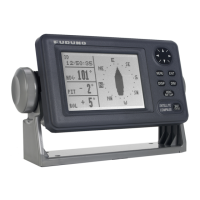
The display unit (SC-702) has brilliance (brightness) controls for the screen and the
key panel.
2.3.1 How to adjust the screen and key panel brilliance
To change the brilliance, do the following:
1. Press the BRILL key. The brilliance pop up window appears.
Note: The pop up window automatically disappears if there is no operation detect-
ed.
2. Press W to reduce, or X to increase, the display brilliance.
3. Press T to reduce, or S to increase, the key panel brilliance.
4. Press the ENT key to close the pop up window.
The factory default settings and setting range for brilliance are listed in the table below.
Note: The brilliance default setting for RD-50/RD-20 is [9], and the setting range is [0]
to [9]. See the operator’s manual (RD-50: OME-44530-x, RD:20: OME-44540-x; “x”
denotes version) for details.
2.3.2 How to change the background and text color
1. Press the BRILL key to show the brilliance pop up window.
2. Press the DISP key to alternate background/text color.
3. Press the ENT key to close the pop up window.
The background color can also be changed from the menu, see section 2.13.1.
Display Panel
Setting range: [1] to [17] Setting Range: [0] to [17]
White background default: [14] White background default: [10]
Black background default: [6] Black background default: [10]
White background Black background



 To Next Page
 Loading...