The FXP CD-220 VFD is a customer pole display designed to show transaction information to customers. It features a Vacuum Fluorescent Display (VFD) with a bright blue-green display font, enhancing visibility and readability for various retail environments. The unique panel design aims to vitalize the retail interior.
Function Description
The CD-220 VFD serves as a visual interface for customers, displaying information such as prices, item names, and totals during transactions. It supports 14 language characters, including those from the USA, France, Germany, UK, Sweden, Denmark I and II, Italy, Spain, Norway, Greek, Slavonic, Russian, and Portuguese, making it suitable for international use. The device offers six command modes: EPSON ESC/POS, ADM787/788 (option), UTC/S, UTC/P, EMAX (AEDEX), CD5220, and DSP-800 (option), ensuring compatibility with a wide range of POS systems. It provides a wide range of power consumption, achieving optimal energy use and reliability. The innovative hinge design allows for quick panel adjustment, and it is user-programmable for all fonts and customer messages.
Important Technical Specifications
- Display Method: Vacuum Fluorescent Display (VFD)
- Number of Characters: 40 characters (20 columns x 2 lines)
- Display Color: Blue-green
- Brightness: 700 cd/m2
- Font:
- I. 96 alphanumeric
- II. 14 sets of international characters: USA, France, Germany, UK, Sweden, Denmark I and II, Italy, Spain, Norway, Japan (Katakana), Slavonic, Russian, and Portuguese
- III. One set of user downloadable characters
- Character Size: 5x7 Dot Matrix, 9.03 mm x 5.25 mm
- Command Set:
-
- EPSON ESC/POS
-
- EMAX (AEDEX)
-
- DSP 800 (Optional)
-
- UTC/S, UTC/P
-
- ADM 787/788 (Optional)
-
- CD5220
- Interface: Dual Interface (USB+RS232C) / USB / RS232C
- Power Supply: DC 5V (via USB or DB9)
- Power Consumption: <3W
- MTBF: 30,000 hrs
- Rotation Angle: Vertically: 36 degrees; Horizontal: 270 degrees
- Physical Dimension:
- Head (W x D x H): 215 x 57 x 92 mm
- Support (H x Ø): Long: 250 x 34 mm; Short: 117 x 34 mm
- Base (W x D x H): 200 x 120 x 27 mm
- Weight: N.W. 0.8kg
- Environment:
- EMC & Safety: CE/FCC Class A
- Operation Temperature: 5~45 °C
- Storage Temperature: -20~70 °C
- Operation Humidity: 15%~80% RH
- Storage Humidity: 10%~90% RH
- Mechanical:
- Housing Color: Black / White
The device supports full-speed data transfer using the USB 2.0 protocol. For RS-232C interface, it offers baud rates selectable from 9600 to 115200 bps. Mechanically, it provides a wide range of rotation and tilt angles, and a selectable pole length for best position installation.
Usage Features
The CD-220 VFD is designed for easy installation and configuration. It comes with a display panel, a long pole (250 mm x 1) and a short pole (117 mm x 1), a stand base, a driver CD (User's Manual included), and a dual interface cable.
Installation and Configuration:
The display can be assembled by inserting the RJ45 end of the dual interface cable through the base and the pipe, then connecting it to the RJ45 slot. The extension pole can be adjusted to the desired height (Low 173 mm, Mid 260 mm, High 394 mm, and Highest 482 mm). It's important to attach the joint of the extension pole or stand base to the Display Panel until it is properly locked.
The display allows for a 270-degree rotation in either horizontal direction. It also supports a 0~36 degree tilt angle adjustment. To adjust the tilt, locate the hinge section on the backside of the Display Panel and pull the tab downward to tilt the panel up or down to the desired position.
To connect the device, first turn off the system power. Then, connect the dual interface cable to the host computer and the CD-220 VFD Customer Pole Display. Finally, start the host PC and switch on the display.
Driver Installation:
The firmware for the USB port is divided into CDC class (Virtual COM) and printer class. To recognize the firmware version, check the starting status of the customer display as Pic 1. The version affix F or H indicates CDC Class, while E or G indicates Printer Class. If the USB port is in CDC class and the application software is connected by USB port, the user must install the driver. For CDC Class, select Pic 2. For Printer Class, select Pic 3. If the application software needs to install the printer mode driver, select Pic 4.
Software Configuration:
The system parameters can be configured using the VFD Utility software tool. This tool allows setting system parameters, configuring welcome messages, and user fonts. The parameters include language character set, command type, baud rate, and parity check.
- Before starting: Ensure the CD-220 VFD is connected to the PC and working. If a USB interface or device driver is used, install the device driver before starting the software.
- Select a proper interface: After starting the software, a dialog will prompt to select an interface (COM port for RS232 only, or Device Driver for RS232 or USB).
- RS-232 Interface: If COM port (RS232 only) is selected, a dialog will appear to configure the RS-232 interface. Parameters such as Port Number, Baud Rate, and Parity can be set.
- Selecting Device Driver: If "Device Driver" is selected, a pull-down dialog will show available device drivers.
- Select Model Name: Before continuing, select the proper model name that matches the device's model. The model name can be selected on the upper-right corner of the window.
The configuration page allows setting language character set, command type, baud rate, and parity check. These settings are stored on non-volatile memory and retrieved every time the device starts.
- Command Type: The CD-220 VFD supports up to 8 command sets, listed in a pull-down list (EPSON ESC/POS, DSP-800, ADM787/788, EMAX, UTC/S, UTC/P, CD5220, Reserved).
- Language Character Set Selection: The CD-220 VFD supports various language character sets, which can be referenced from a table for character code page.
- Baud Rate Selection: Baud rates can be selected from 9600, 19200, 38400, and 115200 bps.
- Parity Check Selection: Parity check options include None-parity and Even-parity.
Define Welcome Message:
The display can show two messages (Msg1 and Msg2) on upper and lower lines in marquee status. Messages can be typed on the keyboard in ASCII mode or type others in Hex mode. Press "Set" button to send messages to the machine.
Define Your Own Font:
Users can create their own font and download it with the software tool. There are three ways to create the font:
- From an Existing Font: Select a font to be the font base and modify it to fit requirements. The first part is ASCII code, and the second part is 0x80~0xff, which is the range that code page refers to. Users can select a desired code page from the list as a base of your font. After selecting an existing font, "Load Existing Font" and the font will be loaded into system memory. Users can choose to save the font to a file by pressing "Save to file" or download the font to the device by pressing "Download to device." To quit current modification, press "Reload font" to load the font again. All modifications will be lost after reloading. Press "Reset" to abandon current modification and restart the whole operation.
- From Your Font File: Modify previously edited and saved font files. Press "Open Font File" to open a font file. After selecting a file, the font contained in that file will be loaded into memory. Users can edit the font, save it to a file, or download it to the device.
- From scratch: To build a font from scratch, press "Create New File" to create an empty font. After finishing editing, users can save the font to a file or download it to the device.
Software Setting Command:
The user can re-set the default configuration by using the following software commands:
- Baud Rate Setting Command (STX 05 B n ETX): Changes the baud rate. The baud rate can be selected from 9600 to 115200 bps.
- Parity Check Setting Command (STX 05 P n ETX): Changes the parity check (None parity or Even parity).
- Command Type Setting Command (STX 05 C n ETX): Changes the command type and initializes the display (ESC/POS, ADM787/788, DSP-800, EMAX, UTC/S, CD5220).
- International Character Set Setting Command (STX 05 S n ETX): Changes the display International character set.
Maintenance Features
The manual provides important safety instructions for maintenance and general use:
- Product Safety: The product may cause a fire or electric shock when used improperly. Always observe the above safety measures. If the product is damaged, immediately turn off the power and disconnect the power cord. Contact your dealer for assistance.
- Power Connection: Do not plug in or unplug the power cord with wet hands. Do not plug the product into an AC outlet with the incorrect voltage (ensure it is between AC 100V~240V). Do not plug several products into one multi-outlet.
- Handling: Do not apply pressure to the power cord or place heavy objects on it. Immediately stop using the product if it emits strange noise, odor, or smoke. Do not use aerosol sprays or containers of flammable gas inside or around the product. Do not allow foreign objects or liquids to enter the product, as this may result in serious damage. If the product is dropped, damaged, or unstable, do not use it.
- Cleaning: Keep the machine away from locations subject to high humidity, dust, or temperatures that exceed the specification. Clean the product only by using a dry cloth or a cloth soaked with detergent. Never use thinner or other volatile solvents for cleaning. At the end of the day, clean and inspect the exterior of the machine after the machine is powered off.
- Accessories: Use only specified accessories.
- Environmental Conditions: Do not expose the accessories directly to sunlight, high temperatures, humidity, dust, or gas.
- Placement: Do not place heavy objects on top of the product or lean them against the product. These items may fall down and cause injury.
- Ventilation: Do not block the air vent of the product as this can cause heat accumulation inside the box machine and may cause a fire.
The device is compliant with part 15 of the FCC Rules, ensuring it does not cause harmful interference and accepts any interference received. It is also designed for proper disposal, with a WEEE (Waste from Electrical and Electronic Equipment) symbol indicating that it should not be disposed of with other waste. Users are encouraged to contact their local city office for recycling information. The product is RoHS compliant.

 Need help?
 General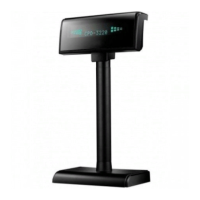

 To Next Page