INSTALLATION
9 Customer Pole Display CD-220 VFD
3.3 Driver Installation
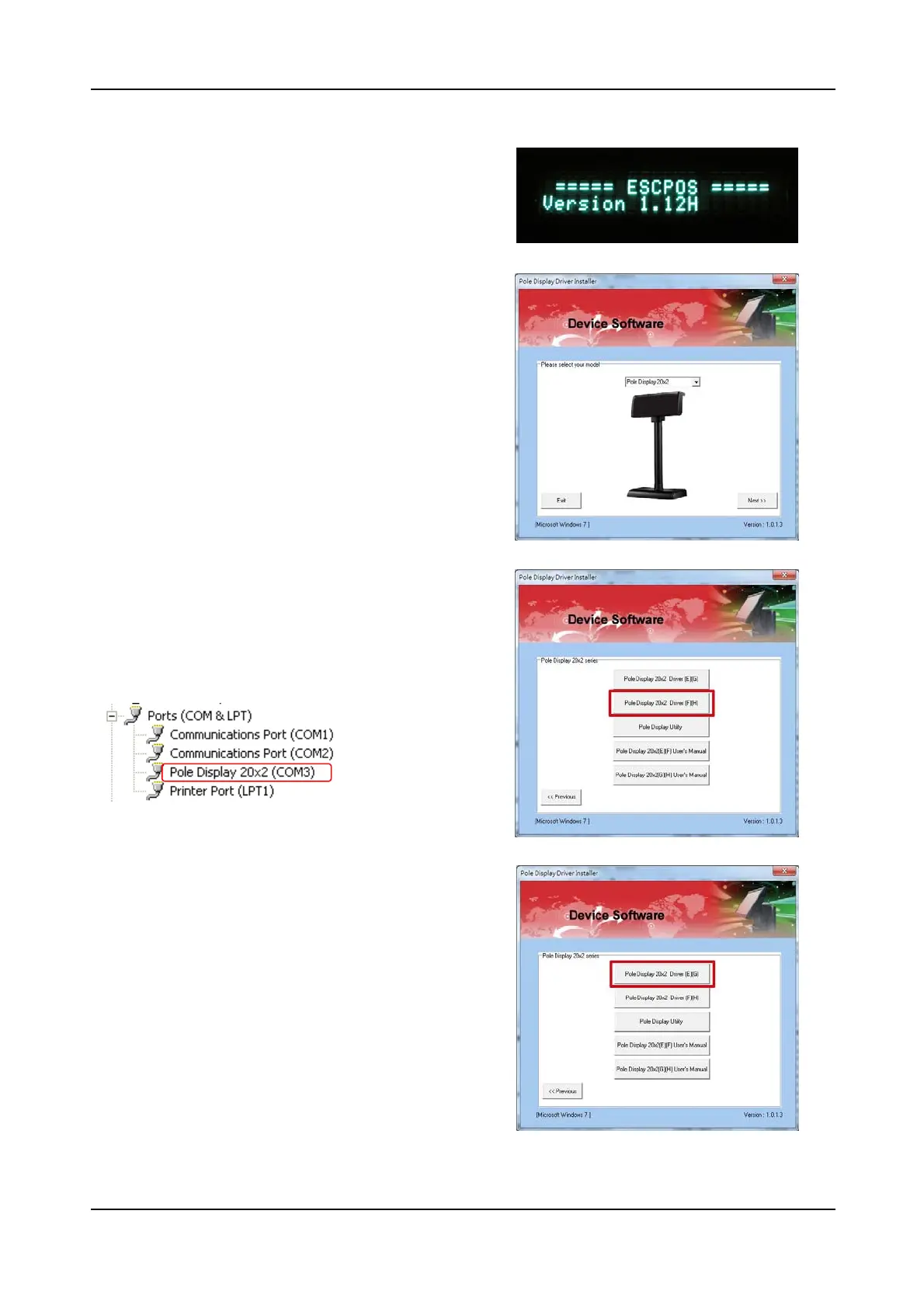
The firmware for the USB port is divided
into CDC class (Virtual COM) and printer
class. To recognize which firmware
version it is, check the starting status of
your customer display as Pic 1:
The version affix F or H : CDC Class.
The version affix E or G : Printer Class.
In case your USB port is in CDC class and
your application software is connected by
USB port, you must install the driver:
-Click CD-220 VFD CDC Class as Pic 2.
-check the device manager to find the
COM port number as below.
If your Application Software needs
to install the printer mode driver:
Click CD-220 VFD Series Printer Class
as Pic 2 and select as shown in the Pic
3,4:
-Serial/Virtual for COM Connection.
-USB for USB Connection.
Pic1
Pic2
Pic3
Pic4


 To Next Page