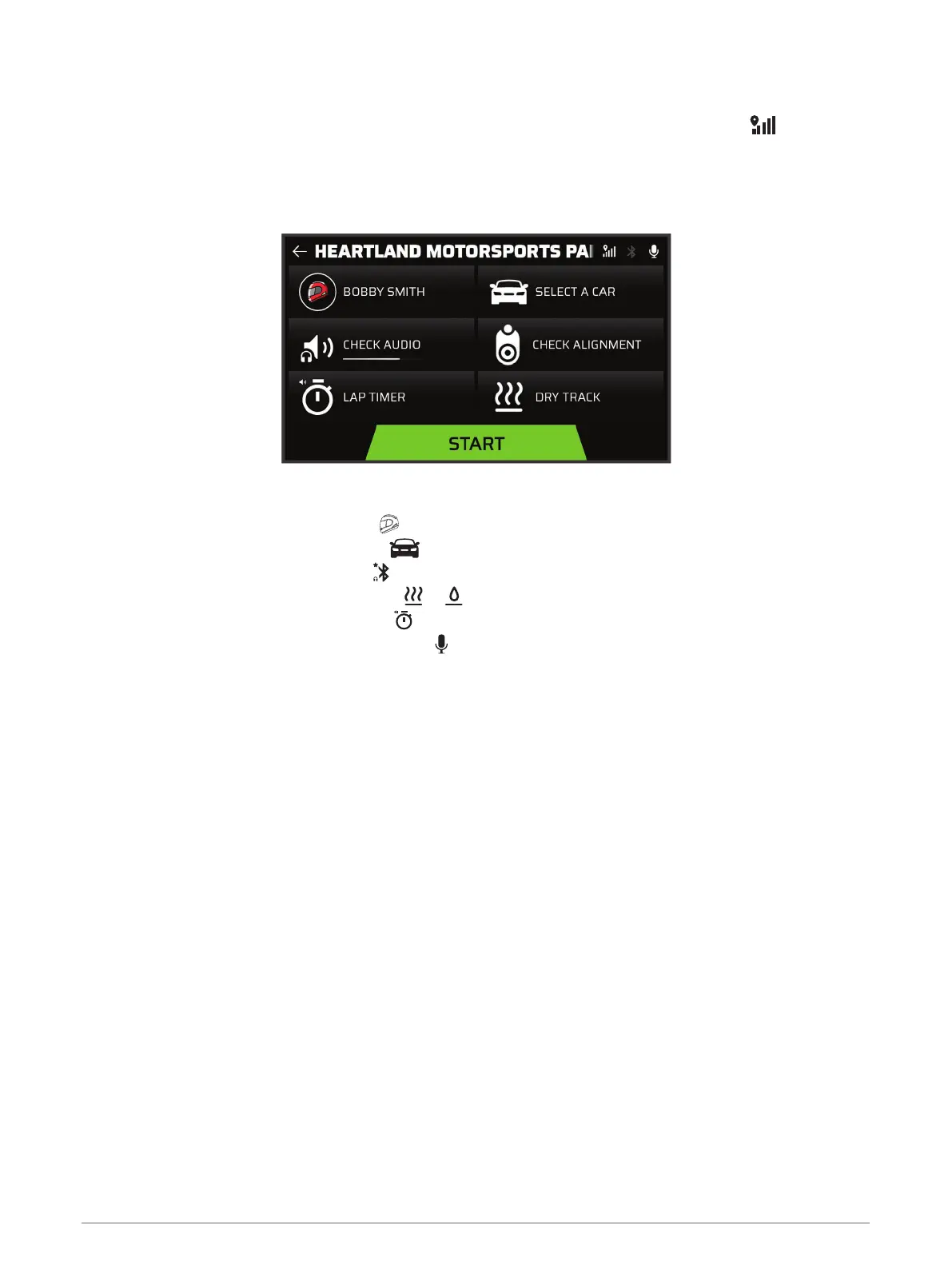
Starting a Drive Session
Before you can start a drive session, your device must acquire satellite signals. You can select in the status
bar to check the current signal strength and accuracy.
1 From the home screen, select DRIVE.
2 Select a track.
3 Select an option:
• To change your driver profile, select .
• To change your vehicle profile, select .
• To configure audio features, select .
• To change your track conditions, select or .
• To configure lap timer settings, select .
• To enable or disable audio recording, select .
4 Select CHECK ALIGNMENT, and follow the on-screen instructions to adjust your camera alignment.
5 Select START.
6 Start driving.
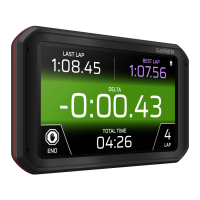
The timer starts automatically when you cross the starting line.
Pausing a Drive Session
You can pause a drive session that is already in progress. When you pause a drive session, the device stops
recording audio and video and stops recording some race data. This is useful if your vehicle breaks down on
the track, or if you make a long pit stop.
When you come to a stop, the device automatically prompts you to pause the drive session.
1 Stop the vehicle.
2 From the race timer, select an option:
• When the device prompts you, select PAUSE.
• If the device does not prompt you, select STOP > PAUSE.
The session automatically resumes when you begin driving again.
12 Starting a Drive Session





 To Next Page