Going to a Business or Named Location Using Your Voice
You can say phrases like these to find and navigate to a business or location by name or category.
Nearby locations
• oK, Garmin, find a coffee shop.
• OK, Garmin, where's the library?
• OK, Garmin, take me to Starbucks.
Locations near a different city
• oK, Garmin, find Mexican food near Denver, Colorado.
• OK, Garmin, find The Field Museum near Chicago, Illinois.
• OK, Garmin, find Casa Bonita near Denver, Colorado.
Locations near a junction
• oK, Garmin, find barbecue near 12th Street and Vine Street.
• OK, Garmin, find Arthur Bryant’s Barbecue near 12th Street and Vine Street.
Going to a Town or Junction Using Your Voice
You can say phrases like these to find and navigate to a town or junction.
• OK, Garmin, find Chandler, Arizona.
• OK, Garmin, find Michigan Avenue and Erie Street.
Checking Your Arrival Time
While a route is active, you can say a phrase to check your estimated time of arrival at your destination.
Say OK, Garmin, what time will we arrive?.
Stopping a Route Using Your Voice
You can say phrases like these to stop navigating a route.
• OK, Garmin, stop the route.
• OK, Garmin, stop navigating.
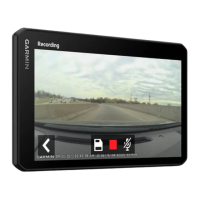
Controlling the Camera Using Voice Commands
1 Say OK Garmin to activate the voice control feature.
The camera plays a tone and starts listening for a command.
2 Say a command:
• To save a video, say Save Video.
• To take a picture, say Take A Picture.
The camera plays a tone when it recognises your command.
Placing a Phone Call Using Your Voice
You can use a voice command to call a contact from the phone book of your paired smartphone.
Say OK, Garmin, call, and say the contact name.
For example, you can say OK, Garmin, call Mum..
Changing Device Settings Using Your Voice
You can say phrases like these to set device settings to a value from 0 to 10.
• OK, Garmin, increase the volume.
• OK, Garmin, set the volume to 0.
• OK, Garmin, set the volume to 9.
• OK, Garmin, decrease the brightness.
• OK, Garmin, set the brightness to 5.
12 Voice-activated features




 To Next Page