Adding an environmental zone vehicle profile
You can add a vehicle profile for the environmental zone settings specific to your vehicle, such as fuel type and
emission standard.
NOTE: this feature is not available for all regions or product models.
1 Select > Navigation > Environmental Zones.
2 Follow the on-screen instructions.
Wireless network settings
The wireless network settings allow you to manage Wi‑Fi networks, paired Bluetooth devices and Bluetooth
features.
Select > Wireless Networks.
Bluetooth: enables Bluetooth wireless technology.
Paired Device Name: the names of paired Bluetooth devices appear in the menu. You can select a device name
to change Bluetooth feature settings for that device.
Search for Devices: searches for nearby Bluetooth devices.
Friendly Name: allows you to enter a friendly name that identifies your device on other devices with Bluetooth
wireless technology.
Wi-Fi: enables the Wi‑Fi technology.
Saved Networks: allows you to edit or remove saved networks.
Search for Networks: searches for nearby Wi‑Fi networks (Connecting to a Wi‑Fi Network, page 49).
Driver Assistance Settings
Select > Driver Assistance.
Driver Alerts: allows you to enable or disable alerts for upcoming zones or road conditions (Driver awareness
features and alerts, page 13).
Speeding Alert: alerts you when you are exceeding the speed limit.
Reduced Speed Tone: alerts you when the speed limit decreases.
Route Preview: displays a preview of the major roads on your route when you start navigation.
Break Planning: reminds you to take a break, and displays upcoming services after you drive for an extended
time. You can enable or disable break reminders and upcoming service suggestions.
Proximity Alerts: alerts you when you approach speed cameras or red light cameras.
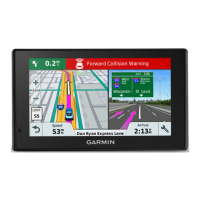
Forward collision warning: allows you to enable and set the sensitivity of the forward collision warning. A higher
sensitivity alerts you sooner than a lower sensitivity.
Go Alert: alerts you when stopped traffic starts moving.
Lane Departure Warning: enables the device to alert you when it detects you may be crossing a lane boundary
unintentionally.
Proximity alerts settings
NOTE: you must have custom points of interest (POIs) loaded for proximity points alerts to display.
NOTE: this feature is not available in all areas.
Select > Driver Assistance > Proximity Alerts.
Audio: sets the style of alert that plays when you approach proximity points.
Alerts: sets the type of proximity points for which alerts are played.
Settings 45




 To Next Page