Parking Near Your Destination
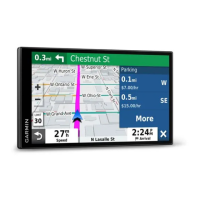
Your device can help you find a parking spot near your destination. When you approach some destinations, the
device automatically suggests parking areas.
1 Select an option:
• When the device suggests parking, select More to see all suggested parking areas.
NOTE: when you select a suggested parking area, the device automatically updates your route.
• If the device does not suggest parking locations, select Where To? > Categories > Parking, and select >
My Destination.
2 Select a parking location and select Go!.
The device guides you to the parking area.
Changing Your Active Route
Adding a location to your route
Before you can add a location to your route, you must be navigating a route (Starting a route, page 24).
You can add locations to the middle or end of your route. For example, you can add a petrol station as the next
destination in your route.
TIP: to create complex routes with multiple destinations or scheduled stops, you can use the route planner to
plan, schedule and save a route (Planning a Route, page 39).
1 From the map, select > Where To?.
2 Search for a location (Finding and saving locations, page 16).
3 Select a location.
4 Select Go!.
5 Select an option:
• To add the location as the next destination in your route, select Add as Next Stop.
• To add the location to the end of your route, select Add as Last Stop.
• To add the location and edit the order of destinations in your route, select Add to Active Route.
The device re-calculates the route to include the added location and guides you to the destinations in order.
Shaping Your Route
Before you can shape your route, you must start a route (Starting a route, page 24).
You can manually shape your route to change its course. This allows you to direct the route to use a certain
road or go through a certain area without adding a destination to the route.
1 Select anywhere on the map.
2 Select Shape Route.
TIP: you can select to zoom in on the map and select a more precise location.
The device enters route-shaping mode and recalculates the route to travel through the selected location.
3 Select Go!.
4 If necessary, select an option:
• To add more shaping points to the route, select additional locations on the map.
• To remove a shaping point, select the shaping point and select Remove.
Following a route 27




 To Next Page