Finding Parking Near a Specified Location
1 Select Where To?.
2 Search for a location.
3 From the location search results, select a location.
4 Select .
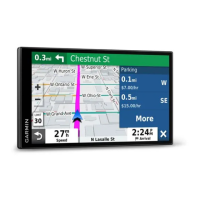
A list of parking areas near the selected location appears.
5 Select a parking location.
6 Select Go!.
Viewing history
Your device stores a history of the last 50 locations you have found.
Select Where To? > History.
Clearing the list of recently found places
Select Where To? > History > > Clear > Yes.
Viewing current location information
You can use the Where Am I? page to view information about your current location. This feature is helpful if you
need to tell emergency personnel your location.
From the map, select the vehicle.
Finding emergency services and fuel
You can use the Where Am I? page to find the nearest hospitals, police stations, and fuel stations.
1 From the map, select the vehicle.
2 Select Hospitals, Police Station, or Petrol Stations.
NOTE: some service categories are not available in all areas.
A list of locations for the selected service appears, with the nearest locations at the top.
3 Select a location.
4 Select an option:
• To navigate to the location, select Go!.
• To view the phone number and other location details, select .
Getting directions to your current location
If you need to tell another person how to get to your current location, your device can give you a list of
directions.
1 From the map, select the vehicle.
2 Select > Directions to Me.
3 Select a starting location.
4 Select Select.
Adding a shortcut
You can add shortcuts to the Where To? menu. A shortcut can point to a location, a category, or a search tool.
The Where To? menu can contain up to 36 shortcut icons.
1 Select Where To? > Personalise.
2 Select an item.
22 Finding and saving locations




 To Next Page