Downloading Connect IQ Features Using Your Computer
1 Connect the device to your computer using a USB cable.
2 Go to apps.garmin.com, and sign in.
3 Select a Connect IQ feature, and download it.
4 Follow the on-screen instructions.
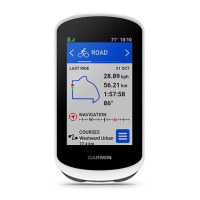
Updating Your Activity Profile
You can customize three activity profiles. You can customize your settings and data fields for a particular
activity or trip.
TIP: You can also customize the activity profiles from the device settings in the Garmin Connect app.
1 Select > Activity Profiles.
2 Select a profile.
3 If necessary, select to edit the name and color for the profile.
4 Select an option:
• Select Data Screens to customize the data screens and data fields (Adding a Data Screen, page 37).
• Select Climbs > ClimbPro to enable the ClimbPro feature (Using ClimbPro, page 14).
• Select Alerts and Prompts to customize your activity alerts (Alerts, page 37).
• Select Alerts and Prompts > Sharp Bend Warnings to enable navigation warning messages for difficult
turns.
• Select Alerts and Prompts > High Traffic Road Warnings to enable navigation warning messages for high
traffic roads.
• Select Alerts and Prompts > Lap to set how laps are triggered (Marking Laps by Position, page 38).
• Select Timer > Auto Pause to change when the activity timer automatically pauses (Using Auto Pause,
page 39).
• Select Timer > Timer Start Mode to customize how the device detects the start of a ride and
automatically starts the activity timer (Starting the Timer Automatically, page 40).
• Select Navigation > Map to customize the map settings (Map Settings, page 15).
• Select Navigation > Routing to customize the routing settings (Route Settings, page 16).
• Select Navigation > Navigation Prompts to show turn-by-turn navigation prompts as text or on the map.
• Select Satellite Systems to turn off GPS (Training Indoors, page 22) or change the satellite setting
(Changing the Satellite Setting, page 40).
• Select Auto Sleep to automatically enter sleep mode after five minutes of inactivity (Using Auto Sleep,
page 40).
All changes are saved to the activity profile.
36 Customizing Your Device


 To Next Page