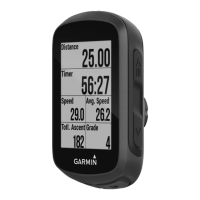
Adding a Data Screen
1 Select > Activity Profiles.
2 Select a profile.
3 Select Data Screens > Add New > Data Screen.
4 Select a category, and select one or more data fields.
TIP: For a list of all the available data fields, go to Data Fields, page 53.
5 Select .
6 Select an option:
• Select another category to select more data fields.
• Select .
7 Select or to change the layout.
8 Select .
9 Select an option:
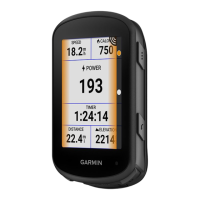
• Tap a data field, then tap another data field to rearrange them.
• Double-tap a data field to change it.
10 Select .
Editing a Data Screen
1 Select > Activity Profiles.
2 Select a profile.
3 Select Data Screens.
4 Select a data screen.
5 Select Layout and Data Fields.
6 Select or to change the layout.
7 Select .
8 Select an option:
• Tap a data field, then tap another data field to rearrange them.
• Double-tap a data field to change it.
9 Select .
Rearranging Data Screens
1 Select > Activity Profiles.
2 Select a profile.
3 Select Data Screens > > Reorder.
4 Hold on a data screen and drag it to a new location.
5 Select .
Alerts
You can use alerts to train toward specific time, distance, calorie, heart rate, cadence, and power goals. Alert
settings are saved with your activity profile.
Customizing Your Device 37


 To Next Page