Adjusting the VRM and EBL
Before you can adjust the VRM and EBL, you must show
themShowing the VRM and EBL, page 10.
You can adjust the diameter of the VRM and the angle of the
EBL, which moves the intersection point of the VRM and the
EBL.
1
From the AIS Radar screen, select MENU > Adjust
VRM/EBL > Move VRM/EBL.
2
Use the arrow keys to adjust the VRM and EBL.
3
Select SELECT.
Measuring the Range and Bearing to a
Target Object
1
From the AIS Radar screen, select the target location.
2
Select SELECT > Measure Distance.
The range and the bearing to the target location appear.
3
If necessary, use the arrow keys to move the target to a new
location.
4
Select BACK.
AIS Radar Appearance Settings
From the AIS Radar screen, select MENU > Appearance.
Orientation: Sets the perspective of the AIS Radar screen.
Color Scheme: Sets the color scheme for the AIS Radar
screen.
Heading Line: Shows an extension from the bow of the boat in
the direction of travel on the AIS Radar screen.
Range Rings: Shows the range rings that help you to visualize
distances on the AIS Radar screen.
Bearing Ring: Shows a bearing relative to your heading or
based on a north reference, to help you determine the
bearing to an object shown on the AIS Radar screen.
Nav Lines: Shows the navigation lines that indicate the course
you have set using Route To, Auto Guidance, or Go To.
Marks/Waypoints: Shows waypoints on the AIS Radar screen.
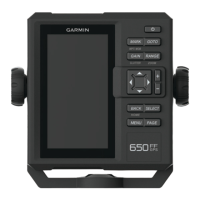
Highway Page
The highway page provides steering guidance as you navigate
to your destination. The graphic highway display shows each
route waypoint in sequence. The line down the center of the
highway represents your preferred track line. You can customize
the page layout and data fields.
Opening the Highway Page
Before you can use the Highway page, you must be navigating
to a destination.
From the home screen, select Highway.
À
Mark or waypoint
Á
Distance to destination
Â
Track line
Ã
Coordinates
Ä
Distance off course
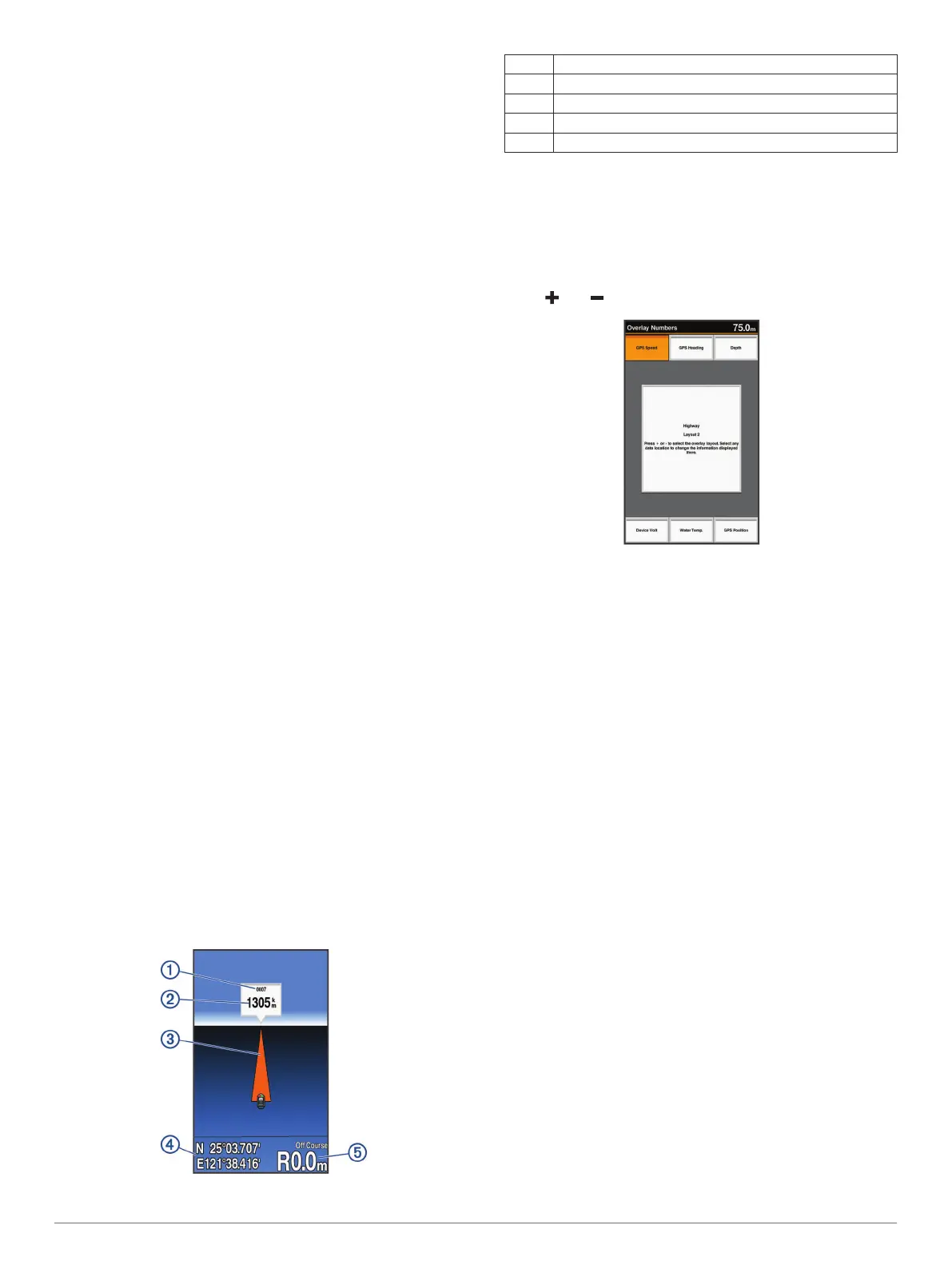
Showing and Customizing the Highway
Overlay Numbers
You can customize the data shown on the screen.
1
From the Highway screen, select MENU > Overlay Numbers
> Show.
2
Select Edit Layout.
3
Using and , select a layout.
4
Select an overlay box.
5
Select the data to show.
6
Select BACK.
Digital Selective Calling
Networked Chartplotter and VHF Radio
Functionality
If you have a NMEA 0183 VHF radio connected to your
chartplotter, these features are enabled.
• The chartplotter can transfer your GPS position to your radio.
If your radio is capable, GPS position information is
transmitted with DSC calls.
• The chartplotter can receive digital selective calling (DSC)
distress and position information from the radio.
• The chartplotter can track the positions of vessels sending
position reports.
Turning On DSC
Select Settings > Other Vessels > DSC.
DSC List
The DSC list is a log of the most recent DSC calls and other
DSC contacts you have entered. The DSC list can contain up to
100 entries. The DSC list shows the most recent call from a
boat. If a second call is received from the same boat, it replaces
the first call in the call list.
Viewing the DSC List
Before you can view the DSC list, the chartplotter must be
connected to a VHF radio that supports DSC.
Select Navigation Info > Other Vessels > DSC List.
Adding a DSC Contact
You can add a vessel to your DSC list. You can make calls to a
DSC contact from the chartplotter.
Highway Page 11




 To Next Page