System Information: Provides information about the device and
the software version.
Simulator: Turns on the simulator and allows you to set the
speed and simulated location.
System Information
Select Settings > Settings > System Information.
Event Log: Allows you to view a log of system events.
Software Information: Provides information about the device
and the software version.
Garmin Devices: Provides information about connected Garmin
devices.
Factory Settings: Restores the device to factory settings.
NOTE: This deletes any setting information you have
entered.
My Vessel Settings
NOTE: Some settings and options require additional hardware.
Select Settings > My Vessel.
Keel Offset: Offsets the surface reading for the depth of a keel,
making it possible to measure depth from the bottom of the
keel instead of from the transducer location (Setting the Keel
Offset, page 14).
Temp. Offset: Compensates for the water temperature reading
from a temperature-capable transducer (Setting the Water
Temperature Offset, page 14).
Calibrate Water Speed: Calibrates the speed-sensing
transducer or sensorCalibrating a Water Speed Device,
page 14.
Transducer Type: Displays the type of transducer connected to
the device (Selecting the Transducer Type, page 1).
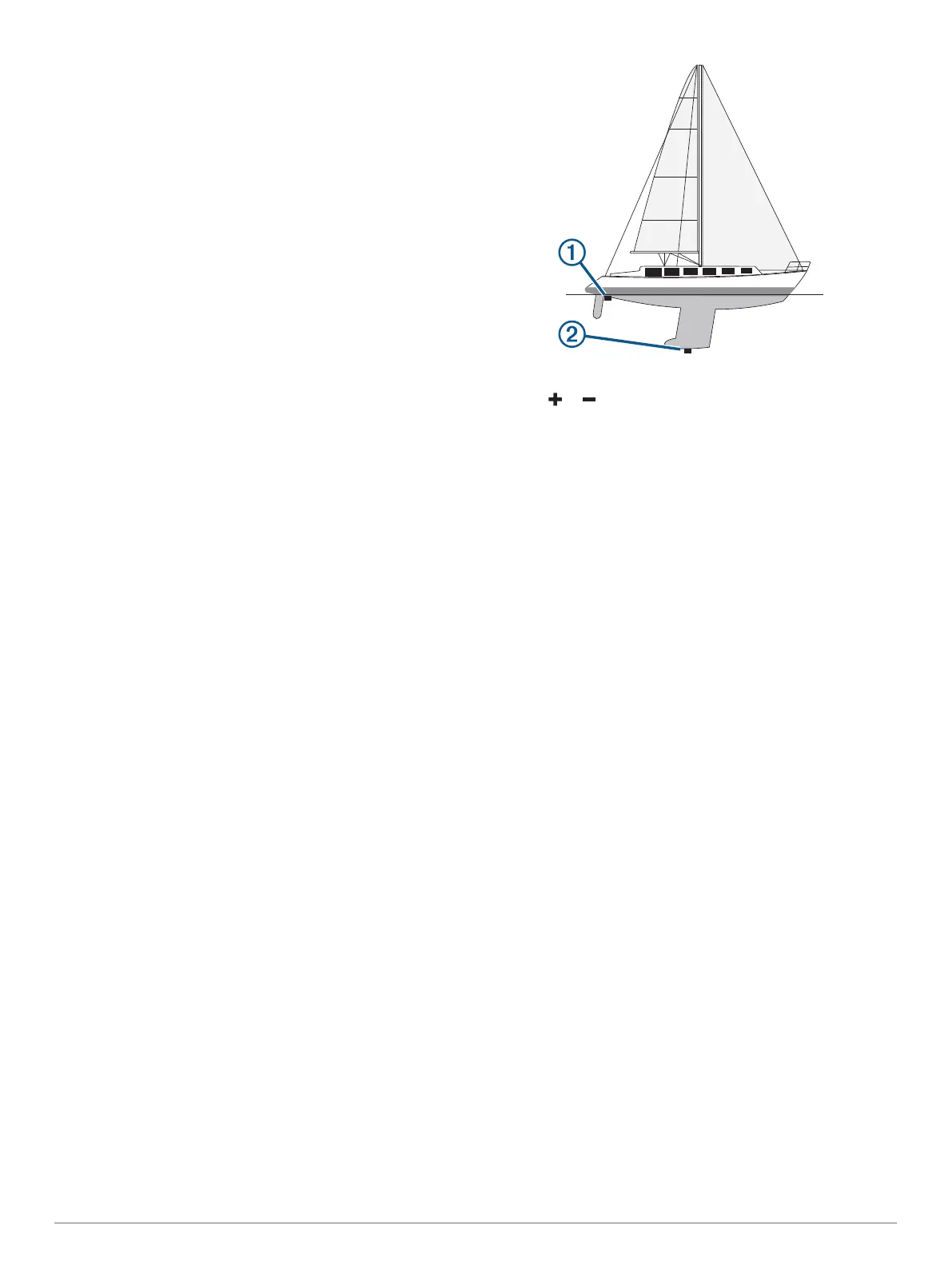
Setting the Keel Offset
You can enter a keel offset to compensate the surface reading
for the depth of a keel, making it possible to measure water
depth or depth below the keel instead of depth below the
transducer. Enter a positive number to offset for a keel. You can
enter a negative number to compensate for a large vessel that
may draw several feet of water.
NOTE: A buffer of 2 to 3 feet from the bottom of the keel is
recommended to ensure a safe distance from the keel to the
bottom.
1
Complete an action, based on the location of the transducer:
• If the transducer is installed at the water line
À
, measure
the distance from the transducer location to the keel of the
boat. Enter this value in steps 3 and 4 as a positive
number to display depth below keel.
• If the transducer is installed at the bottom of the keel
Á
,
measure the distance from the transducer to the water
line. Enter this value in steps 3 and 4 as a negative
number to display water depth. Enter a 0 in this value to
display depth below keel and depth below transducer.
2
Select Settings > My Vessel > Keel Offset.
3
Select or based on the location of the transducer.
4
Enter the distance measured in step 1.
Setting the Water Temperature Offset
You can set the temperature offset to compensate for the
temperature reading from a temperature-capable sensor.
1
Measure the water temperature using the temperature-
capable transducer that is connected to the device.
2
Measure the water temperature using a different
thermometer or temperature sensor that is known to be
accurate.
3
Subtract the water temperature measured in step 1 from the
water temperature measured in step 2.
This is the temperature offset. Enter this value in step 5 as a
positive number if the sensor connected to the device
measures the water temperature as being colder than it
actually is. Enter this value in step 5 as a negative number if
the sensor connected to the device measures the water
temperature as being warmer than it actually is.
4
Select Settings > My Vessel > Temp. Offset.
5
Use the arrow keys to enter water temperature offset
measured in step 3.
Calibrating a Water Speed Device
If you have a speed-sensing transducer connected to the
chartplotter, you can calibrate that speed-sensing device to
improve the accuracy of water-speed data displayed by the
chartplotter.
1
Select Settings > My Vessel > Calibrate Water Speed.
2
Follow the on-screen instructions.
If the boat is not moving fast enough or the speed sensor is
not registering a speed, a message appears.
3
Select OK, and safely increase the boat speed.
4
If the message appears again, stop the boat, and ensure the
speed-sensor wheel is not stuck.
5
If the wheel turns freely, check the cable connections.
6
If you continue to get the message, contact Garmin product
support.
Alarms Settings
Navigation Alarms
Select Settings > Alarms > Navigation.
14 Device Configuration




 To Next Page