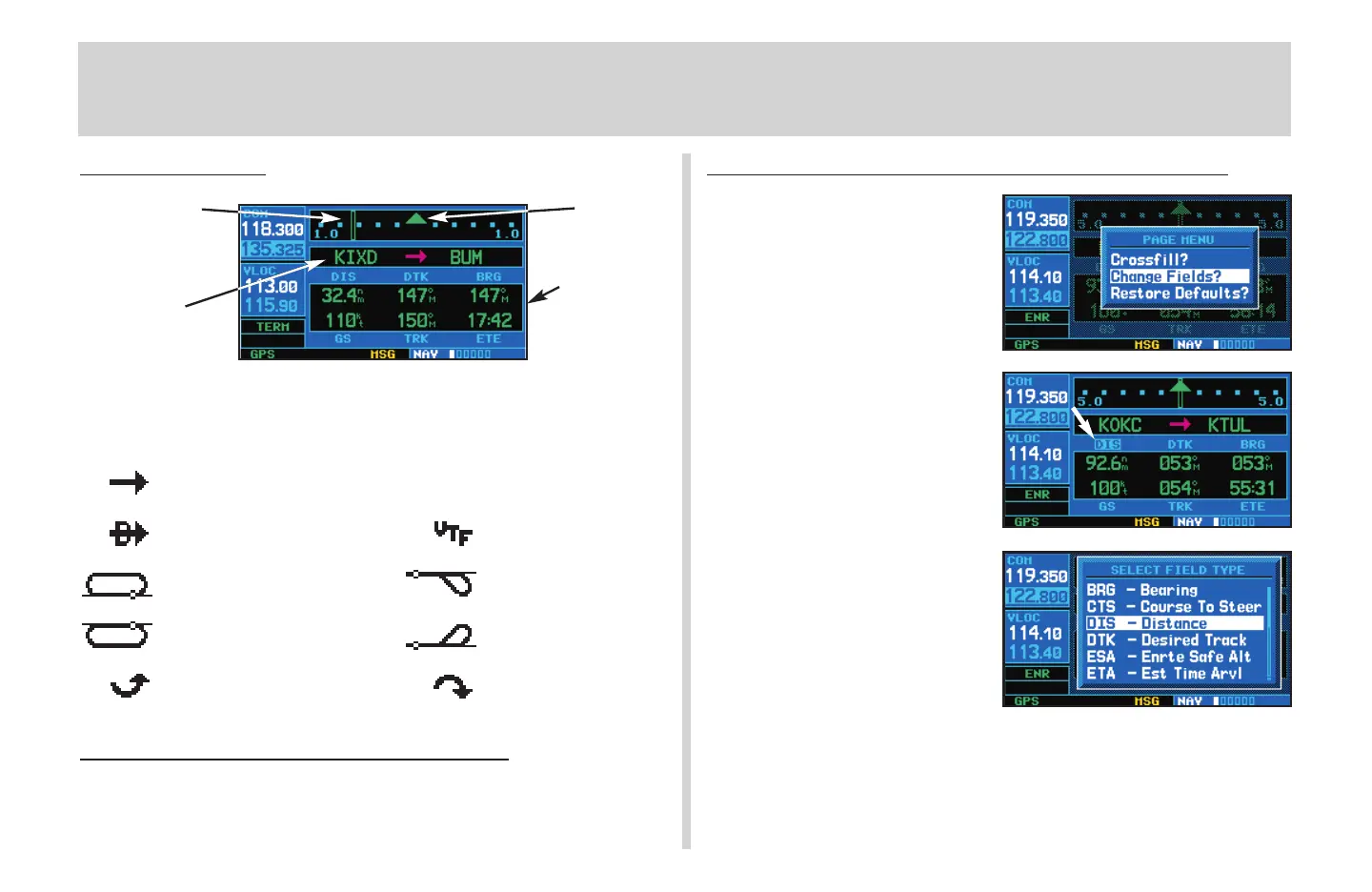
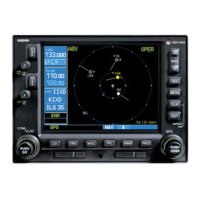
Default NAV Page
The following symbols are used (directly below the CDI) to depict the
active leg of a flight plan or direct-to:
Course to a Waypoint, or Desired Course between Two Waypoints
Direct-To a Waypoint Vectors-To-Final
Left-hand Holding Pattern Left Procedure Turn
Right-hand Holding Pattern Right Procedure Turn
DME Arc to the left DME Arc to the right
T
o Quickly Display the Default NAV Page
1. From any page, press and hold
c
for approximately two seconds.
To Select a Different Data Item for any Data Field
1. With the default NAV page displayed,
press the
m
key to display an
options menu.
2. Rotate the large right knob (
d
) to
highlight the Change Fields? option,
and press
E
to select this option.
3. Use the large right knob (
d
) to
highlight the data field you wish to
change.
4. Rotate the small right knob (
a
) to
display the list of available data
items. Continue rotating the small
right knob (
a
) to select the desired
data item from the list.
5. Press
E
to select the desired
data item and return to the default
NAV page.
6. Press the small right knob (
r
)
momentarily to remove the cursor
from the page.
Default NAV Page
8
TO/FROM
Flag
Course Deviation
Indicator (CDI)
Active Leg of
Flight Plan
User-selectable
Data Fields
430QR c.qxd 6/21/00 2:21 PM Page 8


 To Next Page