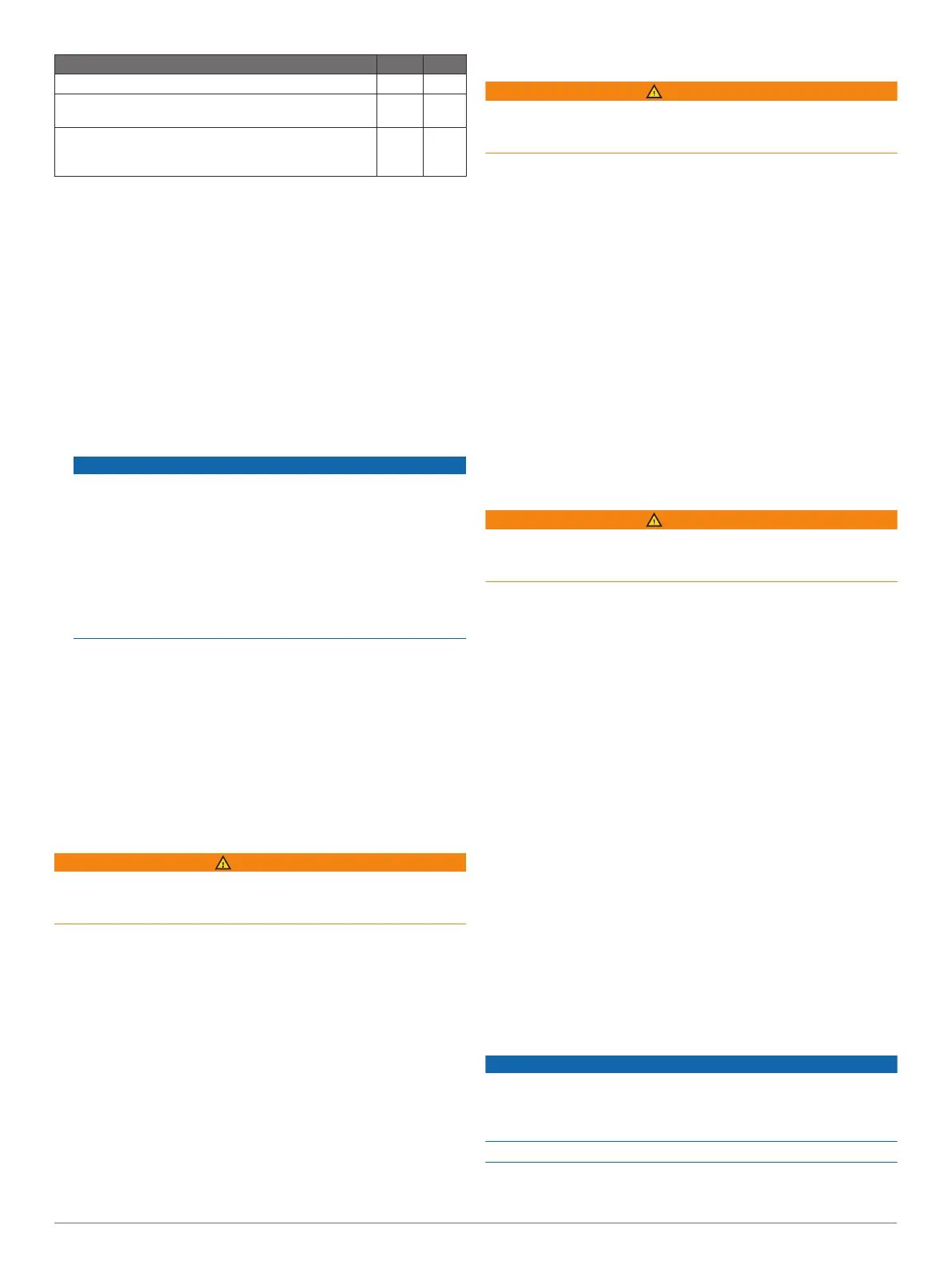
Feature Owner Guest
Push smart notifications Yes Yes
Automatically transfer user data, such as waypoints
and routes
Yes
Begin navigating to a specific waypoint or navigating a
specific route, and send that waypoint or route to the
GPSMAP A12 device
Yes Yes
Getting Started with the ActiveCaptain App
You can connect a mobile device to the GPSMAP A12 device
using the ActiveCaptain app. The app provides a quick and easy
way for you to interact with your GPSMAP A12 device and
complete such tasks as sharing data, registering, updating the
device software, and receiving mobile device notifications.
1
From the GPSMAP A12 device, select A/V, Gauges,
Controls > ActiveCaptain.
2
From the ActiveCaptain page, select Wi-Fi Network > Wi-Fi
> On.
3
Enter a name and password for this network.
4
Insert a memory card in the GPSMAP A12 device's card slot
(Inserting Memory Cards, page 2).
5
Select Set ActiveCaptain Card.
NOTICE
You might be prompted to format the memory card.
Formatting the card deletes all information saved on the card.
This includes any saved user data, such as waypoints.
Formatting the card is recommended, but not required.
Before formatting the card, you should save the data from the
memory card onto the device internal memory (Copying User
Data from a Memory Card, page 56). After formatting the
card for the ActiveCaptain app, you can transfer the user
data back to the card (Copying User Data to a Memory Card,
page 56).
Be sure the card is inserted each time you want to use the
ActiveCaptain feature.
6
From the application store on your mobile device, install and
open the ActiveCaptain app.
7
Bring the mobile device within 32 m (105 ft.) of the GPSMAP
A12 device.
8
From your mobile device settings, open the Wi‑Fi
®
connections page and connect to the Garmin device, using
the name and password you entered in the Garmin device.
Enabling Smart Notifications
WARNING
Do not read or reply to notifications while operating the vessel.
Failure to pay attention to the conditions on the water can result
in vessel damage, personal injury, or death.
Before your GPSMAP A12 device can receive notifications, you
must connect it to your mobile device and to the ActiveCaptain
app.
1
From the GPSMAP A12 device, select ActiveCaptain >
Smart Notifications > Enable Notifications.
2
Turn on Bluetooth
®
technology in the mobile device settings.
3
Bring the devices within 10 m (33 ft.) of each other.
4
From the ActiveCaptain app on the mobile device, select
Smart Notifications > Pair with Chartplotter.
5
Follow the on-screen instructions to pair the app to the
GPSMAP A12 device using Bluetooth technology.
6
When prompted, enter the key on your mobile device.
7
If necessary, adjust which notifications you receive in your
mobile device settings.
Receiving Notifications
WARNING
Do not read or reply to notifications while operating the vessel.
Failure to pay attention to the conditions on the water can result
in vessel damage, personal injury, or death.
Before your GPSMAP A12 device can receive notifications, you
must connect it to your mobile device and enable the Smart
Notifications feature (Enabling Smart Notifications, page 5).
When the Smart Notifications feature is enabled and your mobile
device receives a notification, a pop-up notification appears on
the GPSMAP A12 screen briefly.
NOTE: The available actions depend on the type of notification
and your phone operating system.
• To answer a phone call on your phone, select Answer.
TIP: Have your phone nearby. The phone call is answered on
your mobile phone, not on the chartplotter.
• To not answer the phone call, select Decline.
• To review the full message, select Review.
• To dismiss the pop-up notification, select OK or wait for the
notification to close automatically.
• To remove the notification from the chartplotter and your
mobile device, select Clear.
Managing Notifications
WARNING
Do not read or reply to notifications while operating the vessel.
Failure to pay attention to the conditions on the water can result
in vessel damage, personal injury, or death.
Before you can manage the notifications, you must enable the
Smart Notifications feature (Enabling Smart Notifications,
page 5).
When the Smart Notifications feature is enabled and your mobile
device receives a notification, a pop-up notification appears on
the GPSMAP A12 screen briefly. You can access and manage
the notifications from the ActiveCaptain screen.
1
Select ActiveCaptain > Smart Notifications > Messages.
A list of notifications appear.
2
Select a notification.
3
Select an option:
NOTE: The available options vary based on your mobile
device and the notification type.
• To dismiss and remove the notification from the
chartplotter and your mobile device, select Clear or
Delete.
NOTE: This does not delete the message from the mobile
device. This only dismisses and removes the notification.
• To call the phone number back, select Call Back or Dial.
Updating Software with the ActiveCaptain
App
If your device has Wi‑Fi technology, you can use the
ActiveCaptain app to download and install the latest software
updates for your device.
NOTICE
Software updates may require the app to download large files.
Regular data limits or charges from your Internet service
provider apply. Contact your Internet service provider for more
information about data limits or charges.
The installation process can take several minutes.
1
Connect the mobile device to the GPSMAP A12 device
(Getting Started with the ActiveCaptain App, page 5).
ActiveCaptain App 5


 To Next Page