Enabling AIS Transmission Test Alerts
To avoid a large number of test alerts and symbols in crowded
areas such as marinas, you can select to receive or ignore AIS
test messages. To test an AIS emergency device, you must
enable the chartplotter to receive test alerts.
1
Select Settings > Alarms > AIS.
2
Select an option:
• To receive or ignore Emergency Position Indicating Radio
Beacon (EPRIB) test signals, select AIS-EPIRB Test.
• To receive or ignore Man Overboard (MOB) test signals,
select AIS-MOB Test.
• To receive or ignore Search and Rescue Transponder
(SART) test signals, select AIS-SART Test.
Turning Off AIS Reception
AIS signal reception is turned on by default.
Select Settings > Other Vessels > AIS > Off.
All AIS functionality on all charts and 3D chart views is
disabled. This includes AIS vessel targeting and tracking,
collision alarms that result from AIS vessel targeting and
tracking, and the display of information about AIS vessels.
Chart Menu
NOTE: Not all settings apply to all charts. Some options require
premium maps or connected accessories, such as radar.
From a chart, select Menu.
Layers: Adjusts the appearance of the different items on the
charts (Chart Layers, page 11).
Quickdraw Contours: Turns on bottom contour drawing, and
allows you to create fishing map labels (Garmin Quickdraw
Contours Mapping, page 13).
Settings: Adjusts the chart settings (Chart Settings, page 12).
Edit Overlays: Adjusts the data shown on the screen
(Customizing the Data Overlays, page 3).
Chart Layers
The layers in the charts allow you to turn on and off and
customize features of the charts. Each setting is specific to the
chart or chart view being used.
NOTE: Not all settings apply to all charts and chartplotter
models. Some options require premium maps or connected
accessories.
From a chart, select Menu > Layers.
Chart: Shows and hides chart-related items (Chart Layer
Settings, page 11).
My Vessel: Shows and hides items relating to the boat (My
Vessel Layer Settings, page 11).
User Data: Shows and hides user data, such as waypoints,
boundaries, and tracks, and opens user data lists (User Data
Layer Settings, page 12).
Other Vessels: Adjusts how other vessels are shown (Other
Vessels Layer Settings, page 12).
Water: Shows and hides depth items (Water Layer Settings,
page 12).
Quickdraw: Shows and hides Garmin Quickdraw data (Garmin
Quickdraw Contours Settings, page 14).
Weather: Shows and hides weather-related items (Weather
Layer Settings, page 12).
Tracks: Shows and hides tracks on the 3D chart view.
Range Rings: Shows and configures the appearance of range
rings on the 3D chart view. Range Rings help you to visualize
distances in some chart views.
Chart Layer Settings
From a chart, select Menu > Layers > Chart.
Satellite Photos: Shows high-resolution satellite images on the
land or on both land and sea portions of the Navigation chart,
when certain premium maps are used (Showing Satellite
Imagery on the Navigation Chart, page 9).
Tides & Currents: Shows current station indicators and tide
station indicators on the chart (Showing Tides and Current
Indicators, page 9) and enables the tides and current slider,
which sets the time for which tides and currents are reported
on the map.
Navaids: Shows navigational aids on the chart.
Land POIs: Shows points of interest on land.
Photo Points: Shows camera icons for aerial photos (Viewing
Aerial Photos of Landmarks, page 9).
Service Points: Shows locations for marine services.
Depth: Adjusts the items on the depth layer (Depth Layer
Settings, page 11).
Restricted Areas: Shows information about restricted areas on
the chart.
Depth Layer Settings
From a chart, select Menu > Layers > Chart > Depth.
Depth Shading: Specifies an upper and lower depth to shade
between.
Shallow Shading: Sets the shades from the shoreline to the
specified depth.
Spot Depths: Turns on spot soundings and sets a dangerous
depth. Spot depths that are equal to or more shallow than the
dangerous depth are indicated by red text.
Fishing Contours: Sets the zoom level for a detailed view of
bottom contours and depth soundings and simplifies map
presentation for optimal use while fishing.
My Vessel Layer Settings
From a chart, select Menu > Layers > My Vessel.
Heading Line: Shows and adjusts the heading line, which is a
line drawn on the map from the bow of the boat in the
direction of travel (Setting the Heading Line and Angle
Markers, page 22).
Active Tracks: Shows the active track on the chart and opens
the Active Track Options menu.
Wind Rose: Shows a visual representation of the wind angle or
direction provided by the connected wind sensor and sets the
wind source.
Compass Rose: Shows a compass rose around your boat,
indicating compass direction oriented to the heading of the
boat. Enabling this option disables the Wind Rose option.
Vessel Icon: Sets the icon that represents your present location
on the chart.
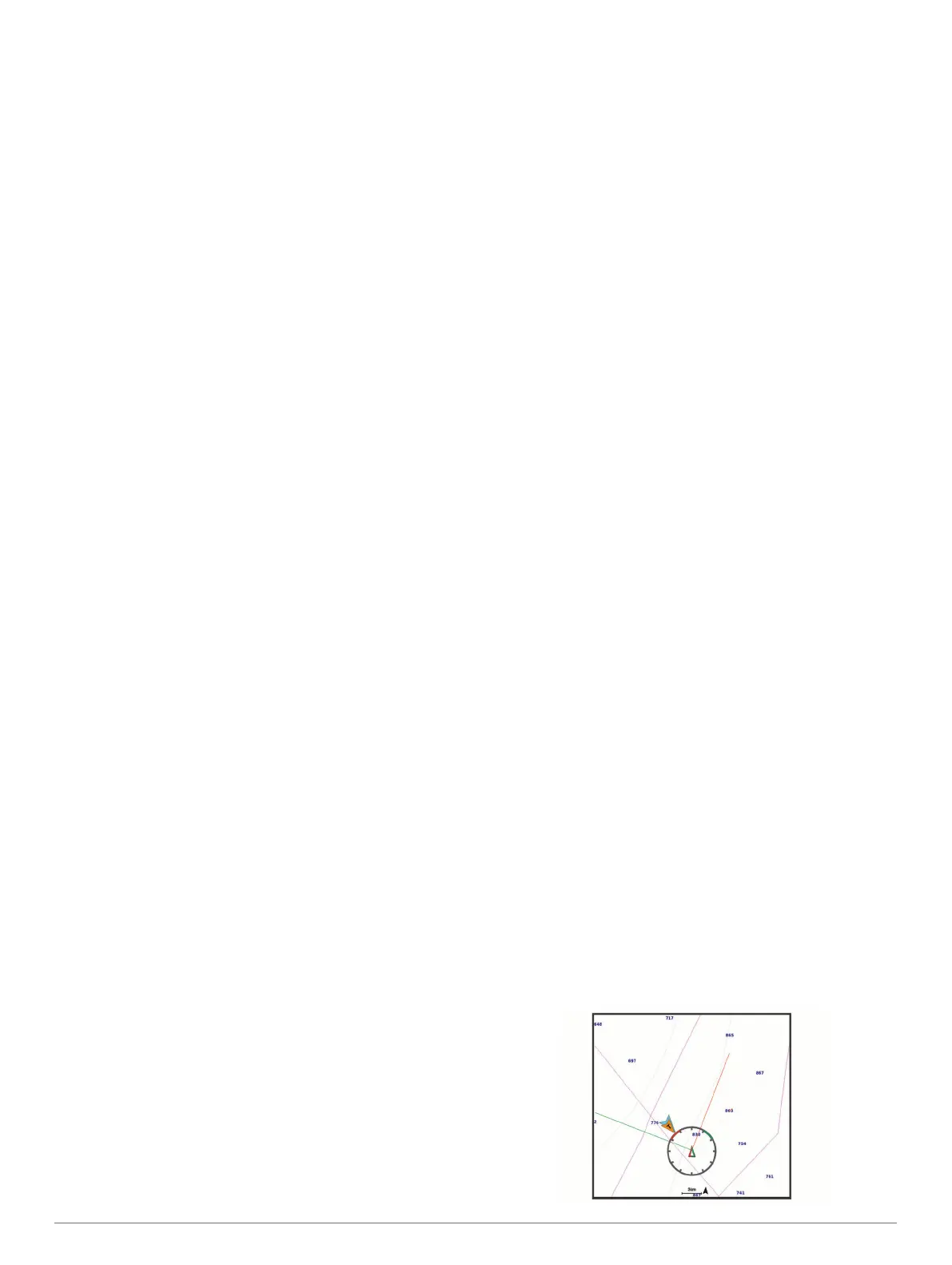
Laylines Settings
To use the laylines features, you must connect a wind sensor to
the chartplotter.
When in sailing modeSetting the Vessel Type, page 4, you can
display laylines on the navigation chart. Laylines can be very
helpful when racing.
Charts and 3D Chart Views 11


 To Next Page